 PH
PH-
Welcome to PHCorner Forums! Sign up for free to unlock full access and exclusive privileges, including:
- Asking questions about computer and mobile issues
- Discovering internet tips for your mobile network and computer
You are using an out of date browser. It may not display this or other websites correctly.
You should upgrade or use an alternative browser.
You should upgrade or use an alternative browser.
🔒 Closed Help, Pano gumawa ng bootable windows 7 pra sa ryzen 3?
- Thread starter Smirnoff
- Start date
- Status
- Not open for further replies.
shizumatzu
Grasshopper
How to Create a You do not have permission to view the full content of this post. Log in or register now. using Rufus
Rufus is one of several programs that allow you to create an “ISO image” on a USB stick. To create a bootable USB using Rufus, all you need is:- Your ISO of choice, e.g. Windows 10
- The latest version of Rufus (available online from You do not have permission to view the full content of this post. Log in or register now.)
- A spare USB stick (an 8GB USB should be plenty for Windows 10 but make sure you have one that’s large enough for the ISO you’re using)
Step 1: Open up Rufus and plug your clean USB stick into your computer.
Step 2: Rufus will automatically detect your USB. Click on Device and choose the USB you want to use from the drop-down menu.
Step 3: Make sure the Boot Selection option is set to Disk or ISO image then click Select. Rufus will open a file explorer browser window; locate the ISO image you want to burn onto the USB and select it.
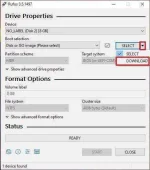
Note: In the latest version of Rufus (3.5), there’s now an option to download the ISO image for You do not have permission to view the full content of this post. Log in or register now. directly through Rufus, if you don’t already have a copy saved. Just click on the drop-down arrow next to the Select button and choose Download instead. This will open a dialogue box where you can choose which Windows version you want to download.
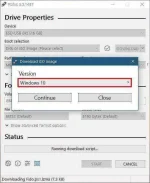
Step 4: You’ll generally want to create a Standard Windows installation, and Rufus will automatically detect the correct Partition Scheme based on your device, so keep the default settings as they are. However, you can also change these if you want.
Step 5: Give the Volume label a name of your choice, or leave it as it is, and once again leave the default settings for File system and Cluster size. Now click Start
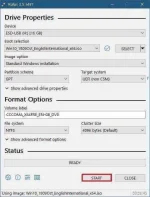
Note: if the USB you’re using isn’t large enough, you’ll get an error message you letting you know. In this case, you’ll need to start again with a different larger USB.
Step 6: You’ll get a warning saying that any data on the USB will be destroyed (this is normal). Click OK and Rufus will start creating the ISO image on the USB.
Step 7: Once Rufus has finished creating the You do not have permission to view the full content of this post. Log in or register now. on the USB, you can close it and your bootable USB is ready to go!
DL LINK: You do not have permission to view the full content of this post. Log in or register now.
ICE Coffee
⭐⭐☕⭐⭐
bakit windows 7 pa?? mag windows 10 ka na lang sana for security mo din,
pero btw paano guma wa ng bootable??
download ka lang ng windows 7 ISO at rufus tapos gawa ka ng bootable
pero btw paano guma wa ng bootable??
download ka lang ng windows 7 ISO at rufus tapos gawa ka ng bootable
shizumatzu
Grasshopper
ah windows 7 pala gamit mo.. need mo mag add ng usb 3.0 driver sa windows 7 iso file mo pra gumana.. midyo malalim ang steps nyan, kaya much better mag win10 ka nlang..
xxampotaxx
Leecher
bsod ang kalalabasan nyan, driver of ryzen 3 ay hindi na compatible sa windows 7..
ganito din nangyari sakin kahit anong pilit ko mag bluescreen BSOD kapag W7 install ko sa A10 ko , pheeew gusto ko sana W7 para sa Compshop ko peru yun di pwede kaya napilitan mag w10 , pangit kasi low budget lang compshop ko . beginner pabsod ang kalalabasan nyan, driver of ryzen 3 ay hindi na compatible sa windows 7..
- Status
- Not open for further replies.
About this Thread
-
11Replies
-
858Views
-
8Participants
Last reply from:
MonJr
MonJr
New Topics
-
Win 10 Home keys
- Started by Ali246
- Replies: 6
- ❓ Computer Discussion & Support
-
Windows 11 26H2
- Started by tholitz
- Replies: 0
- ❓ Computer Discussion & Support
-
Help po !!!! My account got häçked Facebook and steam
- Started by bujoy20
- Replies: 6
- ❓ Computer Discussion & Support
-
Replace laptop lcd
- Started by toki07
- Replies: 0
- ❓ Computer Discussion & Support
-
Mga bossing patulong po nahäçk account ko due to carelessness
- Started by Jeii
- Replies: 2
- ❓ Computer Discussion & Support
-
Computer parts na cheap
- Started by bjenjay1
- Replies: 1
- ❓ Computer Discussion & Support
-
PC APPS - remote or auto saved type and auto audio
- Started by babyzero
- Replies: 0
- ❓ Computer Discussion & Support
-
Data Recovery May Chance pa bato
- Started by tambay28
- Replies: 0
- ❓ Computer Discussion & Support
-
Capcut PC pasabit po
- Started by L A Z A
- Replies: 0
- ❓ Computer Discussion & Support
-
Download Youtube Video using CMD
- Started by BeerGin69
- Replies: 2
- ❓ Computer Discussion & Support
Trending Topics
Online now
- Members online
- 464
- Guests online
- 7,009
- Total visitors
- 7,473