 PH
PHA user-friendly OpenVPN GUI with SSL
Coded in C#
Requirements:
Kapag nag "Service Error" after installation kailangan irestart ang PC para magamit na ang vpn lalo na sa mga Windows 8 system (buggy kc ang win 8).
Nasa "Credits" tab ung details ko. Either magcomment kayo dito or PM nyo ako sa mga naging bugs/errors.
Tested na po sa Windows 7, Windows 8, at Windows 10 ang vpn kaya wag mabahala sa compatibility.
Ok lng na nastart ang SSL as long as hnd 127.0.0.1 or "localhost" ang remote IP mkakaconnect pa rin si vpn basta alive ang server at tama ang configuration.
~ JustPlaying
Coded in C#
Requirements:
- You do not have permission to view the full content of this post. Log in or register now.
- You do not have permission to view the full content of this post. Log in or register now.
- Confirm .NetFramework 4.5.1 installation
- Start UniOvpn installer to confirm if you need to install .NetFramework 4.5.1 otherwise continue the installation.
- Use the app
- Select an *.ovpn config (blue)
- Type in your username (green) and password (red) for that config
- Click Connect (yellow)
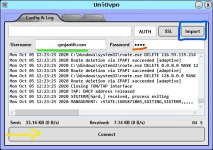
- Use the SSL feature (optional)
- In your configuration you can add an SSL tag as shown below
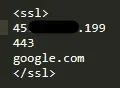
1st line is the host
2nd line is the SSL port
3rd line is the SNI payload - Of course change the remote host IP and Port

Note: change it if the server supports SSL for OpenVPN - After import it will automatically connect
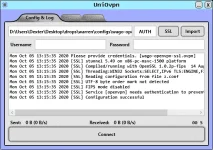
- In your configuration you can add an SSL tag as shown below
- Use the "auth-user-pass" tag (optional)
- In your configuration use the format as follows
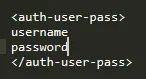
1st line is the username
2nd line is the password
- In your configuration use the format as follows
Kapag nag "Service Error" after installation kailangan irestart ang PC para magamit na ang vpn lalo na sa mga Windows 8 system (buggy kc ang win 8).
Nasa "Credits" tab ung details ko. Either magcomment kayo dito or PM nyo ako sa mga naging bugs/errors.
Tested na po sa Windows 7, Windows 8, at Windows 10 ang vpn kaya wag mabahala sa compatibility.
Ok lng na nastart ang SSL as long as hnd 127.0.0.1 or "localhost" ang remote IP mkakaconnect pa rin si vpn basta alive ang server at tama ang configuration.
~ JustPlaying