 PH
PHEagleEye04
Eternal Poster
Method 1 :- Windows Sandbox
Requirement :-
Features :-
Ok, so if you meet the above requirements than lets move ahead and enable Windows Sandbox
Step - 1 : Open "Turn Windows Features on or off" (or Done by typing ""control pane"" on search box, then "Program'" look for Turn Windows features On or Off)
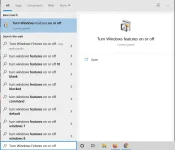
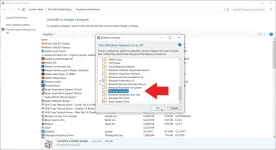
Step 2 : Look for Windows Sandbox and Enable it , after enabling it you have to restart your system
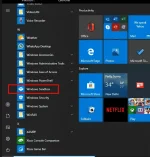
Step 3 : Open Start Menu and Look for Sandbox and open it
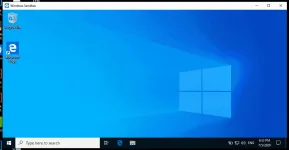
Step 4 : Now it will take some time and open a Windows 10 Interface
Step 5 : Now copy the software from main system to this Windows Sandbox which you want to test, you can also download software through Edge on Windows Sandbox
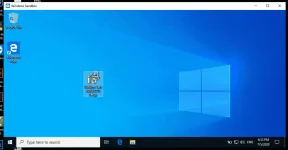
Step 6 : Now Install the software and apply any crack/ρá†ch to it and open it afterwards
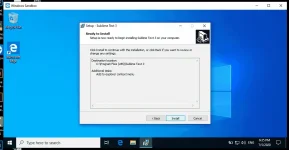
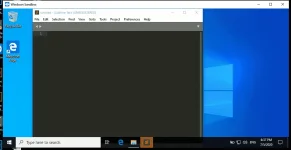
Step 7 : Now if you don't feel any issue with the program and it works just fine , than you can install it on your system, if you find issues on software running or crack/ρá†ch not working or feel some lags or adware or häçk issues on that sandbox than don't install the software on main system.
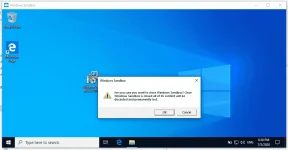
Step 8 : After Successfully Testing, just close the sandbox windows and it will destroy all data.
Other Methods :- There are many ways you can achieve the same process, so below i am mentioning just the methods which you can use beside this, you can get many info on google for their uses and all.
Method 2 :- Virtual Machine
You can use any of the virtual machine software and install a window on it and test software's on that.
Software's :-
Pros :-
Method 3 :- Using Sandbox Software's
There are many software's available which lets you create a separate sandbox environment on your system for testing software's
Software's :-
Pros :-
Requirement :-
- Windows 10 Version 1903 and above (Pro and Enterprise Edition)
- Your system must have virtualization enabled
Features :-
- Windows 10 Built in Functionality
- Small in Size and Easy to Use
- Data gets Destroyed on Closing the Sandbox
- Provides Safe Environment for Testing Software's
- Light Weight and Takes around 1-2 GB space for Windows 10 Sandbox installation and on closing the Sandbox it restores that space
Ok, so if you meet the above requirements than lets move ahead and enable Windows Sandbox
Step - 1 : Open "Turn Windows Features on or off" (or Done by typing ""control pane"" on search box, then "Program'" look for Turn Windows features On or Off)
Step 2 : Look for Windows Sandbox and Enable it , after enabling it you have to restart your system
Step 3 : Open Start Menu and Look for Sandbox and open it
Step 4 : Now it will take some time and open a Windows 10 Interface
Step 5 : Now copy the software from main system to this Windows Sandbox which you want to test, you can also download software through Edge on Windows Sandbox
Step 6 : Now Install the software and apply any crack/ρá†ch to it and open it afterwards
Step 7 : Now if you don't feel any issue with the program and it works just fine , than you can install it on your system, if you find issues on software running or crack/ρá†ch not working or feel some lags or adware or häçk issues on that sandbox than don't install the software on main system.
Step 8 : After Successfully Testing, just close the sandbox windows and it will destroy all data.
Other Methods :- There are many ways you can achieve the same process, so below i am mentioning just the methods which you can use beside this, you can get many info on google for their uses and all.
Method 2 :- Virtual Machine
You can use any of the virtual machine software and install a window on it and test software's on that.
Software's :-
- Virtual Box :- You do not have permission to view the full content of this post. Log in or register now.
- VMWare :- You do not have permission to view the full content of this post. Log in or register now.
Pros :-
- Separate and Safe Environment
- Heavy on System
- Needs Separate Windows Installation
- Takes large Space
- Slow on Performance
Method 3 :- Using Sandbox Software's
There are many software's available which lets you create a separate sandbox environment on your system for testing software's
Software's :-
- Sandboxie :- You do not have permission to view the full content of this post. Log in or register now.
- Shadow Defender :- You do not have permission to view the full content of this post. Log in or register now.
Pros :-
- Small on Size
- Quick setup and start
- Easily Destroy the Sandbox Data
- Some users find it hard to understand their working and functionality