PH
PHPHC-Warning
Honorary Poster
Guys sino dito marunong mag admin access ng globe at home
B312-939 modem
B312-939 modem
Pwede ba yan sa android o pc lang1. Go to 192.198.254.254
2. Login using your credentials
3. Device Setting
4. Advance Settings
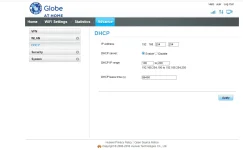
5. Click DHCP
6. In the url address bar you will see You do not have permission to view the full content of this post. Log in or register now. change the #router_setting using one of your preferred setting in the list below.
7. Example: You do not have permission to view the full content of this post. Log in or register now.
8. Press enter on the keyboard and now you can configure or change a setting.
9. Apply. (If the device asks for a “reboot/restart” just click okay.)
Note: make sure to always click DHCP before changing the url.
Here are the list of settings and their function:
#apn_setting - APN Setting
#net_lockpci - Cell ID Locking
#flow_setting - Internet / Data Limiter
#nat - NAT Disable/Enable
#l2tp - Virtual Private Network
#unlock - Input Network Unlock Code
#mcc_mnc_locking - Network Lock Disable/Enable(Openline) - Popular Setting
#frequency - Frequency Band Selection - Popular Setting
#system_upgrade - Firmware Upgrade
#net_select - Network Selection (4G/3G/2G)
#ussd - USSD Dialer (works on 3G connection only)
Credits to Keith Rivera YT Channel for the tutorial.
BTW thanks bro sa info1. Go to 192.198.254.254
2. Login using your credentials
3. Device Setting
4. Advance Settings
5. Click DHCP
6. In the url address bar you will see You do not have permission to view the full content of this post. Log in or register now. change the #router_setting using one of your preferred setting in the list below.
7. Example: You do not have permission to view the full content of this post. Log in or register now.
8. Press enter on the keyboard and now you can configure or change a setting.
9. Apply. (If the device asks for a “reboot/restart” just click okay.)
Note: make sure to always click DHCP before changing the url.
Here are the list of settings and their function:
#apn_setting - APN Setting
#net_lockpci - Cell ID Locking
#flow_setting - Internet / Data Limiter
#nat - NAT Disable/Enable
#l2tp - Virtual Private Network
#unlock - Input Network Unlock Code
#mcc_mnc_locking - Network Lock Disable/Enable(Openline) - Popular Setting
#frequency - Frequency Band Selection - Popular Setting
#system_upgrade - Firmware Upgrade
#net_select - Network Selection (4G/3G/2G)
#ussd - USSD Dialer (works on 3G connection only)
Credits to Keith Rivera YT Channel for the tutorial.
Not work sakin bro1. Go to 192.198.254.254
2. Login using your credentials
3. Device Setting
4. Advance Settings
5. Click DHCP
6. In the url address bar you will see You do not have permission to view the full content of this post. Log in or register now. change the #router_setting using one of your preferred setting in the list below.
7. Example: You do not have permission to view the full content of this post. Log in or register now.
8. Press enter on the keyboard and now you can configure or change a setting.
9. Apply. (If the device asks for a “reboot/restart” just click okay.)
Note: make sure to always click DHCP before changing the url.
Here are the list of settings and their function:
#apn_setting - APN Setting
#net_lockpci - Cell ID Locking
#flow_setting - Internet / Data Limiter
#nat - NAT Disable/Enable
#l2tp - Virtual Private Network
#unlock - Input Network Unlock Code
#mcc_mnc_locking - Network Lock Disable/Enable(Openline) - Popular Setting
#frequency - Frequency Band Selection - Popular Setting
#system_upgrade - Firmware Upgrade
#net_select - Network Selection (4G/3G/2G)
#ussd - USSD Dialer (works on 3G connection only)
Credits to Keith Rivera YT Channel for the tutorial.

Salamat po tool ba yun pang pc?try nyo generate mac address nyo sa old mac generator ng bm622i. kasi diba generated.mac lang ginagawa nila. wala naman mawawala kung susubukan.
Magkano bayad mo kanino?ako nga nag bayad nalang hrap kasi ng signal samin kailangan palakasin. tagal pa lalabas ang tools hehe
Paano ma download, ang mac generator?try nyo generate mac address nyo sa old mac generator ng bm622i. kasi diba generated.mac lang ginagawa nila. wala naman mawawala kung susubukan.
Nag pa admin access ako P250 ang binayad ko segundo lang na send na sakin ang admin password. Simple lang siguro gawin. Nagamit ko naman kasi lumakas signal ng wifi ng costumer ko..Paano ma download, ang mac generator?