PH
PH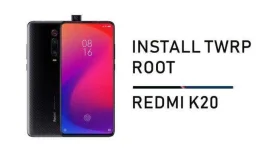
Redmi K20 series is now coming to some new markets after the initial launch in China. The Redmi K20 Pro carries top-notch You do not have permission to view the full content of this post. Log in or register now. that features single core at 2.84GHz, three cores at 2.42GHz and the remaining four cores at 1.8GHz. The device is available with 6/8GB RAM and 64/128/256 GB Internal storage. In optics, there’s a triple rear camera module with 48MP+8MP+13MP primary camera and a 20 MP front camera for selfies. The device carries a premium look and has a pop-up module housing a front selfie camera. The device carries a connectivity option such as Wi-Fi 802.11 a/b/g/n/ac, Bluetooth v5.00, NFC, Infrared, USB Type-C, 3G, and 4G. The phone includes accelerometer, ambient light sensor, compass/magnetometer, gyroscope, proximity sensor, and fingerprint sensor.
Pre-requisites
- Make sure you have unlocked the bootloader of Redmi K20 Pro.
- Download You do not have permission to view the full content of this post. Log in or register now. on PC.
- Download TWRP recovery image.
- Download Chainfire’s SuperSu
- Backup important data on your PC or any external media.
- You need a Laptop or PC.
- Ensure to keep at least 50% battery.
Follow the steps below carefully, as missing any step would result in damaging the phone.
- Extract ADB tools in a folder.
- Download TWRP and move it into the extracted TWRP folder.
- Now, Enable Developer Mode option by heading to the Settings>About Phone>Build Number and tap it 7 times to enable developer option.
- Enable USB Debugging mode by heading to the Settings>Develper Option>Enable Debugging mode.
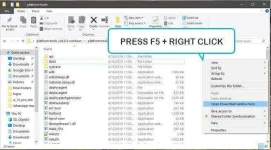
- Open command prompt in the extracted TWRP folder by pressing Shift + Right Click on the mouse.
- Power off the device and then boot your device into the fastboot mode by pressing the power + volume up button simultaneously.
- Connect your device with PC via USB cable.
- Verify the device’s connectivity status by executing the command below
adb devices
- Type the command below to reboot into bootloader:
fastboot reboot bootloader
- Once into the bootloader mode, flash the TWRP by the following command. (Note: Replace the TWRP.img with the name of recovery).fastboot flash twrp.img
- Once the installation is completed. You can type the command to reboot your device by typing:fastboot reboot
Steps to Root Redmi K20 Pro with SuperSu
SuperSu is a zip file by chainfire which allows users to gain root access. To flash it on the Redmi K20 Pro, follow the procedure below:
- Download the latest SuperSu zip on your Phone, and then move it to the rot of the device.
- Power off the Redmi K20 and then hold volume up + power button simultaneously to boot into the recovery.
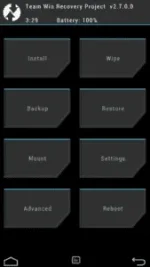
- Once in the TWRP recovery, press ‘Install‘ and then browse the SuperSu file
- w flash the SuperSu zip after swiping the slider below.
- After flashing, reboot your device and enjoy.