PH
PHPHC-CoronaV19
Forum Veteran
Dahil d pa tapos ang qaurantine mga lods share ko muna sa inyo kung paano magrecover ng formatted Hard Drive/SD Card/USB Using CMD.
so umpisahan na natin .
☆
■Notice:You must be very careful while using CMD command line to recover data from formatted hard disk, SD card, or USB because misoperation can cause more severe problems. If CMD fails to find your lost files, or if don't know how to use the CMD, don't fret, you can skip this method and directly use the format hard drive recovery software to help you do it without effort.
☆
●
1. Ikonekta ang iyong Hard disk / SD card / USB sa system. Mag-right-click sa icon ng Windows at piliin ang "Paghahanap".(Search)
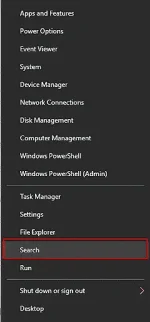
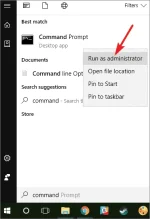
2. Type: command prompt at pag-right click sa Command Prompt, piliin ang "Run as administrator". I-click ang "Yes" upang patakbuhin ang Command Prompt bilang administrator. .
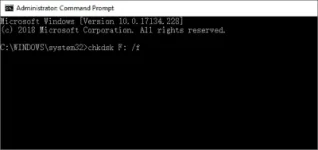
3. Type: chkdsk F: /f in Command Prompt and hit Enter. (Replace F: with the drive letter of the device where you lost files or data.)
4. Type: Y and hit Enter to continue.

5. Type: F and hit Enter again.
Type: F:\>attrib -h -r -s /s /d . and hit Enter. (Replace F with the drive letter of the device where you lost files or data.)

Pagkatapos nito, ang iyong mga nawalang mga file ay makikita at mai-save sa isang bagong nilikha folder sa SD memory card, USB drive o hard drive. Maaari mong baguhin ang extension ng file pabalik sa isang normal na format at pagkatapos ay muling gagamitin muli ang mga nahanap na file.
Done
Goodluck mga lods and enjoy
so umpisahan na natin .
☆
■Notice:You must be very careful while using CMD command line to recover data from formatted hard disk, SD card, or USB because misoperation can cause more severe problems. If CMD fails to find your lost files, or if don't know how to use the CMD, don't fret, you can skip this method and directly use the format hard drive recovery software to help you do it without effort.
☆
●
1. Ikonekta ang iyong Hard disk / SD card / USB sa system. Mag-right-click sa icon ng Windows at piliin ang "Paghahanap".(Search)
2. Type: command prompt at pag-right click sa Command Prompt, piliin ang "Run as administrator". I-click ang "Yes" upang patakbuhin ang Command Prompt bilang administrator. .
3. Type: chkdsk F: /f in Command Prompt and hit Enter. (Replace F: with the drive letter of the device where you lost files or data.)
4. Type: Y and hit Enter to continue.
5. Type: F and hit Enter again.
Type: F:\>attrib -h -r -s /s /d . and hit Enter. (Replace F with the drive letter of the device where you lost files or data.)
Pagkatapos nito, ang iyong mga nawalang mga file ay makikita at mai-save sa isang bagong nilikha folder sa SD memory card, USB drive o hard drive. Maaari mong baguhin ang extension ng file pabalik sa isang normal na format at pagkatapos ay muling gagamitin muli ang mga nahanap na file.
Done
Goodluck mga lods and enjoy