 PH
PHINSTRUCTIONS
Import Spotify Music or Spotify Playlist
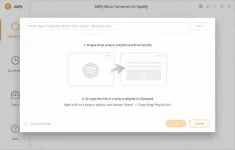
Launch Sidify program. Then click "+" or "Click Here to Add Audio" to add Spotify song or playlist. After that, you can directly drag and drop music or playlist from Spotify to Sidify pop-up adding window. Or right-click on any playlist or track, press "Share", click "Copy Playlist/Song Link" and then paste the link to Sidify adding music window.
Choose Output Format
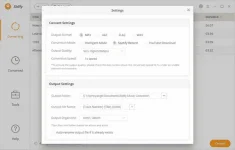
Click the setting button on the upper right of Sidify. A new window would pop up and here you can choose output format as MP3, AAC, FLAC or WAV, as well as adjust the output quality up to 320 Kbps.
Tips: here you can also change the output path if needed, as well as specify output folders organized by Artist, Album, Artist/ Album, Album/ Artist or None.
Start Converting Spotify Music
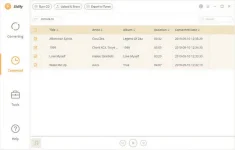
Once everything is ready, you can click "Convert" button to start converting Spotify music to plain format. Wait for a while till the conversion is done.
You do not have permission to view the full content of this post. Log in or register now.
Import Spotify Music or Spotify Playlist
Launch Sidify program. Then click "+" or "Click Here to Add Audio" to add Spotify song or playlist. After that, you can directly drag and drop music or playlist from Spotify to Sidify pop-up adding window. Or right-click on any playlist or track, press "Share", click "Copy Playlist/Song Link" and then paste the link to Sidify adding music window.
Choose Output Format
Click the setting button on the upper right of Sidify. A new window would pop up and here you can choose output format as MP3, AAC, FLAC or WAV, as well as adjust the output quality up to 320 Kbps.
Tips: here you can also change the output path if needed, as well as specify output folders organized by Artist, Album, Artist/ Album, Album/ Artist or None.
Start Converting Spotify Music
Once everything is ready, you can click "Convert" button to start converting Spotify music to plain format. Wait for a while till the conversion is done.
You do not have permission to view the full content of this post. Log in or register now.

