 PH
PHQOU HIT MEI NGAO
Forum Guru
- The first step is to download the installer from You do not have permission to view the full content of this post.
Log in or register now.. On your phone, open the Browser app, visit the site and hit the download button. You'll then have some prompts to click through since you're downloading an app from somewhere outside the approved Huawei app store. You'll also need to give it permission to access your internal storage when it first starts up.
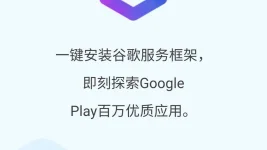
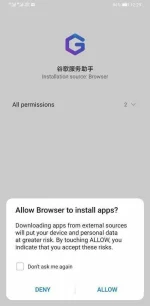
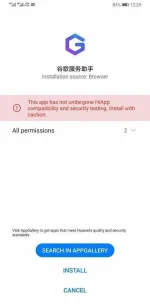
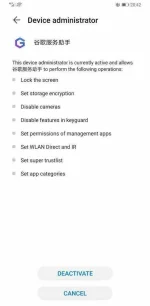
- For the next step, the instructions for the next step are in Chinese, but the process is pretty simple. The app needs to become a device administrator to update the blank stub apps already in the phone's firmware with fully functional Google apps and services. And to do this, it needs your permission. Tap the blue button. You'll see exactly what the app will be able to do, temporarily, while it installs your Google apps. If you're happy with this, tap "Activate."
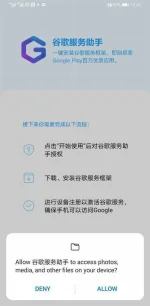
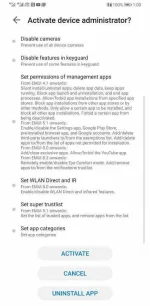
- Next, wait for the app to download Google Mobile Services. It'll download all the background components, then, finally, the Google Play Store. When it's done, the button at the bottom of the screen will turn blue, and you can tap it to proceed.
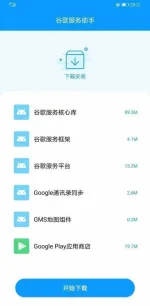
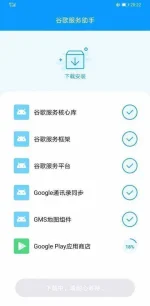
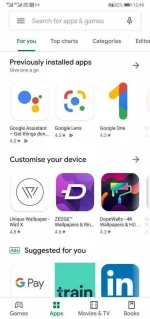
- Once it's done, you're pretty much good to go. Google Play Protect and other services will spring to life in the background, and once things have settled down you'll be able to sign in and use the Play Store to download all the other Google apps — things like Chrome, Google Maps and Gmail. It's a good idea to reboot your phone before starting to use them.
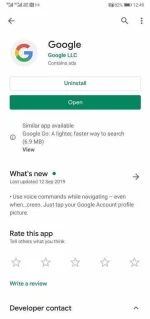
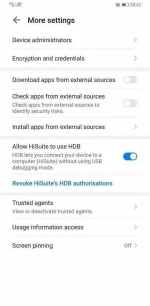
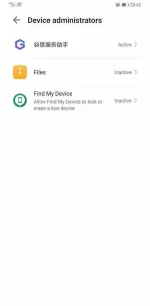
- You'll also want to remove the Google Service Assistant app, since there's no reason to keep it around. First, go to Settings > Security > More Settings > Device Administrators and remove its admin permissions. Then you can simply uninstall it from the launcher as normal — find it on your home screen or the app drawer, long-press, and tap "Uninstall."
You do not have permission to view the full content of this post. Log in or register now.