 PH
PH-
Welcome to PHCorner Forums! Sign up for free to unlock full access and exclusive privileges, including:
- Asking questions about computer and mobile issues
- Discovering internet tips for your mobile network and computer
You are using an out of date browser. It may not display this or other websites correctly.
You should upgrade or use an alternative browser.
You should upgrade or use an alternative browser.
🔒 Closed How to change system language
- Thread starter PYTH
- Start date
-
- Tags
- laptop asking
- Status
- Not open for further replies.
SpectaculairE
Forum Guru
Nag google ako at nakita ko to:
Visit mo to: You do not have permission to view the full content of this post. Log in or register now.
Turning off language syncing
If you're using a Microsoft account, the language settings will sync across devices. In the case that you're planning to change the region and language settings for one computer, you should disable the option to sync these settings.
To disable language syncing on Windows 10, use these steps:
Changing system language
To change the system language on your computer, close any running applications, and then use these steps:
Visit mo to: You do not have permission to view the full content of this post. Log in or register now.
Turning off language syncing
If you're using a Microsoft account, the language settings will sync across devices. In the case that you're planning to change the region and language settings for one computer, you should disable the option to sync these settings.
To disable language syncing on Windows 10, use these steps:
- Open Settings.
- Click on Accounts.
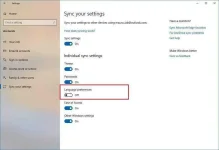
- Click on Sync your settings.
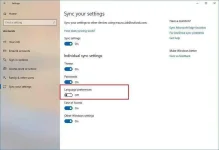
- Under the "Individual sync settings" section, turn off the "Language preferences" toggle switch.
Changing system language
To change the system language on your computer, close any running applications, and then use these steps:
- Open Settings.
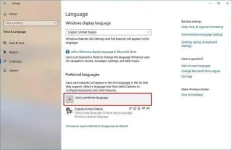
- Click on Time & Language.
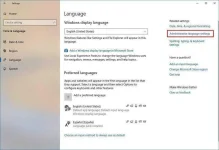
- Click on Language.
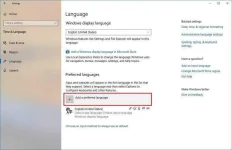
- Under the "Preferred languages" section, click the Add a preferred language button.
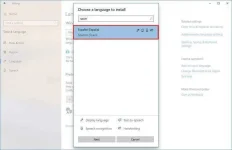
- Search for the language that you want to use on Windows 10.
- Select the language package from the result.
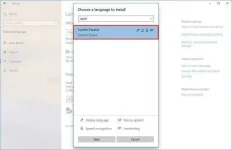
- Click the Next button.
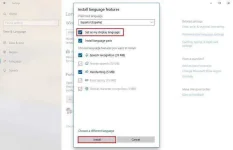
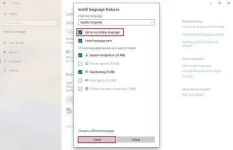
- Check the Set as my display language option.
- Check the Install language pack option.
- Check or clear the additional language features as needed.
- Click the Install button.
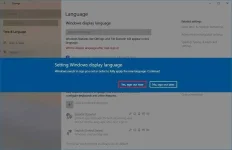
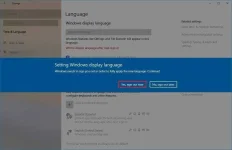
- Click the Yes, sign out now button.
- Sign back into your Windows 10 account.
- Open Settings.
- Click on Time & Language.
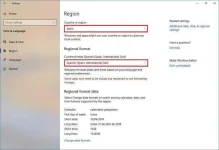
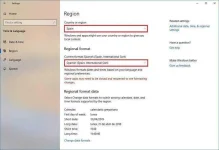
- Click on Region.
- Use the "Country or region" drop-down menu to select your geographical location if different from your current settings.
- Under the "Regional format" section, use the drop-down menu to select the correct formats for dates and times if different from your region.
- Click on Language.
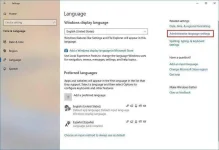
- Click the Administrative language settings option from the right pane, under the "Related settings" section.
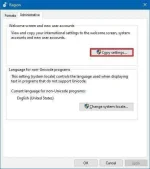
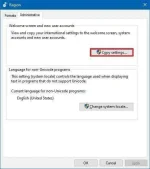
- In the "Administrative" tab, click the Copy settings button.
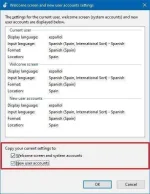
- Under the "Copy your current settings to" section, check the Welcome screen and system accounts and New user accounts options.
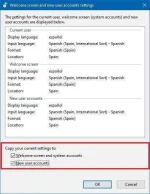
- Click the OK button.
- Click the OK button again.
- Click the Restart now button.
Sorry po.2016, estab, haii bawal po all caps :/
SpectaculairE
Forum Guru
Nagawa mo na ba yung nilagay ko? Okay na language mo?Sorry po.
Salamat po try ko to. Lagi kase nag fi-failed kapag dinownload ko na language package eh. Thank po ulit.Nag google ako at nakita ko to:
Visit mo to: You do not have permission to view the full content of this post. Log in or register now.
Turning off language syncing
If you're using a Microsoft account, the language settings will sync across devices. In the case that you're planning to change the region and language settings for one computer, you should disable the option to sync these settings.
To disable language syncing on Windows 10, use these steps:
Once you complete the steps, you can change the language settings without affecting the settings on other devices.
- Open Settings.
- Click on Accounts.
- Click on Sync your settings.
- Under the "Individual sync settings" section, turn off the "Language preferences" toggle switch.
Changing system language
To change the system language on your computer, close any running applications, and then use these steps:
- Open Settings.
- Click on Time & Language.
- Click on Language.
- Under the "Preferred languages" section, click the Add a preferred language button.
- Search for the language that you want to use on Windows 10.
- Select the language package from the result.
- Click the Next button.
- Check the Set as my display language option.
- Check the Install language pack option.
- Check or clear the additional language features as needed.
- Click the Install button.
- Click the Yes, sign out now button.
- Sign back into your Windows 10 account.
- Open Settings.
- Click on Time & Language.
- Click on Region.
- Use the "Country or region" drop-down menu to select your geographical location if different from your current settings.
- Under the "Regional format" section, use the drop-down menu to select the correct formats for dates and times if different from your region.
- Click on Language.
- Click the Administrative language settings option from the right pane, under the "Related settings" section.
- In the "Administrative" tab, click the Copy settings button.
- Under the "Copy your current settings to" section, check the Welcome screen and system accounts and New user accounts options.
- Click the OK button.
- Click the OK button again.
- Click the Restart now button.
SpectaculairE
Forum Guru
Okay, sabihan mo na lang kamiSalamat po try ko to. Lagi kase nag fi-failed kapag dinownload ko na language package eh. Thank po ulit.
- Status
- Not open for further replies.
Similar threads
-
-
HELP HOW TO CHANGE PASS PLDT WIFI FIBR PREPAID PASSWORD?
- Started by -Stellar
- Replies: 2
-
-
-
❓ Help How to change Wifi Repeater password?
- Started by andrewardsss
- Replies: 0
About this Thread
-
8Replies
-
623Views
-
3Participants
Last reply from:
chonakim
chonakim
New Topics
-
Win 10 Home keys
- Started by Ali246
- Replies: 6
- ❓ Computer Discussion & Support
-
Windows 11 26H2
- Started by tholitz
- Replies: 0
- ❓ Computer Discussion & Support
-
Help po !!!! My account got häçked Facebook and steam
- Started by bujoy20
- Replies: 6
- ❓ Computer Discussion & Support
-
Replace laptop lcd
- Started by toki07
- Replies: 0
- ❓ Computer Discussion & Support
-
Mga bossing patulong po nahäçk account ko due to carelessness
- Started by Jeii
- Replies: 2
- ❓ Computer Discussion & Support
-
Computer parts na cheap
- Started by bjenjay1
- Replies: 1
- ❓ Computer Discussion & Support
-
PC APPS - remote or auto saved type and auto audio
- Started by babyzero
- Replies: 0
- ❓ Computer Discussion & Support
-
Data Recovery May Chance pa bato
- Started by tambay28
- Replies: 0
- ❓ Computer Discussion & Support
-
Capcut PC pasabit po
- Started by L A Z A
- Replies: 0
- ❓ Computer Discussion & Support
-
Download Youtube Video using CMD
- Started by BeerGin69
- Replies: 2
- ❓ Computer Discussion & Support
Trending Topics
Online now
- Members online
- 898
- Guests online
- 5,808
- Total visitors
- 6,706