PH
PHHow can I fix the Memory Management BSOD error?
Here are two ways fixes for you to try. You may not have to try them all. Just work your way down the list until you find the one that works for you.
To try these fixes you need to be logged into Windows on the problem computer. If you can’t log into Windows normally, shut down your computer, You do not have permission to view the full content of this post. Log in or register now., then try the fix.
In a nutshell, memory management is the process that manages memory usage in your computer.
It keeps track of every byte of memory in your computer, and whether it’s free or being used. It decides how much memory to allocate to certain processes (including the programs you launch), and when to give it to them. It also ‘frees up’ memory when you close a program by marking it as available to be used by something else.
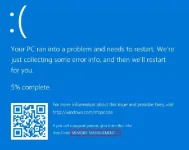
But like all processes running on your computer, sometimes it can crash. And when it does, you’ll probably see the MEMORY MANAGEMENT error message soon after.
Why would I have the MEMORY MANAGEMENT BSOD error?
According to Microsoft, the Memory Management blue screen of death error appears when there’s been a severe memory management error.
Sounds horrible, doesn’t it? But don’t worry – it’s not fatal.
Tools such as WhoCrashed and BlueScreenView can help you figure out what’s causing the horrifying BSOD on your computer. But chances are it will be one of these:
A common cause of the MEMORY MANAGEMENT error is a damaged, outdated or incorrect video card driver. And so to fix the error you need to update your video card driver to the most recent correct version.
There are two ways to update the driver: manually and automatically.
Manual driver update – To manually update the driver, head to the video card manufacturer’s website and search for the most recent correct video driver. Unless you’re getting the error on a laptop, in which case you should always go to the laptop manufacturer’s website. The video drivers provided by the chipset or hardware manufacturer may not include the customized features
Fix 2: Run a disk check
The BSOD error could also be caused by a corrupted NTFS volume. Here’s how to resolve the problem.
1) On your keyboard, hold down the Windows logo key and press the S key to bring up the search box, and type cmd.
2) Right-click Command Prompt and select Run as administrator
3) Type chkdsk /f /r, and press Enter on your keyboard
4) When asked “Would you like to schedule this volume to be checked next time the system restarts?”, press Y.
5) Exit the Command Prompt and restart your computer.
Here are two ways fixes for you to try. You may not have to try them all. Just work your way down the list until you find the one that works for you.
To try these fixes you need to be logged into Windows on the problem computer. If you can’t log into Windows normally, shut down your computer, You do not have permission to view the full content of this post. Log in or register now., then try the fix.
- You do not have permission to view the full content of this post. Log in or register now.
- You do not have permission to view the full content of this post. Log in or register now.
- You do not have permission to view the full content of this post. Log in or register now.
- You do not have permission to view the full content of this post. Log in or register now.
- You do not have permission to view the full content of this post. Log in or register now.You do not have permission to view the full content of this post. Log in or register now.
In a nutshell, memory management is the process that manages memory usage in your computer.
It keeps track of every byte of memory in your computer, and whether it’s free or being used. It decides how much memory to allocate to certain processes (including the programs you launch), and when to give it to them. It also ‘frees up’ memory when you close a program by marking it as available to be used by something else.
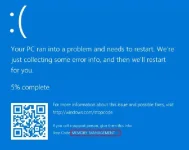
But like all processes running on your computer, sometimes it can crash. And when it does, you’ll probably see the MEMORY MANAGEMENT error message soon after.
Why would I have the MEMORY MANAGEMENT BSOD error?
According to Microsoft, the Memory Management blue screen of death error appears when there’s been a severe memory management error.
Sounds horrible, doesn’t it? But don’t worry – it’s not fatal.
Tools such as WhoCrashed and BlueScreenView can help you figure out what’s causing the horrifying BSOD on your computer. But chances are it will be one of these:
- software or hardware conflict
- virus infection
- faulty video driver
- faulty memory
- disk errors
A common cause of the MEMORY MANAGEMENT error is a damaged, outdated or incorrect video card driver. And so to fix the error you need to update your video card driver to the most recent correct version.
There are two ways to update the driver: manually and automatically.
Manual driver update – To manually update the driver, head to the video card manufacturer’s website and search for the most recent correct video driver. Unless you’re getting the error on a laptop, in which case you should always go to the laptop manufacturer’s website. The video drivers provided by the chipset or hardware manufacturer may not include the customized features
Fix 2: Run a disk check
The BSOD error could also be caused by a corrupted NTFS volume. Here’s how to resolve the problem.
1) On your keyboard, hold down the Windows logo key and press the S key to bring up the search box, and type cmd.
2) Right-click Command Prompt and select Run as administrator
3) Type chkdsk /f /r, and press Enter on your keyboard
4) When asked “Would you like to schedule this volume to be checked next time the system restarts?”, press Y.
5) Exit the Command Prompt and restart your computer.