 PH
PHAs you may know, VirtualDub, as stand-alone, cannot handle MP4, MKV, FLV, MOV or any other files besides AVI. But there're still ways to load them with this video editing software. Now try out the following three different methods to use other file formats as input in VirtualDub other than AVI.
Method 1: Create an AVISynth script
Method 2: Download plugins for different formats
Method 1: Create an AVISynth script
If you know how how to use AVISynth, you can simply open different kinds of video formats in VirtualDub. Basically, it works like this: First, you create a simple text document with special commands, called a script. These commands make references to one or more videos and the filters you wish to run on them. After that you run VirtualDub and open the script file. Then VirtualDub doesn't aware that AVISynth is working in the background, but thinks it's directly opening a filtered AVI file. Now let's see how to make the magic happen:
1.Install K-lite Codec Pack and update FFDShow
First, ensure that the target file is playable in Windows Media Player. So you need to install the necessary codecs to your computer. You do not have permission to view the full content of this post. Log in or register now. which always provides the latest and complete codecs is just fine. You can select a suitable version and choose the codecs you need.
Then open the target video file with Windows Media Player and it should play. If not, you shouldYou do not have permission to view the full content of this post. Log in or register now. to the latest version.
2.Install AVISynth
Then download and install You do not have permission to view the full content of this post. Log in or register now., and tick all the options during the installation.
3.Create an AVISynth Script
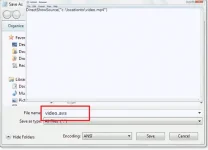
Open NotePad. Type DirectShowSource("c:\locationto\video.mp4"). Then replacec:\locationto\video.mp4 with the location to your video file (right click the video file to gain the location). Then go to "File" > "Save as" > "Save as Type: All files" and name your video file asvideo.avs. You can now import the video.avs file in Virtualdub.
Method 2: Download plugins for different formats
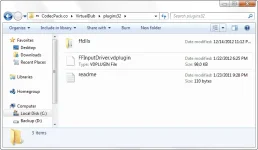
Plugins can also handle loading different files formats. You can download the plugin you need, and unpack it into the VirtualDub plugin folder. But remember that those plugins only allow you to load certain file formats. You cannot save those files in MP4, MOV, FLV and other formats, but in AVI. Here two plugins are recommended:
# 1. You do not have permission to view the full content of this post. Log in or register now.: The plugin is based, as the name may suggest, of the ffmpeg libraries. It can handle 31 different file formats, among them are the popular MP4, MKV, FLV, MOV, RM, RVMB, WMV and TS.
# 2. fccHandler: It can handle MPEG-2, FLV, WMV, MKV, FLC as well as AC-3 ACM codec. However, the its website is unavailable at the moment for some reasons. But there are two mirrors with his stuff: You do not have permission to view the full content of this post. Log in or register now., You do not have permission to view the full content of this post. Log in or register now..
Method 1: Create an AVISynth script
Method 2: Download plugins for different formats
Method 1: Create an AVISynth script
If you know how how to use AVISynth, you can simply open different kinds of video formats in VirtualDub. Basically, it works like this: First, you create a simple text document with special commands, called a script. These commands make references to one or more videos and the filters you wish to run on them. After that you run VirtualDub and open the script file. Then VirtualDub doesn't aware that AVISynth is working in the background, but thinks it's directly opening a filtered AVI file. Now let's see how to make the magic happen:
1.Install K-lite Codec Pack and update FFDShow
First, ensure that the target file is playable in Windows Media Player. So you need to install the necessary codecs to your computer. You do not have permission to view the full content of this post. Log in or register now. which always provides the latest and complete codecs is just fine. You can select a suitable version and choose the codecs you need.
Then open the target video file with Windows Media Player and it should play. If not, you shouldYou do not have permission to view the full content of this post. Log in or register now. to the latest version.
2.Install AVISynth
Then download and install You do not have permission to view the full content of this post. Log in or register now., and tick all the options during the installation.
3.Create an AVISynth Script
Open NotePad. Type DirectShowSource("c:\locationto\video.mp4"). Then replacec:\locationto\video.mp4 with the location to your video file (right click the video file to gain the location). Then go to "File" > "Save as" > "Save as Type: All files" and name your video file asvideo.avs. You can now import the video.avs file in Virtualdub.
Video tutorial: Create an AVISynth script
Method 2: Download plugins for different formats
Plugins can also handle loading different files formats. You can download the plugin you need, and unpack it into the VirtualDub plugin folder. But remember that those plugins only allow you to load certain file formats. You cannot save those files in MP4, MOV, FLV and other formats, but in AVI. Here two plugins are recommended:
# 1. You do not have permission to view the full content of this post. Log in or register now.: The plugin is based, as the name may suggest, of the ffmpeg libraries. It can handle 31 different file formats, among them are the popular MP4, MKV, FLV, MOV, RM, RVMB, WMV and TS.
# 2. fccHandler: It can handle MPEG-2, FLV, WMV, MKV, FLC as well as AC-3 ACM codec. However, the its website is unavailable at the moment for some reasons. But there are two mirrors with his stuff: You do not have permission to view the full content of this post. Log in or register now., You do not have permission to view the full content of this post. Log in or register now..


