 PH
PHDoraemon-kun
Fanatic
>>>>> magandang magandang hapon po
Mga ka phc. Sa thread po na to ay tuturuan ko kayo pano e'access ang jupyter notebook through smartphone device lamang. Ang maganda lng kasi dito makaka code ka parin kahit naglalakad ka, or habang nagcocoffee ka sa starbucks or anywhere, anytime pwede mo ma access si jupyter only through smartphone at your hand. So without further a do. Let's get started.
------------__________________-------------------
STEP 1.
*go to playstore at download this app called pydroid 3

_________________________________________
STEP 2.
*Pagkatapos mong e"install si pydroid 3, go to the application and click those three lines on the top left corner.

_________________________________________
STEP 3.
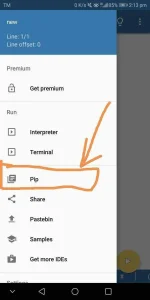
*After that, click the word "PIP" as shown in the picture
_________________________________________
STEP 4.
*after that, type "jupyter" on the blank box space and hit install as shown in the picture

_________________________________________
After you hit the install button, just wait for about a seconds or a minutes to install jupyter notebook.
STEP 5.
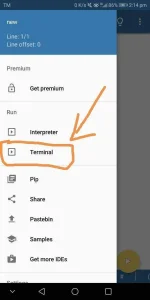
*Go back from where we're from(STEP 3)
And as you could see on the picture below just click terminal
_________________________________________
STEP 6.
*After that, you will be brought to a terminal, and in the terminal just type jupyter notebook as you could see on the picture below

_________________________________________
Wait for the terminal to process for about 1 to 3 seconds. And after the process, the terminal on your smartphone screen would be like this

_________________________________________
STEP 7.
*Just long press your screen and copy all (see the picture below)

_________________________________________
STEP 8.
*After you copied it all, just go to your notepad in your smartphone and paste it there then, copy the url localhost 8888 that is shown in the picture below

_________________________________________
STEP 9.
*After you copy the url host, just go to your phone's browser and paste it there then, enter and you will be directed to jupyter notebook( as shown in picture below)
Finally, click the new button

_________________________________________
And click python 3

_________________________________________
When you click that, you will. Be redirected to a new tab. And here, you can access python 3.
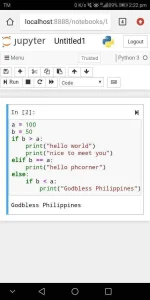
HAPPY CODING PHC! GOODLUCK AND AHOO!
Mga ka phc. Sa thread po na to ay tuturuan ko kayo pano e'access ang jupyter notebook through smartphone device lamang. Ang maganda lng kasi dito makaka code ka parin kahit naglalakad ka, or habang nagcocoffee ka sa starbucks or anywhere, anytime pwede mo ma access si jupyter only through smartphone at your hand. So without further a do. Let's get started.
------------__________________-------------------
STEP 1.
*go to playstore at download this app called pydroid 3
_________________________________________
STEP 2.
*Pagkatapos mong e"install si pydroid 3, go to the application and click those three lines on the top left corner.
_________________________________________
STEP 3.
*After that, click the word "PIP" as shown in the picture
_________________________________________
STEP 4.
*after that, type "jupyter" on the blank box space and hit install as shown in the picture
_________________________________________
After you hit the install button, just wait for about a seconds or a minutes to install jupyter notebook.
STEP 5.
*Go back from where we're from(STEP 3)
And as you could see on the picture below just click terminal
_________________________________________
STEP 6.
*After that, you will be brought to a terminal, and in the terminal just type jupyter notebook as you could see on the picture below
_________________________________________
Wait for the terminal to process for about 1 to 3 seconds. And after the process, the terminal on your smartphone screen would be like this
_________________________________________
STEP 7.
*Just long press your screen and copy all (see the picture below)
_________________________________________
STEP 8.
*After you copied it all, just go to your notepad in your smartphone and paste it there then, copy the url localhost 8888 that is shown in the picture below
_________________________________________
STEP 9.
*After you copy the url host, just go to your phone's browser and paste it there then, enter and you will be directed to jupyter notebook( as shown in picture below)
Finally, click the new button
_________________________________________
And click python 3
_________________________________________
When you click that, you will. Be redirected to a new tab. And here, you can access python 3.
HAPPY CODING PHC! GOODLUCK AND AHOO!