PH
PHIntroduction:
The “build.prop” file is a system file that exists on every Android device. The file contains buildinformation and other system properties which are used throughout the operating system. ... You can create or modify a system property in the build.prop file which will be loaded when your device first boots.
Ways of editing build.prop

Using Build prop editor
Requirements:

Steps

Requirements:
Requirements:
NOTE: Wag subukan kung nag aalinlangan. maaring masira ang iyong device at hindi ko kargo kung ito'y masira do at your own risk.
The “build.prop” file is a system file that exists on every Android device. The file contains buildinformation and other system properties which are used throughout the operating system. ... You can create or modify a system property in the build.prop file which will be loaded when your device first boots.
Ways of editing build.prop
- Using Build prop editor
- Using TWRP
- Using Any root file manager third-party
Using Build prop editor
Requirements:
- Rooted
- brain.apk
Steps
- Download and Install Build prop editor
- Open Build prop editor
- allow root request
- Click the pencil icon (Upper right corner)
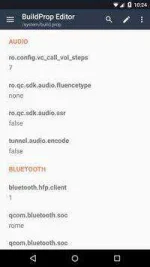
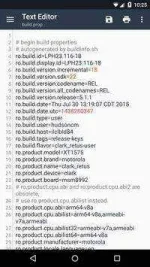
- After editing your buildprop tap the save icon (Upper right corner)
Requirements:
- edited build.prop
- brain.apk
- at least 40% battery
- Grab a copy of your build.prop and edit it
- Boot your phone to Recovery(TWRP)
- Tap Mount > Put a check on System > back to main menu
-


- Tap advanced > File Manager > Go to System > tap build.prop > Delete mo!


- Balik ka sa File manager > Navigate hanapin mo yung edited build.prop > Tap mo yung edited build.prop > Move > Navigate back to System > tap the Folder with check inside.
-

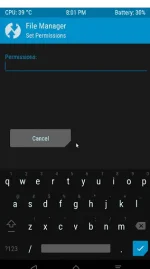
- Tap Build.prop > tap Chmod > input permission value to 644 > Tap the check icon
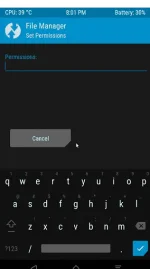
- Then Reboot.
Requirements:
- Any third-party root explorer (Es file recommended)
- Rooted
- brain.apk
- at least 40% battery
- Open Es file app
- Enable Root explorer


- Slide mo lang hangang makit mo yung "/" icon
- Click System > Click Build.prop > Select Es note Editor > This time only
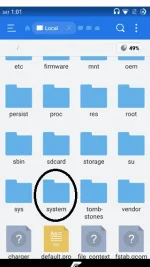


- Tap Edit > Ilagay mo na lahat ng gusto mo ilagay > Save > Reboot.


NOTE: Wag subukan kung nag aalinlangan. maaring masira ang iyong device at hindi ko kargo kung ito'y masira do at your own risk.