 PH
PHronnieverse
Fanatic
Download Vivo V3 stock ROM from here, flash it in your device and enjoy the native Android experience again. The download file contains the qCom flash tool and the firmware files.

Download Vivo V3 Firmware
Stock ROM File Name: Vivo_V3_PD1524F_EX_A_1.10.11.zip
Stock ROM File Size: 3 GB
Android OS Version: 5.1
You do not have permission to view the full content of this post. Log in or register now.
How To Flash Stock ROM Firmware On Vivo V3
Before getting started with the tutorial, make sure to take a complete backup of personal data in your smartphone using appropriate apps. We can use this backup to restore your personal data, if your device gets crashed during the flashing process.
Step 1: Download the “Stock ROM zip file” given above and extract it on your computer. You will find You do not have permission to view the full content of this post. Log in or register now. V2.2.0.0 and firmware files after extracting.
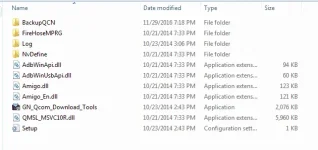
Step 2: Now You do not have permission to view the full content of this post. Log in or register now. and install it on your computer. In case if you have already installed USB driver on your computer skip this step.
Step 3: Now open the “GN Qcom Download Tools.exe” file. After the Qcom Download Tools is launched, you will see the following screen.
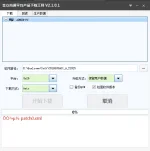
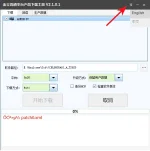
Step 4: Click the dropdown button and select “English” Language.
Step 5: Select “Save production data” under “UpDataType“.
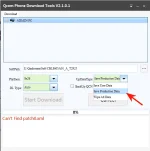
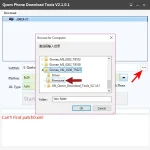
Step 6: Now click on browse button on “Softpath” and locate the firmware files, which you want to flash on your android device.
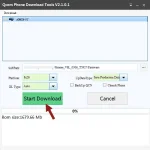
Step 7: Next, click “Start Download” Button.
Step 8: Now connect your Vivo V3 Android device to your computer through original USB cable (without battery – if it is battery removable) and press volume up or volume downbutton.
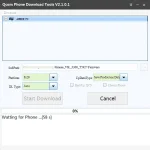
Step 9: The flashing process will begin momentarily and it will get completed in a minute or two.
Step 10: Once flashing is completed, unplug your smartphone from the computer.
That’s it. Now you have successfully flashed stock ROM firmware on your Vivo V3 Android device.
Download Vivo V3 Firmware
Stock ROM File Name: Vivo_V3_PD1524F_EX_A_1.10.11.zip
Stock ROM File Size: 3 GB
Android OS Version: 5.1
You do not have permission to view the full content of this post. Log in or register now.
How To Flash Stock ROM Firmware On Vivo V3
Before getting started with the tutorial, make sure to take a complete backup of personal data in your smartphone using appropriate apps. We can use this backup to restore your personal data, if your device gets crashed during the flashing process.
Step 1: Download the “Stock ROM zip file” given above and extract it on your computer. You will find You do not have permission to view the full content of this post. Log in or register now. V2.2.0.0 and firmware files after extracting.
Step 2: Now You do not have permission to view the full content of this post. Log in or register now. and install it on your computer. In case if you have already installed USB driver on your computer skip this step.
Step 3: Now open the “GN Qcom Download Tools.exe” file. After the Qcom Download Tools is launched, you will see the following screen.
Step 4: Click the dropdown button and select “English” Language.
Step 5: Select “Save production data” under “UpDataType“.
Step 6: Now click on browse button on “Softpath” and locate the firmware files, which you want to flash on your android device.
Step 7: Next, click “Start Download” Button.
Step 8: Now connect your Vivo V3 Android device to your computer through original USB cable (without battery – if it is battery removable) and press volume up or volume downbutton.
Step 9: The flashing process will begin momentarily and it will get completed in a minute or two.
Step 10: Once flashing is completed, unplug your smartphone from the computer.
That’s it. Now you have successfully flashed stock ROM firmware on your Vivo V3 Android device.