 PH
PH


- Fully localized in 7 languages.
- Access to the world’s biggest manga library with 100k manga from 20+ popular manga sources. More manga sources are added overtime.
- Best manga reading experience with Horizontal / Vertical reading modes (auto-switch based on device orientation), 2 reading directions, Lock Zoom, Brightness Control, and Orientation Lock. Support immersive mode – in which all navigation toolbars are hidden to give extra reading spaces – inside manga viewer for Android 4.4.
- Find new manga to read with Discovery – which will recommend manga based on your reading preferences.
- Powerful search tool with genre filters to find any manga.
- Easily backup and restore Manga Rock data across multiple Android & iOS devices using your Facebook, Twitter, or email account.
- Support both Cover and List view in All Manga, Latest Updates, Favorites, Recents, and Downloaded screens for better, more visual navigation.
- Fast manga downloader with multiple concurrent download and background download to save any manga for offline reading. You can save downloaded manga in SD card too.
- Auto-download new chapters of favorited manga and send out push-notifications to make sure that you never miss out any release.
- Handy Favorites & Recents lists to track your favorite manga’s releases, or to jump back to the last read pages.
- Dozen of settings in “Personalize” to fully customize Manga Rock just the way you want.
REQUIRES ANDROID
5.0 and up
MOD INFO
PREMIUM/prô features unlocked
CHANGELOG
October 12 2018 update
- Bug fixes & performance improvements
- Critical hot fix to address app crashes
- Check out the new features that we've introduced in the latest version Android 3.6 here.
Auto-lock your device
The feature automatically dims the display and locks your phone according to your device settings.
To turn on, go to Viewer Settings > Advanced Settings > turn on Auto-lock.
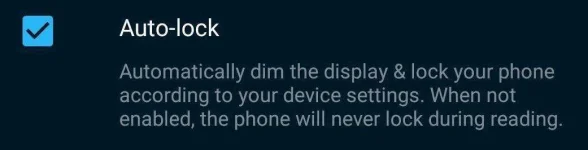
When the feature is not enabled, your phone will never lock during reading.
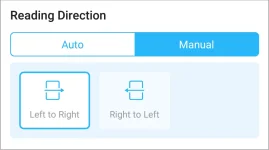
Enhanced reading direction
On 3.6, the app will automatically select the best reading direction for different titles.
When you first open a manga, you will be informed about the accurate reading direction and page flow of that manga.
Tip: You can always dismiss the prompt immediately by tapping anywhere in the screen.

You can manually set your preferred reading direction (Left to Right; Right to Left) by going to Viewers Settings > Reading Direction > Manual.
Tip: With manual setting, the reading direction prompt when you open a manga will be turned off.
Jump Chapter
Now you can open another chapter right inside manga viewer. Simply tap the chapter title inside the Viewer to access chapter list.

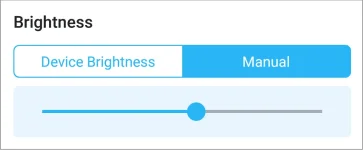
Brightness Control
Brightness control will be available in Viewer Settings. You can either set the viewer's brightness to follow the device settings or adjust it manually.
DOWNLOAD LINKS - File size: 33mb
You do not have permission to view the full content of this post. Log in or register now.
You do not have permission to view the full content of this post. Log in or register now.
You do not have permission to view the full content of this post. Log in or register now.









 keep on sharing.