 PH
PHHello PHC! Here's the step by step guide for installing Mihon and how to set it up.
Mihon is an open-source manga reader app for Android. It’s essentially the community-driven successor to Tachiyomi after Tachiyomi was discontinued.What Mihon is known for:
- Clean, ad-free manga reading experience
- Uses extensions to pull manga from many online sources
- Local library management, tracking, categories, and backups
- Actively maintained by the community
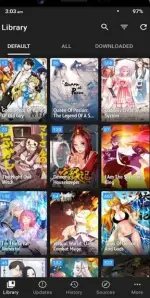
NOTE: This is only for android devices
Installation Guide:
- Open your phone’s browser and go to the official You do not have permission to view the full content of this post. Log in or register now.
- Tap “Download” to get the latest APK file (e.g., mihon-v0.19.3.apk). The app requires Android 8.0 or higher.
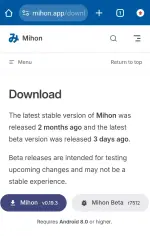
- Once the APK finishes downloading:
- If your phone blocks the install (“Unknown apps blocked”), go to your Settings → Apps → Browser and enable “Install unknown apps.”
- Then tap the APK file to install Mihon.
- Allow any permissions the app asks for (this lets it save and read manga files).
- Create kayo folder, para dun mag save yung files ni mihon.
 Note: Mihon isn’t on the Google Play Store intentionally (APK installs avoid Google’s content restrictions)
FIRST TIME SETUP:
- When you open Mihon, you’ll see tabs like Library, Browse, Downloads, Settings.
- Take a moment to familiarize yourself with these tabs.
Mihon doesn’t include manga itself — it uses extensions (plugins) that pull content from different sites.
- Go to Browse → Extension Repos / Edit Repos.
- Add a popular repository. For example(copy the URL): You do not have permission to view the full content of this post.
Log in or register now.
(This is the widely used “Keiyoushi” repo with lots of sources.) - Tap Add and click Extensions(now you can see the list of extensions available)
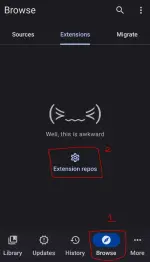
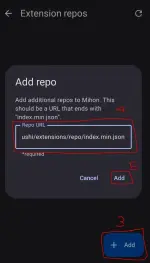
- Go to Browse → Sources → Click 3 lines(upper right)→ Filter → Unselect Multi and Select English only
- You’ll see a list of extension modules (e.g., for MangaBuddy, MangaDex, KissManga, etc.).
- Tap an extension you want and install it.
- Repeat for as many sources as you want.
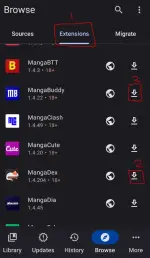
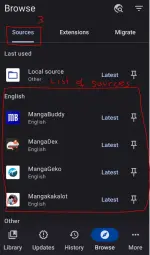
Note: You can add as many as you want, para mas madaming pagpi-pilian.
Browsing & Adding Titles:
- After extensions are installed, go to the Browse tab.
- Pick a source and use the search bar to find the manga you want.
- Tap a title → then tap Add to Library.
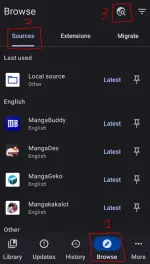
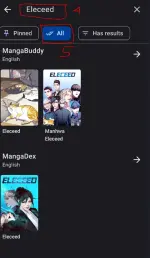

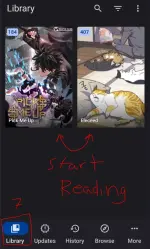
Note: Some extensions is medyo late sa updates, so always check anong extension yung may mas maraming chapter/updated tas yun yung add to library niyo.
FINAL TIPS:
- You can create multiple categories to organize your library
- A manga can be in more than one category at the same time
- You can change the app theme (Light, Dark, AMOLED)
- You can change reading mode (paged, vertical scroll, webtoon)
- You can switch left-to-right or right-to-left reading
- Each manga can have its own reader settings
- You can use volume buttons to turn pages
- You can download chapters for offline reading
- You can auto-download new chapters
- You can migrate manga to another source if one stops working
- You can back up your library and settings
- Local manga files (.cbz, .zip, folders) are fully supported