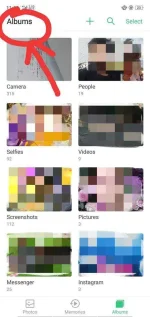
eto po galing kay Google.
Use Private Safe
To create a shortcut on the homescreen, go to [Settings] > [ Security] > [Private Safe]
and enter a passcode for your private safe then enable Homescreen Shortcut.
If you are using fingerprint lock, this can also open Private Safe.
Note:
If the encrypted files cannot be found in File Safe
Check if the file remains in its original save location, if yes, move it to File Safe again.
If you cannot see the file, restart your OPPO phone, then recheck File Safe.
Go to [Settings] > [Software Updates] and update your phone to .
Disclaimer:
* Pictures, settings and paths might differ from those of your phone, but that do not affect the description in this article.
Adding Files to File Safe
Step 1: On your mobile phone screen tap Files.
Step 2: Locate and tap File Safe located at the bottom left of your phone.
Step 3: Enter your passcode to open the File Safe feature.
Step 4: To add folder or files on your File Safe, tap Add File.
Step 5: Select files or folder you want to put on your Safe File. Mark check the folder you want to encrypt. Tap move to Safe to move your chosen file to safe file folder.
Step 6: You have successfully add the files on your safe file, they can’t access and open this files, folder unless they input your password. It will not also appear on your file storage location this file can be access only on File safe location.
Note: On File safe location you cannot directly open your protected files. You must move it out first on File location before you can open your files and folder.
 PH
PH