 PH
PHFreeNetNeed
Elite
Windows applications developed in .NET Framework 3.5 or lower versions like 3.0 or 2.0 requires relevant .NET Framework installed or enabled on Windows to run properly. Starting from Windows 8, .NET 4.0 is already a part of the OS and do not require manual installation except the updates.
But if you want to run a software that is programmed in .NET 3.5 on Windows 10 or 8, you need to install .NET 3.5 on the system. Without it, you can’t run the software. To enable or install .NET Framework 3.5 on Windows 10 and 8 you need to install it from “Turn Windows features on or off utility”. And this will ask you to install it by downloading – which requires internet connection.
If you are on a PC that is not connected to internet, or you have limited bandwidth, you may find difficulties installing it that way. Fortunately .NET Framework 3.5 installation packages are included in Windows 8 and 10 setups and you can use a DOS command in CMD console window to offline install .NET 3.5 on your system. Presuming that your Windows 10/8 installation media is F:, following is the CMD command you need to use to install.NET Framework 3.5 without internet connection:
Dism.exe /online /enable-feature /featurename:NetFX3 /source:F:\sources\sxs /LimitAccess
This is a manual method and you may make mistakes while typing this on console. That’s why I made a simple portable tool named You do not have permission to view the full content of this post. Log in or register now. that can automatically install .NET 3.5 from your existing Windows 10/8 installation media for you. This makes use of the the above command I showed.
How to Use .NET Framework 3.5 Offline Installer
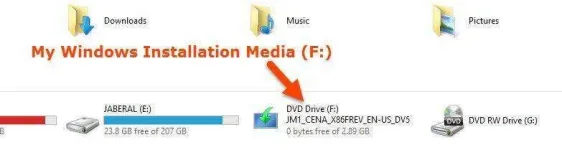
1.Insert the Windows installation DVD (or if have the ISO file, right-click on it and Mount). Now checkout the Drive letter.
2. Run You do not have permission to view the full content of this post. Log in or register now..
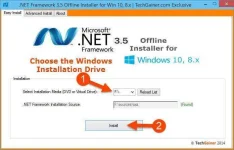
3. Under Easy Install tab, chose the drive from media selection drop-down menu. If the program finds the source, it would say, “Found”. Click on Install button then
4. A CMD console window will run to show you the progress.

5. A CMD console window will run to show you the progress.
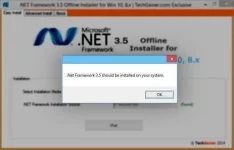
6. That’s it.
Advanced Options

Download Link:
You do not have permission to view the full content of this post. Log in or register now.
orig source
You do not have permission to view the full content of this post. Log in or register now.
But if you want to run a software that is programmed in .NET 3.5 on Windows 10 or 8, you need to install .NET 3.5 on the system. Without it, you can’t run the software. To enable or install .NET Framework 3.5 on Windows 10 and 8 you need to install it from “Turn Windows features on or off utility”. And this will ask you to install it by downloading – which requires internet connection.
If you are on a PC that is not connected to internet, or you have limited bandwidth, you may find difficulties installing it that way. Fortunately .NET Framework 3.5 installation packages are included in Windows 8 and 10 setups and you can use a DOS command in CMD console window to offline install .NET 3.5 on your system. Presuming that your Windows 10/8 installation media is F:, following is the CMD command you need to use to install.NET Framework 3.5 without internet connection:
Dism.exe /online /enable-feature /featurename:NetFX3 /source:F:\sources\sxs /LimitAccess
This is a manual method and you may make mistakes while typing this on console. That’s why I made a simple portable tool named You do not have permission to view the full content of this post. Log in or register now. that can automatically install .NET 3.5 from your existing Windows 10/8 installation media for you. This makes use of the the above command I showed.
How to Use .NET Framework 3.5 Offline Installer
1.Insert the Windows installation DVD (or if have the ISO file, right-click on it and Mount). Now checkout the Drive letter.
2. Run You do not have permission to view the full content of this post. Log in or register now..
3. Under Easy Install tab, chose the drive from media selection drop-down menu. If the program finds the source, it would say, “Found”. Click on Install button then
4. A CMD console window will run to show you the progress.
5. A CMD console window will run to show you the progress.
6. That’s it.
Advanced Options
Download Link:
You do not have permission to view the full content of this post. Log in or register now.
orig source
You do not have permission to view the full content of this post. Log in or register now.