 PH
PHITE-[Anonymous]
Honorary Poster
Problem on SecureNAT
SecureNAT is a fairly simple way to setup Softether. You don’t need a lot of sysadmin skill and network understanding in order to get Softether up and running.
The problem is SecureNAT is a bit SLOW. I will show a comparison at the end of this article.
We can boost the performance using a local bridge.
Local bridge Setup
Network setup
VPN Server IP: 192.168.7.1
VPN Client IP Range: 192.168.7.50-192.168.7.60
Tap Device name: tap_soft
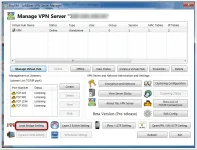
First we choose the Virtual Hub. It should be only one for normal setup.
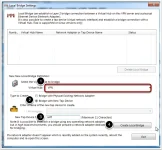
Then we check the tap device box.
After that we type in the name of the tap device(I use soft here for simplicity).
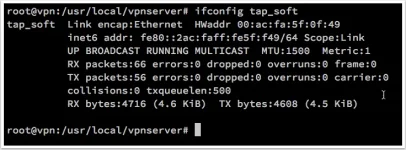
fter the creation of the local bridge we jump back to our server. And run
# ifconfig tap_soft
It should show you something similar to this
Because we are not going to use SecureNAT and SecureDHCP. We need to install a DHCP server on our VPS. We are going to use dnsmasq as our DHCP server.
# apt-get install dnsmasq
Now edit the /etc/dnsmasq.conf file. Add these 3 lines at the end.
interface=tap_soft
dhcp-range=tap_soft,192.168.7.50,192.168.7.60,12h
dhcp-option=tap_soft,3,192.168.7.1
The above 3 lines are used to enable the dhcp server on interface tap_soft.
Next step we need a new set of init script which will config tap interface for us when Softether start up.
#!/bin/sh
### BEGIN INIT INFO
# Provides: vpnserver
# Required-Start: $remote_fs $syslog
# Required-Stop: $remote_fs $syslog
# Default-Start: 2 3 4 5
# Default-Stop: 0 1 6
# Short-Description: Start daemon at boot time
# Description: Enable Softether by daemon.
### END INIT INFO
DAEMON=/usr/local/vpnserver/vpnserver
LOCK=/var/lock/subsys/vpnserver
TAP_ADDR=192.168.7.1
test -x $DAEMON || exit 0
case "$1" in
start)
$DAEMON start
touch $LOCK
sleep 1
/sbin/ifconfig tap_soft $TAP_ADDR
;;
stop)
$DAEMON stop
rm $LOCK
;;
restart)
$DAEMON stop
sleep 3
$DAEMON start
sleep 1
/sbin/ifconfig tap_soft $TAP_ADDR
;;
*)
echo "Usage: $0 {start|stop|restart}"
exit 1
esac
exit 0
Then we need to enable NAT on linux server.
Add this file to /etc/sysctl.d/ to enable ipv4 forwarding.
net.ipv4.ip_forward = 1
Apply the sysctl run
# sysctl --system
Then we add a POSTROUTING rule to iptables
# iptables -t nat -A POSTROUTING -s 192.168.7.0/24 -j SNAT --to-source [YOUR VPS IP ADDRESS]
To make our iptables rule survive after reboot install iptables-persistent
# apt-get install iptables-persistent
After all the above setting, restart the vpnserver then we are good to go.
# /etc/init.d/vpnserver restart
# /etc/init.d/dnsmasq restart
Comparison on SecureNAT and local bridge method.
Speed on Local Bridge

Speed on SecureNAT

Conclusion
Local bridge use far less CPU resources than SecureNAT. It is a bit trouble to setup but I think it is worth to use local bridge.
By following the above guides,
I can connect from vpn client but there is no internet connection.
The problem is then resolved by the following steps:
// Add the following settings instead of the ones above at the end of /etc/dnsmasq.conf
interface=tap_soft
dhcp-range=tap_soft,192.168.7.50,192.168.7.90,12h
dhcp-option=tap_soft,3,192.168.7.1
port=0
dhcp-option=option:dns-server,8.8.8.8
// Clean ip tables
iptables -F -t nat
// Add new routing rule
iptables -t nat -A POSTROUTING -s 192.168.7.0/24 -o eth0 -j MASQUERADE
// Restart DHCP server
/etc/init.d/dnsmasq restart
SecureNAT is a fairly simple way to setup Softether. You don’t need a lot of sysadmin skill and network understanding in order to get Softether up and running.
The problem is SecureNAT is a bit SLOW. I will show a comparison at the end of this article.
We can boost the performance using a local bridge.
Local bridge Setup
Network setup
VPN Server IP: 192.168.7.1
VPN Client IP Range: 192.168.7.50-192.168.7.60
Tap Device name: tap_soft
First we choose the Virtual Hub. It should be only one for normal setup.
Then we check the tap device box.
After that we type in the name of the tap device(I use soft here for simplicity).
fter the creation of the local bridge we jump back to our server. And run
# ifconfig tap_soft
It should show you something similar to this
Because we are not going to use SecureNAT and SecureDHCP. We need to install a DHCP server on our VPS. We are going to use dnsmasq as our DHCP server.
# apt-get install dnsmasq
Now edit the /etc/dnsmasq.conf file. Add these 3 lines at the end.
interface=tap_soft
dhcp-range=tap_soft,192.168.7.50,192.168.7.60,12h
dhcp-option=tap_soft,3,192.168.7.1
The above 3 lines are used to enable the dhcp server on interface tap_soft.
Next step we need a new set of init script which will config tap interface for us when Softether start up.
#!/bin/sh
### BEGIN INIT INFO
# Provides: vpnserver
# Required-Start: $remote_fs $syslog
# Required-Stop: $remote_fs $syslog
# Default-Start: 2 3 4 5
# Default-Stop: 0 1 6
# Short-Description: Start daemon at boot time
# Description: Enable Softether by daemon.
### END INIT INFO
DAEMON=/usr/local/vpnserver/vpnserver
LOCK=/var/lock/subsys/vpnserver
TAP_ADDR=192.168.7.1
test -x $DAEMON || exit 0
case "$1" in
start)
$DAEMON start
touch $LOCK
sleep 1
/sbin/ifconfig tap_soft $TAP_ADDR
;;
stop)
$DAEMON stop
rm $LOCK
;;
restart)
$DAEMON stop
sleep 3
$DAEMON start
sleep 1
/sbin/ifconfig tap_soft $TAP_ADDR
;;
*)
echo "Usage: $0 {start|stop|restart}"
exit 1
esac
exit 0
Then we need to enable NAT on linux server.
Add this file to /etc/sysctl.d/ to enable ipv4 forwarding.
net.ipv4.ip_forward = 1
Apply the sysctl run
# sysctl --system
Then we add a POSTROUTING rule to iptables
# iptables -t nat -A POSTROUTING -s 192.168.7.0/24 -j SNAT --to-source [YOUR VPS IP ADDRESS]
To make our iptables rule survive after reboot install iptables-persistent
# apt-get install iptables-persistent
After all the above setting, restart the vpnserver then we are good to go.
# /etc/init.d/vpnserver restart
# /etc/init.d/dnsmasq restart
Comparison on SecureNAT and local bridge method.
Speed on Local Bridge
Speed on SecureNAT
Conclusion
Local bridge use far less CPU resources than SecureNAT. It is a bit trouble to setup but I think it is worth to use local bridge.
By following the above guides,
I can connect from vpn client but there is no internet connection.
The problem is then resolved by the following steps:
// Add the following settings instead of the ones above at the end of /etc/dnsmasq.conf
interface=tap_soft
dhcp-range=tap_soft,192.168.7.50,192.168.7.90,12h
dhcp-option=tap_soft,3,192.168.7.1
port=0
dhcp-option=option:dns-server,8.8.8.8
// Clean ip tables
iptables -F -t nat
// Add new routing rule
iptables -t nat -A POSTROUTING -s 192.168.7.0/24 -o eth0 -j MASQUERADE
// Restart DHCP server
/etc/init.d/dnsmasq restart