PH
PHThis guide will help you to root your Cloudfone Thrill Power N (Android 7.0 Nougat) using You do not have permission to view the full content of this post.
Log in or register now.. This method does not require a custom recovery, but it does require a PC with adb and fastboot, and a phone with an unlocked bootloader. But don't worry, I will also include instructions for that in this guide.
WARNING! Unlocking the bootloader will DELETE ALL USER DATA. Make sure to backup your important stuff first. You have been warned.
Requirements:
Preparing your phone (skip if you've already done this).
Warning! Unlocking the bootloader deletes all your user data. Be sure to backup.
1. Boot into Fastboot mode — Connect your phone to your PC. Open a terminal / command prompt. To check if your phone is being detected, type
Next, type the following to check if the bootloader has been unlocked:
Congratulations! Your phone's bootloader is now unlocked. Reboot to system by typing
Step 2. Preparing Magisk
Download the latest Magisk Manager from the developer's official XDA thread here: You do not have permission to view the full content of this post. Log in or register now., and install it on your phone.
Notice: Magisk Manager needs to be installed to the phone/internal storage for it to work properly. Go to 'Settings > Apps > Magisk Manager' and check to make sure it's in Internal storage. If it's on External storage or SD card, tap on the item, then change it to use phone/internal storage.
Once installed, open Magisk Manager. If you get a popup asking you to install, tap on 'No thanks'. Open the Settings (slide from left edge) and change Update Channel to 'Beta'. (The current Stable channel has a bug on this device where the MagiskHide feature doesn't work, so you'll fail the SafetyNet checks. The Beta channel works, though.) Next, tap on 'Patched Boot Output Format' and make sure it's set to '.img'. Exit Magisk Manager.
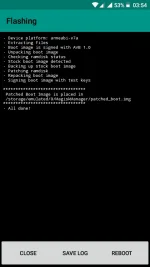
Now, download the stock boot.img from the link above, and put it on your phone's storage (or SD card). Open Magisk Manager, then tap on Install. Select 'Install' from the popup, then 'Patch Boot Image File'. Navigate to the folder where you placed the boot.img file, then select it. It should now start to download the latest Magisk zip file (beta), and then it will automatically patch the boot.img. You should get a screen that looks like this:
Copy that file to your computer (connect your phone to the PC) by typing
Reboot your phone to Fastboot mode by typing
then flash the patched_boot.img by typing
Reboot to system by typing
Congratulations! You're now rooted. You can check your root status using this app: You do not have permission to view the full content of this post. Log in or register now.
You don't need to install SuperSU or any other superuser app, since Magisk Manager performs that function. For busybox, you can install it via Magisk Manager's downloads section. I also recommend going to Magisk Manager's settings and enabling Magisk Hide (required to pass SafetyNet checks) and Systemless hosts. With Magisk Hide enabled, you can hide root on a per-app basis by opening Magisk Hide from the side panel (slide from left) and selecting the app/s you want to hide root from.
Enjoy your rooted Cloudfone Thrill Power N!
WARNING! Unlocking the bootloader will DELETE ALL USER DATA. Make sure to backup your important stuff first. You have been warned.
Requirements:
- Stock boot.img — You can either download and extract the boot.img from the stock Thrill Power N firmware here, or if you just want the boot.img file, you can use the following link: You do not have permission to view the full content of this post. Log in or register now.
- A PC or laptop with adb, fastboot, and the android usb drivers — If you don't have adb and fastboot yet, you can install it with this: You do not have permission to view the full content of this post.
Log in or register now.
- An unlocked bootloader — Since this method involves flashing a patched boot.img via fastboot, you need to have an unlocked bootloader.
Preparing your phone (skip if you've already done this).
- Turn on Developer options by going to 'Settings > About phone', then tap on 'Build number' five times or until it says that developer options have been enabled.
- Go back to Settings, then go to 'Developer options'. Enable 'OEM unlocking' and 'USB debugging'.
Warning! Unlocking the bootloader deletes all your user data. Be sure to backup.
1. Boot into Fastboot mode — Connect your phone to your PC. Open a terminal / command prompt. To check if your phone is being detected, type
If it's not detected, then you may need to install the drivers (or reboot, if you've already installed them). If it's detected, then to reboot into fastboot mode, typecode said:adb devices
While in Fastboot mode, check to see if your phone is being detected by typingcode said:adb reboot bootloader
If it's not being detected, then it's a driver issue. Simply disconnecting then reconnecting your phone to the PC while in Fastboot mode should make Windows download and install the fastboot drivers. After the drivers have been installed, try again to see if it's being detected.code said:fastboot devices
Next, type the following to check if the bootloader has been unlocked:
If it says 'No', then you can unlock it by typingcode said:fastboot getvar unlocked
Note: The above command also deletes formats your phone / deletes your user data.code said:fastboot oem unlock
Congratulations! Your phone's bootloader is now unlocked. Reboot to system by typing
code said:fastboot reboot
Step 2. Preparing Magisk
Download the latest Magisk Manager from the developer's official XDA thread here: You do not have permission to view the full content of this post. Log in or register now., and install it on your phone.
Notice: Magisk Manager needs to be installed to the phone/internal storage for it to work properly. Go to 'Settings > Apps > Magisk Manager' and check to make sure it's in Internal storage. If it's on External storage or SD card, tap on the item, then change it to use phone/internal storage.
Once installed, open Magisk Manager. If you get a popup asking you to install, tap on 'No thanks'. Open the Settings (slide from left edge) and change Update Channel to 'Beta'. (The current Stable channel has a bug on this device where the MagiskHide feature doesn't work, so you'll fail the SafetyNet checks. The Beta channel works, though.) Next, tap on 'Patched Boot Output Format' and make sure it's set to '.img'. Exit Magisk Manager.
Now, download the stock boot.img from the link above, and put it on your phone's storage (or SD card). Open Magisk Manager, then tap on Install. Select 'Install' from the popup, then 'Patch Boot Image File'. Navigate to the folder where you placed the boot.img file, then select it. It should now start to download the latest Magisk zip file (beta), and then it will automatically patch the boot.img. You should get a screen that looks like this:
Copy that file to your computer (connect your phone to the PC) by typing
code said:adb pull /sdcard/MagiskManager/patched_boot.img
Reboot your phone to Fastboot mode by typing
code said:adb reboot bootloader
then flash the patched_boot.img by typing
code said:fastboot flash boot patched_boot.img
Reboot to system by typing
code said:fastboot reboot
Congratulations! You're now rooted. You can check your root status using this app: You do not have permission to view the full content of this post. Log in or register now.
You don't need to install SuperSU or any other superuser app, since Magisk Manager performs that function. For busybox, you can install it via Magisk Manager's downloads section. I also recommend going to Magisk Manager's settings and enabling Magisk Hide (required to pass SafetyNet checks) and Systemless hosts. With Magisk Hide enabled, you can hide root on a per-app basis by opening Magisk Hide from the side panel (slide from left) and selecting the app/s you want to hide root from.
Enjoy your rooted Cloudfone Thrill Power N!