 PH
PHSa mga ka PH natin dyan na my low end laptop tapos naka windows 10 kayo pwedi ninyo tong gawin. Tested ko na po. Hindi ko po ito pag mamay.ari nilagay ko rin source. Gusto ko lang i share sa inyu ang Guide na ito.
Do it on your own risk!!
Source: You do not have permission to view the full content of this post. Log in or register now.
General Gaming Tweaks
Update Your Drivers!
The Most obvious and necessary make sure you have the latest drivers installed for you system & devices especially your graphics card. Just grab your latest drivers for your ATI or Nvidia card, I recommend 3dGuru to get them from they always have the latest drivers and a full description of what they do.
3dGuru host & describe all of the latest drivers some of which don’t appear on the Nvidia / AMD Sites:
This section covers Registry Tweaks that can affect Gaming Performance in most situations:
You’ll need to jump into the Windows Registry for some of this, it’s not complicated tho
Some games that uses “Multimedia Class Scheduler” service (MMCSS) can only utilize up to 80% of the CPU. The “Multimedia Class Scheduler” service (MMCSS) ensures prioritized access to CPU resources, without denying CPU resources to lower-priority background applications.
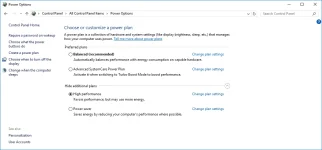
Control Panel\All Control Panel Items\Power Options
It’s worth changing your Power Options to High Performance
Disable Mouse Acceleration
I Honestly Can’t believe the amount of people that still have this on.
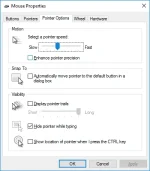
Mouse acceleration needs to be turned off for gaming otherwise you are aiming.
What DPI & Sensitivity should you select?
With some mice you will have software to set you dpi,
so in most games I recommend 400-1600 if in doubt try 800 even if your mouse have 20 billion DPI.
Some people will set their DPI far too high, you want to adjust the sensitivity via the mouse options and in game
Unpark Your Core & Threads
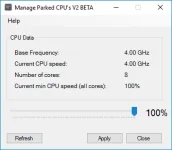
There is a great freeware program that stops threads from “parking” which is basically a power saving mode & makes sure they are ready to use constantly.
The effect of this is better performance in games & quicker response in general.
NVIDIA Graphics Settings, if you have an NVIDIA Card
Disable Windows Update Delivery Optimization
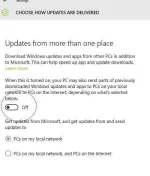
Windows Updates has a setting where it can munch your bandwidth by sending Windows updates to other PCs on the net. It’s worth turning this off as it can affect your gameplay and also eat into any data allowance you might have.
To turn this feature OFF, follow these given steps:
Disable OneDrive
If you don’t use OneDrive then disable it, it eats up your bandwidth. The OneDrive app of Windows 10 uploads your new files to the cloud internet server so you can access them anywhere.
To disable OneDrive:
Right click on the OneDrive app which is located on your taskbar and click exit.
System Tweaks
Disable Hibernate
Hibernate mode is set up by default to allow the hard drive disk to load the programs faster instead of booting the system, but it is unnecessary for an SSD system drives.
If you have loads of Ram some people recommend having no pagefile, though some applications require a page file to operate optimally.
I recommend having a Page File on a separate drive or secondary drive.
I use an SSHD that I also use for storage. And let the system workout how much it needs. After much testing I found that I get FRACTIONAL improvements consistently with a 4GB Pagefile on a 2nd drive & NO page file on my main or gaming drives.
Some people say if you have 16GB+ ram you should entirely disable pagefiles.
Some programs & games however are designed to operate with a Pagefile & for me it is literally faster to have one. But all gains seem to be pretty negligible.
Visual Effects and Performance
I recommend disabling some of the Visual effects in Windows, it makes Windows faster and a bit more responsive and gives a bit more performance, it’s also in:
HDD, SSD & Service Optimizations
You’ll want to Defrag your HDDs every so often BUT not your SSDs
It will damage them if you force defrag them, instead you want to TRIM them.
Also I recommend Turning off Indexing on SSDs.
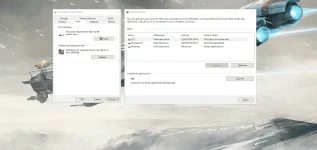
Disable Restrictive Services
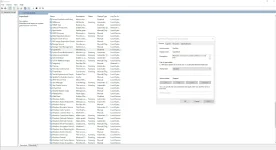
Turn off The Services Listed Below (Unless specifically know you use these), they are a mixture of useless & optimization settings:
I have disabled all of these on my Windows 10 Pro but it’s at your own risk:
AllJoyn Router Service
Application Layer Gateway Service
Bluetooth Support Service
BranchCache
Certificate Propagation
Client for NFS
Distributed Link Tracking Client
dmwappushsvc
Downloaded Maps Manager
Enterprise App Management Service
Geolocation Service
Health Key and Certificate Management
Hyper-V Data Exchange Service
Hyper-V Guest Service Interface
Hyper-V Guest Shutdown Service
Hyper-V Heartbeat Service
Hyper-V Remote Desktop Virtualization Service
Hyper-V Time Synchronization Service
Hyper-V VM Session Service
Hyper-V Volume Shadow Copy Requestor
Internet Connection Sharing (ICS)
Internet Explorer ETW Collector Service
IP Helper
Microsoft Diagnostics Hub Standard Collector Service
Microsoft iSCSI Initiator Service
Microsoft Windows SMS Router Service
Netlogon
Offline Files
Remote Procedure Call (RPC) Locator
Retail Demo Service
Sensor Data Service
Sensor Monitoring Service
Sensor Service
Smart Card Device Enumeration Service
Smart Card Removal Policy
SNMP Trap
Storage Service
Touch Keyboard and Handwriting Panel Service
Windows Biometric Service
Windows Connect Now – Config Registrar
Windows Media Player Network Sharing Service
Windows Mobile Hotspot Service
Windows MultiPoint Server Host Service
Windows MultiPoint Server Repair Service
Windows Remote Management (WS-Management)
Xbox Live Auth Manager
Xbox Live Game Save
XboxNetApiSvc
Do it on your own risk!!
Source: You do not have permission to view the full content of this post. Log in or register now.
General Gaming Tweaks
Update Your Drivers!
The Most obvious and necessary make sure you have the latest drivers installed for you system & devices especially your graphics card. Just grab your latest drivers for your ATI or Nvidia card, I recommend 3dGuru to get them from they always have the latest drivers and a full description of what they do.
3dGuru host & describe all of the latest drivers some of which don’t appear on the Nvidia / AMD Sites:
- You do not have permission to view the full content of this post. Log in or register now.Graphics Drivers
- You do not have permission to view the full content of this post. Log in or register now. Graphics Drivers
This section covers Registry Tweaks that can affect Gaming Performance in most situations:
You’ll need to jump into the Windows Registry for some of this, it’s not complicated tho
- Press Windows Key and R
- Type Regedit & then enter
Some games that uses “Multimedia Class Scheduler” service (MMCSS) can only utilize up to 80% of the CPU. The “Multimedia Class Scheduler” service (MMCSS) ensures prioritized access to CPU resources, without denying CPU resources to lower-priority background applications.
- To set this tweak, run regedit and find: HKEY_LOCAL_MACHINE\SOFTWARE\Microsoft\Windows NT\CurrentVersion\Multimedia\SystemProfile.
- Create a new DWORD and name it to “SystemResponsiveness” set its hexadecimal value to 00000000 for pure gaming/streaming.
- Find HKEY_LOCAL_MACHINE\SOFTWARE\Microsoft\Windows NT\CurrentVersion\Multimedia\SystemProfile\Tasks\Games
- Change the following registry values:
- “GPU Priority” change its value to 8
- “Priority” set to 6
- “Scheduling Category” set to “High”
Control Panel\All Control Panel Items\Power Options
It’s worth changing your Power Options to High Performance
Disable Mouse Acceleration
I Honestly Can’t believe the amount of people that still have this on.
Mouse acceleration needs to be turned off for gaming otherwise you are aiming.
- Again in Control Panel
- Mouse
- Pointer Options
- Untick Enhance Pointer Precision (this is mouse acceleration)
- Also try adjusting the Pointer Speed slider here till you are happy
What DPI & Sensitivity should you select?
With some mice you will have software to set you dpi,
so in most games I recommend 400-1600 if in doubt try 800 even if your mouse have 20 billion DPI.
Some people will set their DPI far too high, you want to adjust the sensitivity via the mouse options and in game
Unpark Your Core & Threads
There is a great freeware program that stops threads from “parking” which is basically a power saving mode & makes sure they are ready to use constantly.
The effect of this is better performance in games & quicker response in general.
- Download The You do not have permission to view the full content of this post. Log in or register now.
- Run The EXE as an Administrator
- Change The Slider to 100%
- Apply & Close
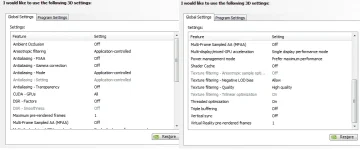
NVIDIA Graphics Settings, if you have an NVIDIA Card
- Go into the NVIDIA Control Panel
- Manage 3D Settings
- Set Multi-display/mixed-GPU acceleration – Single display performance mode (If you have issues with low frame rates on your other monitors OR you are using multiple monitors to game with then change this to Multi)
- Preferred refresh rate – Highest available
- [OPTIONAL] Turn Off Shader Cache, some people experience gains with it off, some people lose performance.
- Leave Pre-Rendered Frames on AUTO
- Texture Filtering Quality – Performance
Disable Windows Update Delivery Optimization
Windows Updates has a setting where it can munch your bandwidth by sending Windows updates to other PCs on the net. It’s worth turning this off as it can affect your gameplay and also eat into any data allowance you might have.
To turn this feature OFF, follow these given steps:
- Go to Settings in the Start menu
- Search for Update & Security
- Under Windows Update, open Advanced Options
- Click Choose How Updates are Installed, select Choose how updates are delivered
- Disable the toggle under Updated from More than One Place
Disable OneDrive
If you don’t use OneDrive then disable it, it eats up your bandwidth. The OneDrive app of Windows 10 uploads your new files to the cloud internet server so you can access them anywhere.
To disable OneDrive:
Right click on the OneDrive app which is located on your taskbar and click exit.
System Tweaks
Disable Hibernate
Hibernate mode is set up by default to allow the hard drive disk to load the programs faster instead of booting the system, but it is unnecessary for an SSD system drives.
- To do this, simply open your CMD command
Search for CMD in the start menu search bar - Right click CMD and Run as Admin & Type,
- powercfg -h off
- Press Enter
- Press Windows Key
- Click In the Search Box
- Search for “Control” then Click on it,
- Click System
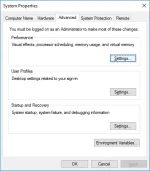
- Click Advanced System Settings
- Click the Advanced Tab
- Under Performance, Click Settings
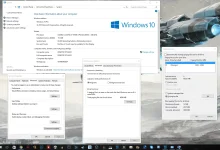
- Under the Advanced tab Click Change
- Uncheck Auto manage
- PLEASE NOTE THAT I RECOMMEND SETTING THIS TO AN SSD DRIVE
- Set one of your Drives (preferably an SSD) to SYSTEM MANAGED SIZE
- Set
- All other Drives should be set to None (unless if the pagefile you set wasn’t on your OS drive & you want to leave 300mb on your main boot drive for “crash info & recovery”)
If you have loads of Ram some people recommend having no pagefile, though some applications require a page file to operate optimally.
I recommend having a Page File on a separate drive or secondary drive.
I use an SSHD that I also use for storage. And let the system workout how much it needs. After much testing I found that I get FRACTIONAL improvements consistently with a 4GB Pagefile on a 2nd drive & NO page file on my main or gaming drives.
Some people say if you have 16GB+ ram you should entirely disable pagefiles.
Some programs & games however are designed to operate with a Pagefile & for me it is literally faster to have one. But all gains seem to be pretty negligible.
Visual Effects and Performance
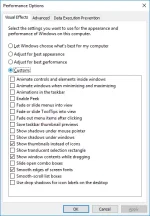
I recommend disabling some of the Visual effects in Windows, it makes Windows faster and a bit more responsive and gives a bit more performance, it’s also in:
- Control Panel
- System
- Advanced System Settings
- Performance Options
- Visual Effects
- Show thumbnails instead of icons
- Show window contents while dragging
- Smooth edges of screen fonts
HDD, SSD & Service Optimizations
You’ll want to Defrag your HDDs every so often BUT not your SSDs
It will damage them if you force defrag them, instead you want to TRIM them.
Also I recommend Turning off Indexing on SSDs.
- Press Windows Key + E
- Click on your SSD and right click on it.
- Click properties then uncheck “Allow files on this drive to have contents indexed in addition to file properties“
- Click apply then click OK
Disable Restrictive Services
- Press Windows Key + R
- Type services.msc
- Look for the Service you want to disable and right click on it
- Click properties then click Startup type
- Select Disabled, click OK
- Click the folder icon on your taskbar.
Turn off The Services Listed Below (Unless specifically know you use these), they are a mixture of useless & optimization settings:
- Windows Search (This will disable Windows Search TOO, keep it if you use it)
- All Xbox Services
- All Hyper-V services
- Microsoft SMS router service
- Diagnostics tracking service
- Fax service
- dmwappushsvc
- All Sensor Services
I have disabled all of these on my Windows 10 Pro but it’s at your own risk:
AllJoyn Router Service
Application Layer Gateway Service
Bluetooth Support Service
BranchCache
Certificate Propagation
Client for NFS
Distributed Link Tracking Client
dmwappushsvc
Downloaded Maps Manager
Enterprise App Management Service
Geolocation Service
Health Key and Certificate Management
Hyper-V Data Exchange Service
Hyper-V Guest Service Interface
Hyper-V Guest Shutdown Service
Hyper-V Heartbeat Service
Hyper-V Remote Desktop Virtualization Service
Hyper-V Time Synchronization Service
Hyper-V VM Session Service
Hyper-V Volume Shadow Copy Requestor
Internet Connection Sharing (ICS)
Internet Explorer ETW Collector Service
IP Helper
Microsoft Diagnostics Hub Standard Collector Service
Microsoft iSCSI Initiator Service
Microsoft Windows SMS Router Service
Netlogon
Offline Files
Remote Procedure Call (RPC) Locator
Retail Demo Service
Sensor Data Service
Sensor Monitoring Service
Sensor Service
Smart Card Device Enumeration Service
Smart Card Removal Policy
SNMP Trap
Storage Service
Touch Keyboard and Handwriting Panel Service
Windows Biometric Service
Windows Connect Now – Config Registrar
Windows Media Player Network Sharing Service
Windows Mobile Hotspot Service
Windows MultiPoint Server Host Service
Windows MultiPoint Server Repair Service
Windows Remote Management (WS-Management)
Xbox Live Auth Manager
Xbox Live Game Save
XboxNetApiSvc
