 PH
PHWhat is Multi-Boot?
Basically Multi-Boot is the term in which you can run two operating system or any multiple number of operating system in your device.
In computers and Laptop you can do this but not in Android. Recently an developer company name as Vojtech Bocek launched an application called as MultiROM Manager. Which will help us to install multiple ROM in our device.
Whenever we switched off our PC or laptop then we get a pop-up of which operating system we want to load. It’s linux or windows. This is done with the help of GRUB.
How MultiROM Manager Works?
MultiROM Manager works if you are having a patched kernel. When you will install MultiROM Manager in your device then there will be 2 ways to installing multiple ROM in your device.
If you are geek and know ADB commands and good in flashing files and application, then you can flash using adb commands.
If you are not good in flashing then this can be done using a simple application name MultiROM Manager. In this article, I will be telling you the automatic way just because it is simple to understand and works in almost all the devices.
How Will Be Multiple ROM Managed in Your Device?
Suppose you are running your Android device and you are interested in adding any ROM which you think it’s good and better in performance. Then you can add up using the below steps and that’s it.
But the file managing will be done in the same manner of your stock ROM. Suppose you save any screenshot in your phone then the picture will be saved in the same directory.
This is one of the advantage of the application that too many directories are not created which actually jumbles and consumes too much memory of your smartphone.
You won’t be loosing any data and you can get the best feature in your phone in just some clicks. Let’s get started with the tutorial in which I will be sharing the way to install Multi-ROM in your phone.
Requirements:
Custom ROM that supports Multi-ROM
Rooted Android Device
Multi-ROM Manager
Multi-ROM Supported Device
NAndroid Backup
How to Dual Boot Multiple ROMs on Your Android Phone (Automatic)
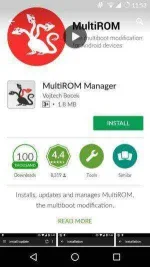
Download and Install Multi-ROM Manager application from Play Store
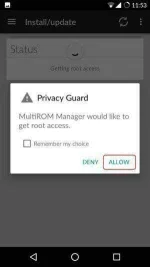
You will checkout options such as Multi-ROM, Recovery, Kernel. Just select all the options as given in the screenshot below.
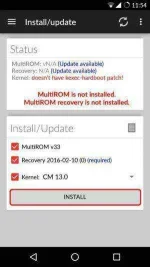
Now, in kernel you will see a dropdown list in which you need to select the kernel of your stock ROM. Just select the kernel of your choice. In my case I am using CM 13 so I am choosing CM 13.
Now, simply click on Install Button and the custom recovery and the new kernel ρá†ch will be downloaded in your Device. You don’t need to do anything. Just simply wait till the process is done.
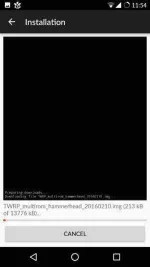
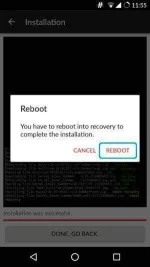
After installation the application will ask for a Reboot. You need to Reboot your device and it will boot into a grub like manager application
Simply click on anywhere on the screen when it shows 5 seconds boot time. 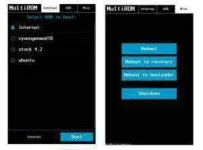
Now, your phone will be loaded into recovery and this is totally customized recovery here the main task is done.
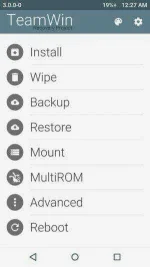
Now, your phone will be loaded into recovery and this is totally customized recovery here the main task is done.
Basically Multi-Boot is the term in which you can run two operating system or any multiple number of operating system in your device.
In computers and Laptop you can do this but not in Android. Recently an developer company name as Vojtech Bocek launched an application called as MultiROM Manager. Which will help us to install multiple ROM in our device.
Whenever we switched off our PC or laptop then we get a pop-up of which operating system we want to load. It’s linux or windows. This is done with the help of GRUB.
How MultiROM Manager Works?
MultiROM Manager works if you are having a patched kernel. When you will install MultiROM Manager in your device then there will be 2 ways to installing multiple ROM in your device.
If you are geek and know ADB commands and good in flashing files and application, then you can flash using adb commands.
If you are not good in flashing then this can be done using a simple application name MultiROM Manager. In this article, I will be telling you the automatic way just because it is simple to understand and works in almost all the devices.
How Will Be Multiple ROM Managed in Your Device?
Suppose you are running your Android device and you are interested in adding any ROM which you think it’s good and better in performance. Then you can add up using the below steps and that’s it.
But the file managing will be done in the same manner of your stock ROM. Suppose you save any screenshot in your phone then the picture will be saved in the same directory.
This is one of the advantage of the application that too many directories are not created which actually jumbles and consumes too much memory of your smartphone.
You won’t be loosing any data and you can get the best feature in your phone in just some clicks. Let’s get started with the tutorial in which I will be sharing the way to install Multi-ROM in your phone.
Requirements:
Custom ROM that supports Multi-ROM
Rooted Android Device
Multi-ROM Manager
Multi-ROM Supported Device
NAndroid Backup
How to Dual Boot Multiple ROMs on Your Android Phone (Automatic)
Download and Install Multi-ROM Manager application from Play Store
You will checkout options such as Multi-ROM, Recovery, Kernel. Just select all the options as given in the screenshot below.
Now, in kernel you will see a dropdown list in which you need to select the kernel of your stock ROM. Just select the kernel of your choice. In my case I am using CM 13 so I am choosing CM 13.
Now, simply click on Install Button and the custom recovery and the new kernel ρá†ch will be downloaded in your Device. You don’t need to do anything. Just simply wait till the process is done.
After installation the application will ask for a Reboot. You need to Reboot your device and it will boot into a grub like manager application
Simply click on anywhere on the screen when it shows 5 seconds boot time.
Now, your phone will be loaded into recovery and this is totally customized recovery here the main task is done.
Now, your phone will be loaded into recovery and this is totally customized recovery here the main task is done.