 PH
PHOnLHBAMZhITecHCreations
Eternal Poster
How to change your Gmail password
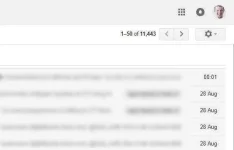
Step 1. Log into your You do not have permission to view the full content of this post. Log in or register now., and click the gear icon in the upper right-hand corner.
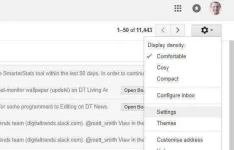
Step 2. Click "Settings."
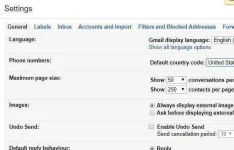
Step 3. Click "Accounts and Import" at the top.
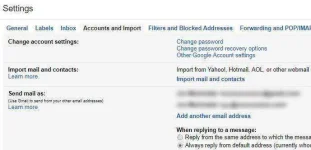
Step 4: In the "Change Account Settings" section, click "Change password."
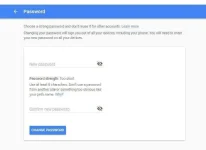
Step 5: You'll be prompted to re-enter your current password to confirm your identity. Next, as seen in the screen pictured below, you'll need to enter a new password -- twice (note that you can't reuse an old password once you change it).
Your new password must consist of at least eight characters, but we would recommend using a mixture of letters (upper and lower case), numbers and special characters for maximum security. Once you satisfy these requirements, just click the blue "Change Password" button, and you'll be good to go.
If you have trouble inputting the same password twice, clicking the little eye symbols will let you forego the s†éálthy asterisks and see the passwords in clear text.
Step 1. Log into your You do not have permission to view the full content of this post. Log in or register now., and click the gear icon in the upper right-hand corner.
Step 2. Click "Settings."
Step 3. Click "Accounts and Import" at the top.
Step 4: In the "Change Account Settings" section, click "Change password."
Step 5: You'll be prompted to re-enter your current password to confirm your identity. Next, as seen in the screen pictured below, you'll need to enter a new password -- twice (note that you can't reuse an old password once you change it).
Your new password must consist of at least eight characters, but we would recommend using a mixture of letters (upper and lower case), numbers and special characters for maximum security. Once you satisfy these requirements, just click the blue "Change Password" button, and you'll be good to go.
If you have trouble inputting the same password twice, clicking the little eye symbols will let you forego the s†éálthy asterisks and see the passwords in clear text.
