 PH
PHAlert! Alert!
Kindly follow me, For more Tricks and Tutorial Stuffs.
- Hit the link and Kindly type my username then Save change,

 Check the Checkbox for automatically update for my new topic.
Main Topic:
How to retreive or s†éál back your video or picture in your android phone.
Requirement:
PC
android Phone
USB Cable
-
This is the exe file link.
Here we will show you the detailed guide on how to recover deleted picture/videos from Android with Dr. Fone for Android (Windows)
Step 1: Connect your Android Device to computer and Enable USB debugging
Run the software and connect your Android device with computer via USB cable. (Don’t start any other Android devices management program during the recovery process.)
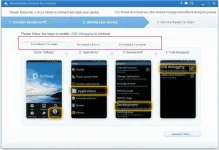
When the program detects your phone, it requires you to enable USB debugging. There are three options. Choose one for your phone’s Android OS.
1) For Android 2.3 or earlier: Enter “Settings” < “Applications” < “Development” < “USB debugging”
2) For Android 3.0 to 4.1: Enter “Settings” < “Developer options” < “USB debugging”
3) For Android 4.2 or newer: Enter “Settings” < “About Phone” < Tap “Build number” for several times until getting a note “You are under developer mode” < Back to “Settings” < “Developer options” < “USB debugging”
Step 2: Analyze and scan your device for lost data
Just click “Next” button to analyze data from Android phone/tablet.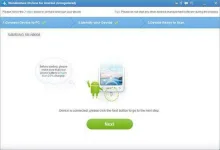
After analyzing, switch to your phone’s home screen. Click “Allow” to let the program scan your phone for lost data on it. When your phone asks you to click “Allow” for more than one time, just do it. Then click “Start” in the window to scan your phone.
Step 3: Select the photos/videos files to scan
Then you will see there will be list file type like gallery, video, messaging, contacts, app, and so on in the software scream. Just select “Gallery” / “videos” to scan, of course, you can select other files or all, then click “Next“.
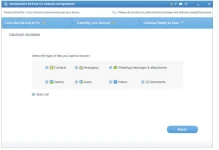
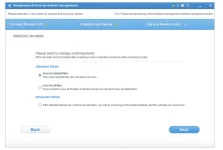
Next, you can choose to scan for “deleted files”, “all files” in Standard Mode or Advanced Mode as you need.
Step 4: Preview and recover pictures/videos from Android device
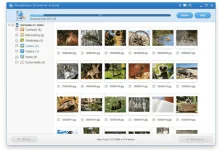
After scanning, you can preview all data that available to recover, choose items you want and click “Recover“.
Congratulation.
Your deleted video/photo is already Retrieve.
For more tricks. Follow me for notify you for more infotricks.
and dont forger to hit Like and Leave your comment if you have question. ;D
Kindly follow me, For more Tricks and Tutorial Stuffs.
HTML:
https://phcorner.org/account/followingMain Topic:
How to retreive or s†éál back your video or picture in your android phone.
Do this trick if you are interested
Requirement:
PC
android Phone
USB Cable
-
This is the exe file link.
Windows:You do not have permission to view the full content of this post. Log in or register now.
Mac: You do not have permission to view the full content of this post. Log in or register now.
Note: Before using the below programs, make sure the the battery of your Android device is no less than 20%
Here we will show you the detailed guide on how to recover deleted picture/videos from Android with Dr. Fone for Android (Windows)
Step 1: Connect your Android Device to computer and Enable USB debugging
Run the software and connect your Android device with computer via USB cable. (Don’t start any other Android devices management program during the recovery process.)
When the program detects your phone, it requires you to enable USB debugging. There are three options. Choose one for your phone’s Android OS.
1) For Android 2.3 or earlier: Enter “Settings” < “Applications” < “Development” < “USB debugging”
2) For Android 3.0 to 4.1: Enter “Settings” < “Developer options” < “USB debugging”
3) For Android 4.2 or newer: Enter “Settings” < “About Phone” < Tap “Build number” for several times until getting a note “You are under developer mode” < Back to “Settings” < “Developer options” < “USB debugging”
Step 2: Analyze and scan your device for lost data
Just click “Next” button to analyze data from Android phone/tablet.
After analyzing, switch to your phone’s home screen. Click “Allow” to let the program scan your phone for lost data on it. When your phone asks you to click “Allow” for more than one time, just do it. Then click “Start” in the window to scan your phone.
Step 3: Select the photos/videos files to scan
Then you will see there will be list file type like gallery, video, messaging, contacts, app, and so on in the software scream. Just select “Gallery” / “videos” to scan, of course, you can select other files or all, then click “Next“.
Next, you can choose to scan for “deleted files”, “all files” in Standard Mode or Advanced Mode as you need.
Step 4: Preview and recover pictures/videos from Android device
After scanning, you can preview all data that available to recover, choose items you want and click “Recover“.
Congratulation.
Your deleted video/photo is already Retrieve.
For more tricks. Follow me for notify you for more infotricks.
and dont forger to hit Like and Leave your comment if you have question. ;D