 PH
PHSpeed up Windows 10: Tips for a faster PC
Your Windows PC too slow? Here are nine speed tips to give your PC a performance boost without spending a dime.
Your computer is slow. Annoyingly slow. You can add RAM, or buy a faster SSD, but that costs money. No, the first thing you should do is try to make Windows faster. Thus we present nine ways to speed up your Windows 10 PC without spending a dime.
Be warned: There’s always a trade-off. More speed may mean less battery life, or even giving up a beloved program. You’ll have to decide what sacrifices you’re willing to make in order to increase Windows’ speed.
. Give it the reboot
If your PC is behaving horribly slow, try rebooting. Yes, it’s an obvious solution, but people tend to forget the obvious.
The sleep or hibernate setting will save power, but only a full reboot clears out the cobwebs in Windows’ brain and gives it a fresh start. Do it every day if the PC is really slow.
2. Turn on High Performance
Windows assumes that you want an energy-efficient computer. But you can trade electricity for speed. Use this tip only if you’re willing to increase your electric bill and decrease your battery performance.
Right-click the Start button and in the resulting menu, select Power Options.
In the resulting Control Panel window, pull down the Show additional plans option. Select High performance.
You can speed up Windows with a simple selection in Control Panel.
3.Undo some appearance options
You can speed up Windows by turning off some of its special effects
4.Remove unneeded autoloaders
A whole lot of programs want to load automatically every time you boot. Each one slows down the boot process, and some continue to slow down Windows afterwards.
These are not all bad. Your antivirus program should load when you boot and keep running as long as your PC is on. Other programs that need to run in the background to work, such as OneDrive, should also autoload.
But some programs—even good ones that you use frequently—don’t really need to run all the time. You don’t want to uninstall those, but you may want to stop them from autoload.
5.Stop hog processes
Your computer may be running a poorly written process that’s hogging a lot of resources. To find out, right-click the taskbar and select Task Manager. (Once again, if you don’t see any tabs at the top of the window, click More Details.)
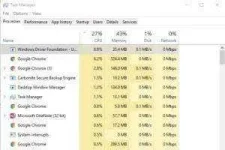
The Task Manager can also tell you what programs and processes are hogging your resources.
On the Processes tab, click the CPU column header to sort by processor usage. The top items will be the ones hogging the CPU. (If the top processes are all using 0%, the processes are sorted in the wrong direction. Click the column header again.)
Don’t assume that the top process is necessarily a hog. Some big applications are worth the CPU cycles. One way to manage these programs is to close them when you’re done with them. Another is to switch to a smaller program.
6. Turn off search indexing
When you search for a word across all the files in your Documents library, the results come up almost immediately. That’s wonderful, but it comes at a price. When you’re not searching, the indexing needed to create those fast searches slows you down.
To turn off all indexing:
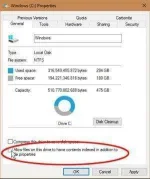
1. Open Windows Explorer, right-click your C: drive, and select Properties.
On the General tab, uncheck Allow files on this drive to have contents indexed in addition to file properties.
3. In the resulting warning box, select Apply changes to drive C:\, subfolders and files.
 Lincoln Spector
You can easily turn off all indexing to speed up everything except searches.
Windows may take some time turning off the indexing. Get up and take a walk; it’s good for you.
There’s another option that will let you turn off some indexing but not all of it:
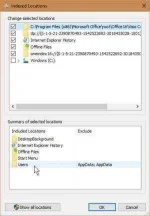
Type indexing in the Cortana field. Select Indexing Options. Click the Modify button near the lower-left side of the resulting dialog box.
This brings up another dialog box, with two sections. And yes, it’s confusing. Start in the bottom section of the dialog box, Summary of selected locations. Click any of these options, and it changes the contents of the top section, Change selected locations.
 Lincoln Spector
You can also select what to and not to index, although this can be confusing.
Unchecking items in that top section will stop indexing in those specific locations.
7. Turn off Windows tips
Windows 10 occasionally gives you tips about how you can better use the operating system. The problem is that, in order to see what tips you need, it keeps an eye on how you’re using your PC.
Yes, that sounds worrying from a privacy issue, but it also slows down your PC.
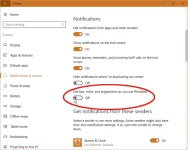
To turn it off, click Start > Settings. Select System, then select Notifications & actions in the left pane.
At the bottom of the Notifications section, turn off Get tips, tricks, and suggestions as you use Windows.
 Lincoln Spector
Windows Tips can help you learn to better use your PC, but they can also slow you down.
You might also want to explore the other notification options, and turn some of them off, as well. I don’t think any of the others slow down the PC, but they can get annoying.
8. Clean your internal drive
If your internal storage is almost full—whether it’s a hard drive or an SSD—that could be slowing you down. But if your drive has plenty of free room, skip this section.
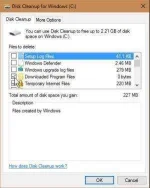 Lincoln Spector
Windows’ Disk Cleanup tool and free up space on your drive, and thus maybe speed up your PC.
Start with Windows’ own Disk Cleanup tool. In the Cortana field, type disk and select Disk Cleanup.
Wait while Disk Cleanup examines your drive. Click the Clean up system files button (this time you’ll need an administrator password). Then wait again for another examination.
Examine the options. If you find one called Previous Windows installation(s), you’re in luck. By checking it and clicking OK, you’ll free up a lot of space. You can check other items to get rid of them, as well.
Something else you might want to consider: Uninstall programs you no longer use.
9. Check for Malware
I doubt an infection is intentionally slowing down your PC. There’s no îllégâl profits from that. Plus it's a sure-fire way to trigger a victim's suspicions.
Your Windows PC too slow? Here are nine speed tips to give your PC a performance boost without spending a dime.
Your computer is slow. Annoyingly slow. You can add RAM, or buy a faster SSD, but that costs money. No, the first thing you should do is try to make Windows faster. Thus we present nine ways to speed up your Windows 10 PC without spending a dime.
Be warned: There’s always a trade-off. More speed may mean less battery life, or even giving up a beloved program. You’ll have to decide what sacrifices you’re willing to make in order to increase Windows’ speed.
. Give it the reboot
If your PC is behaving horribly slow, try rebooting. Yes, it’s an obvious solution, but people tend to forget the obvious.
The sleep or hibernate setting will save power, but only a full reboot clears out the cobwebs in Windows’ brain and gives it a fresh start. Do it every day if the PC is really slow.
2. Turn on High Performance
Windows assumes that you want an energy-efficient computer. But you can trade electricity for speed. Use this tip only if you’re willing to increase your electric bill and decrease your battery performance.
Right-click the Start button and in the resulting menu, select Power Options.
In the resulting Control Panel window, pull down the Show additional plans option. Select High performance.
You can speed up Windows with a simple selection in Control Panel.
3.Undo some appearance options
You can speed up Windows by turning off some of its special effects
4.Remove unneeded autoloaders
A whole lot of programs want to load automatically every time you boot. Each one slows down the boot process, and some continue to slow down Windows afterwards.
These are not all bad. Your antivirus program should load when you boot and keep running as long as your PC is on. Other programs that need to run in the background to work, such as OneDrive, should also autoload.
But some programs—even good ones that you use frequently—don’t really need to run all the time. You don’t want to uninstall those, but you may want to stop them from autoload.
5.Stop hog processes
Your computer may be running a poorly written process that’s hogging a lot of resources. To find out, right-click the taskbar and select Task Manager. (Once again, if you don’t see any tabs at the top of the window, click More Details.)
The Task Manager can also tell you what programs and processes are hogging your resources.
On the Processes tab, click the CPU column header to sort by processor usage. The top items will be the ones hogging the CPU. (If the top processes are all using 0%, the processes are sorted in the wrong direction. Click the column header again.)
Don’t assume that the top process is necessarily a hog. Some big applications are worth the CPU cycles. One way to manage these programs is to close them when you’re done with them. Another is to switch to a smaller program.
6. Turn off search indexing
When you search for a word across all the files in your Documents library, the results come up almost immediately. That’s wonderful, but it comes at a price. When you’re not searching, the indexing needed to create those fast searches slows you down.
To turn off all indexing:
1. Open Windows Explorer, right-click your C: drive, and select Properties.
On the General tab, uncheck Allow files on this drive to have contents indexed in addition to file properties.
3. In the resulting warning box, select Apply changes to drive C:\, subfolders and files.
Lincoln SpectorYou can easily turn off all indexing to speed up everything except searches.
Windows may take some time turning off the indexing. Get up and take a walk; it’s good for you.
There’s another option that will let you turn off some indexing but not all of it:
Type indexing in the Cortana field. Select Indexing Options. Click the Modify button near the lower-left side of the resulting dialog box.
This brings up another dialog box, with two sections. And yes, it’s confusing. Start in the bottom section of the dialog box, Summary of selected locations. Click any of these options, and it changes the contents of the top section, Change selected locations.
Lincoln SpectorYou can also select what to and not to index, although this can be confusing.
Unchecking items in that top section will stop indexing in those specific locations.
7. Turn off Windows tips
Windows 10 occasionally gives you tips about how you can better use the operating system. The problem is that, in order to see what tips you need, it keeps an eye on how you’re using your PC.
Yes, that sounds worrying from a privacy issue, but it also slows down your PC.
To turn it off, click Start > Settings. Select System, then select Notifications & actions in the left pane.
At the bottom of the Notifications section, turn off Get tips, tricks, and suggestions as you use Windows.
Lincoln SpectorWindows Tips can help you learn to better use your PC, but they can also slow you down.
You might also want to explore the other notification options, and turn some of them off, as well. I don’t think any of the others slow down the PC, but they can get annoying.
8. Clean your internal drive
If your internal storage is almost full—whether it’s a hard drive or an SSD—that could be slowing you down. But if your drive has plenty of free room, skip this section.
Lincoln SpectorWindows’ Disk Cleanup tool and free up space on your drive, and thus maybe speed up your PC.
Start with Windows’ own Disk Cleanup tool. In the Cortana field, type disk and select Disk Cleanup.
Wait while Disk Cleanup examines your drive. Click the Clean up system files button (this time you’ll need an administrator password). Then wait again for another examination.
Examine the options. If you find one called Previous Windows installation(s), you’re in luck. By checking it and clicking OK, you’ll free up a lot of space. You can check other items to get rid of them, as well.
Something else you might want to consider: Uninstall programs you no longer use.
9. Check for Malware
I doubt an infection is intentionally slowing down your PC. There’s no îllégâl profits from that. Plus it's a sure-fire way to trigger a victim's suspicions.
