 PH
PHVagalumes Cegos
Enthusiast
Paki-interpret po ng title, please.
Ito po ay para buhayin yung Xperia Phone na ayaw mabuhay dahil sira ang power button pero nagchacharge pa (nagkakaroon pa ng display ng charging sa screen kapag sinasaksak sa charger). Recovering bricked Xperia devices is another story.
Xperia Phones lang po muna tayo dahil pang xperia lang po yung meron ako ngayon.
Ito po ay para sa xperia phones na defective na ang power button, pero ayaw baklasin yung phone mismo dahil:
1. Sayang waterproof.
2. Walang experience at sayang kung lalong masisira.
3. Walang pampagawa.
Disclaimer: This is just an alternative. Please follow the instructions carefully. I won't be held responsible to further damages to the device especially, hard brick.
Requisites:
1. Windows PC
2. USB Cable
3. Xperia Phone na ayaw mabuhay dahil sira ang power button pero nagchacharge pa (nagkakaroon pa ng display ng charging sa screen kapag sinasaksak sa charger)
Take note of your device's Model Number (ex. C1905) or Codename (ex. Nicky)
4. Xperia Flashtool You do not have permission to view the full content of this post. Log in or register now.
Credits po sa nag-upload nyan. Hindi po yan akin.
Instruction:
1. Download Xperia Flashtool in the provided link. Extract and install 'flashtool-0.9.19.8-windows.exe'
2. Navigate to C:\Flashtool\Drivers and run 'Flashtool-drivers.exe'
Click Next.
Check []Flashmode Drivers and []Fastboot Drivers together with []Common Drivers for *Your Device's Codename/Model* (Ex. []Common Drivers for Rio Grande)
It should look like this:
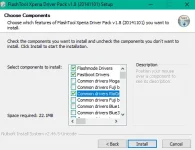
3. Click Install. A pop out will appear with a title "Found a New Hardware Wizard". Just click 'Next' for the installation to proceed. Wait until its finished. Close the installer once done.
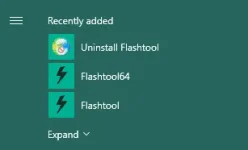
4. Once done, run Flashtool in the Programs. Maalin sa dalawa, depending on your computer architecture. Use flashtool for 32 bit systems and Flashtool64 for 64bit ones. Just click 'Yes' on User Account Control prompt window.
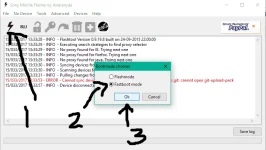
5. On the Flashtool Software, click the lightning icon. A pop out window will appear prompting you to choose a mode. Click on Fastboot mode and click OK.
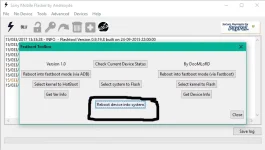
6. On the Fastboot Toolbox, Click 'Reboot device into system'
7. A pop out will appear, prompting you to do the instruction given. Follow it na lang. haha
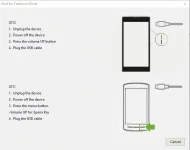
Wait for it to finish. Your Xperia phone should reboot now.
* In case you encounter 'Driver Installation Failed', especially on windows 10 computers, see this: You do not have permission to view the full content of this post. Log in or register now.
Ito po ay para buhayin yung Xperia Phone na ayaw mabuhay dahil sira ang power button pero nagchacharge pa (nagkakaroon pa ng display ng charging sa screen kapag sinasaksak sa charger). Recovering bricked Xperia devices is another story.
Xperia Phones lang po muna tayo dahil pang xperia lang po yung meron ako ngayon.
Ito po ay para sa xperia phones na defective na ang power button, pero ayaw baklasin yung phone mismo dahil:
1. Sayang waterproof.
2. Walang experience at sayang kung lalong masisira.
3. Walang pampagawa.
Disclaimer: This is just an alternative. Please follow the instructions carefully. I won't be held responsible to further damages to the device especially, hard brick.
Requisites:
1. Windows PC
2. USB Cable
3. Xperia Phone na ayaw mabuhay dahil sira ang power button pero nagchacharge pa (nagkakaroon pa ng display ng charging sa screen kapag sinasaksak sa charger)
Take note of your device's Model Number (ex. C1905) or Codename (ex. Nicky)
4. Xperia Flashtool You do not have permission to view the full content of this post. Log in or register now.
Credits po sa nag-upload nyan. Hindi po yan akin.
Instruction:
1. Download Xperia Flashtool in the provided link. Extract and install 'flashtool-0.9.19.8-windows.exe'
2. Navigate to C:\Flashtool\Drivers and run 'Flashtool-drivers.exe'
Click Next.
Check []Flashmode Drivers and []Fastboot Drivers together with []Common Drivers for *Your Device's Codename/Model* (Ex. []Common Drivers for Rio Grande)
It should look like this:
3. Click Install. A pop out will appear with a title "Found a New Hardware Wizard". Just click 'Next' for the installation to proceed. Wait until its finished. Close the installer once done.
4. Once done, run Flashtool in the Programs. Maalin sa dalawa, depending on your computer architecture. Use flashtool for 32 bit systems and Flashtool64 for 64bit ones. Just click 'Yes' on User Account Control prompt window.
5. On the Flashtool Software, click the lightning icon. A pop out window will appear prompting you to choose a mode. Click on Fastboot mode and click OK.
6. On the Fastboot Toolbox, Click 'Reboot device into system'
7. A pop out will appear, prompting you to do the instruction given. Follow it na lang. haha
Wait for it to finish. Your Xperia phone should reboot now.
* In case you encounter 'Driver Installation Failed', especially on windows 10 computers, see this: You do not have permission to view the full content of this post. Log in or register now.
