 PH
PHBlueStacks

This is an emulator that needs no introduction to. It’s been around for a good span of time, and has most definitely ruled all of the other existing emulators, and that includes its very own big brother – bluestacks 2. Without a doubt, bluestacks should be your first option in installing apps for pc on a computer running windows xp,7,8,8.1,10 pc.
BlueStacks 2 for Windows Pc
BlueStacks 2 was released not too long ago, due to the overwhelming support the predecessor has obtained. Many users (including me) were finally glad to see an improved, much better version of the original, which itself was so hard to compete with. BlueStacks 2 has brought about a ton of new options, including a better, seamless interface, and a choice of better functioning applications and games.
How To Install BlueStacks 2 and Run Apps for Pc
First of all, grab the latest version of bluestacks 2 for windows, and make sure you have the installed downloaded.
Just like previously, run the installer, proceed with the numerous steps, and finally allow it to download some required app data to run the emulator smoothly. Once done, allocate it some time to install.
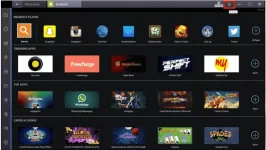
Once done, bluestacks 2 can now be launched using your pc. The moment you launch it, you will notice a sleek looking new interface.
Now we need to enable the google play store, just the way we’ve done for the original bluestacks. Head over to settings > manage Accounts > google. Again, add your account, or create a new one.
This time though, you need to configure a bluestacks account as well, and it is as simple as following some on-screen steps.
Lastly, setup your google account once more after you enable app sync, and once all of that is done, you’re pretty much good to go.
Now, you can install any amount of applications or games on your bluestacks 2 emulator. To do so, click on the ‘Android’ tab on the top, and search for the desired application/game. The search results will popup, and click on the appropriate one, which will redirect you to the google play store link, and then installing it is a piece of cake, right?
How To Install Apk Files Using BlueStacks 2
Head over to a trusty website and grab the apk file that you desire.
Make sure that bluestacks is running perfectly fine for you. Now, place the apk file on a convenient location.
Launch bluestacks, and click on the little apk button, and then choose the downloaded apk file. You can also try running the apk file directly from your computer, and then opening it via bluestacks.
Installing an apk file is just a series of clicks, just keep on tapping on ‘next’, and then ‘install’.
5.Good going! You’re now familiar with bluestacks 2 as well!
Download Link: You do not have permission to view the full content of this post. Log in or register now.
No hit and run just hit like
i'm satify.
josh_4
This is an emulator that needs no introduction to. It’s been around for a good span of time, and has most definitely ruled all of the other existing emulators, and that includes its very own big brother – bluestacks 2. Without a doubt, bluestacks should be your first option in installing apps for pc on a computer running windows xp,7,8,8.1,10 pc.
BlueStacks 2 for Windows Pc
BlueStacks 2 was released not too long ago, due to the overwhelming support the predecessor has obtained. Many users (including me) were finally glad to see an improved, much better version of the original, which itself was so hard to compete with. BlueStacks 2 has brought about a ton of new options, including a better, seamless interface, and a choice of better functioning applications and games.
How To Install BlueStacks 2 and Run Apps for Pc
First of all, grab the latest version of bluestacks 2 for windows, and make sure you have the installed downloaded.
Just like previously, run the installer, proceed with the numerous steps, and finally allow it to download some required app data to run the emulator smoothly. Once done, allocate it some time to install.
Once done, bluestacks 2 can now be launched using your pc. The moment you launch it, you will notice a sleek looking new interface.
Now we need to enable the google play store, just the way we’ve done for the original bluestacks. Head over to settings > manage Accounts > google. Again, add your account, or create a new one.
This time though, you need to configure a bluestacks account as well, and it is as simple as following some on-screen steps.
Lastly, setup your google account once more after you enable app sync, and once all of that is done, you’re pretty much good to go.
Now, you can install any amount of applications or games on your bluestacks 2 emulator. To do so, click on the ‘Android’ tab on the top, and search for the desired application/game. The search results will popup, and click on the appropriate one, which will redirect you to the google play store link, and then installing it is a piece of cake, right?
How To Install Apk Files Using BlueStacks 2
Head over to a trusty website and grab the apk file that you desire.
Make sure that bluestacks is running perfectly fine for you. Now, place the apk file on a convenient location.
Launch bluestacks, and click on the little apk button, and then choose the downloaded apk file. You can also try running the apk file directly from your computer, and then opening it via bluestacks.
Installing an apk file is just a series of clicks, just keep on tapping on ‘next’, and then ‘install’.
5.Good going! You’re now familiar with bluestacks 2 as well!
Download Link: You do not have permission to view the full content of this post. Log in or register now.
No hit and run just hit like
i'm satify.
josh_4
