PH
PHjeffchiang
Enthusiast
First of all, credit ito kay gennvier na nagshare sa akin. I have been using this for quite some time now, but I guess it is but fair to share with other members of PHC. I hope ok lang din dun sa taong nagshare sa akin.
Hindi ko na lalagyan ng spoiler. I expect that as members of PHC, we will all be responsible.
Requirements:
1. Globe or TM Sim
2. Pocket Wifi or hotspot Capable device
Procedures:
1. Create ka ng APN: You do not have permission to view the full content of this post. Log in or register now.
2. Download this file: You do not have permission to view the full content of this post. Log in or register now.
3. Extract the content to your laptop/desktop computer. You will see 2 folders inside
4. First access, simple server and run the file globe.exe. Wait till it says ready.
5. Next, open the proxifier folder and run proxifier.
6. Open your favorite browser and start browsing.
Pa feedback na lang if working sa inyo. Painform na rin if may duplicate post na ito so I can delete this thread.
Happy Browsing... Enjoy.
***UPDATE***
Gaya ng sinabi ko, iuupdate ko kayo sa FreeNet Using default APN. Again, credits po sa nakatuklas nito. Galing po ito sa kabila. Pinalitan ko lang yung mga proxy config...
Eto po yung result ng testmy.net:
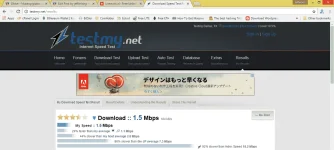
Pwede na rin yan di ba? Hanap na lang kayo ng mas mabilis na proxy config...
Note: I am using IPAD with LTE connection. Please do not blame me if hindi gumana sa inyo. Gumagana din ito sa 3G connection. Pakitry na lang po.
Good for:
BROWSING
DOWNLOADING
STREAMING
Hindi pwede sa Torrent.
REQUIREMENTS:
1. Globe/TM Sim.
2. Pocket Wifi or any device na pwede gamitan ng sim at kumonekta sa net.
3. Set your APN: internet.globe.com.ph for LTE or http.globe.com.ph for 3G
4. Download the file in this link: You do not have permission to view the full content of this post. Log in or register now.
5. Inside you will find 3 folders. Unahin muna iopen yung folder ng Proxifier PE 3.2.9 then run proxifier.exe as Administrator.
6. Next, open SSCapV3.5 folder and run SSCap.exe.
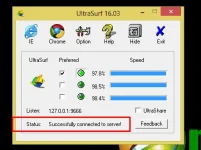
7. Third, Open Ultrasurf folder and run u1603.exe, wait nyo till it says "Successfully connected to server (see image below):
8. Once connected na ang UltraSurf, you can start browsing. I am using Google Chrome so I will share how to connect with Google Chrome. Normally, what happens is pagrun nyo ng ultrasurf, automatically nacoconfigure si Google Chrome to connect using proxy. So here is what you need to do,
a. Open Google Chrome browser.
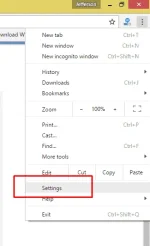
b. Go to Settings:
c. Scroll to the bottom and click "Show Advanced Settings".
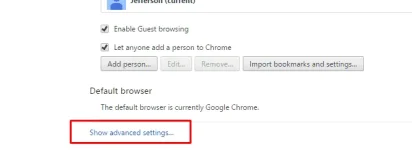
d. Scroll down then hanapin nyo Network, tapos click nyo "Change Proxy Settings"
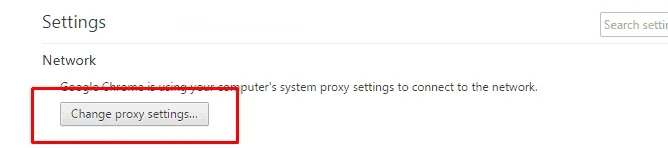
e. May magpopopup na windows jan, then click nyo LAN Settings.
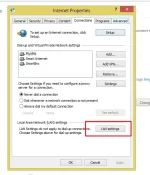
f. Make sure hindi nakacheck ang proxy server, kung nakacheck yan, iuncheck nyo.
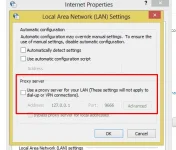
g. Ok nyo lang yan. Then start na kayo magbrowse.
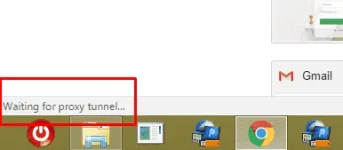
Note: Pag nagbbrowse kayo tapos nakita nyo sa ilalim na "Waiting for Proxy Tunnel" ibig sabihin nyan nagactivate ulit yung proxy, ulitin nyo lang yung steps A to G.
Sa IDM naman wala na kailangan iset.
Pa feedback na lang if working.
Hindi ko na lalagyan ng spoiler. I expect that as members of PHC, we will all be responsible.
Requirements:
1. Globe or TM Sim
2. Pocket Wifi or hotspot Capable device
Procedures:
1. Create ka ng APN: You do not have permission to view the full content of this post. Log in or register now.
2. Download this file: You do not have permission to view the full content of this post. Log in or register now.
3. Extract the content to your laptop/desktop computer. You will see 2 folders inside
4. First access, simple server and run the file globe.exe. Wait till it says ready.
5. Next, open the proxifier folder and run proxifier.
6. Open your favorite browser and start browsing.
Pa feedback na lang if working sa inyo. Painform na rin if may duplicate post na ito so I can delete this thread.
Happy Browsing... Enjoy.
***UPDATE***
Gaya ng sinabi ko, iuupdate ko kayo sa FreeNet Using default APN. Again, credits po sa nakatuklas nito. Galing po ito sa kabila. Pinalitan ko lang yung mga proxy config...
Eto po yung result ng testmy.net:
Pwede na rin yan di ba? Hanap na lang kayo ng mas mabilis na proxy config...
Note: I am using IPAD with LTE connection. Please do not blame me if hindi gumana sa inyo. Gumagana din ito sa 3G connection. Pakitry na lang po.
Good for:
BROWSING
DOWNLOADING
STREAMING
Hindi pwede sa Torrent.
REQUIREMENTS:
1. Globe/TM Sim.
2. Pocket Wifi or any device na pwede gamitan ng sim at kumonekta sa net.
3. Set your APN: internet.globe.com.ph for LTE or http.globe.com.ph for 3G
4. Download the file in this link: You do not have permission to view the full content of this post. Log in or register now.
5. Inside you will find 3 folders. Unahin muna iopen yung folder ng Proxifier PE 3.2.9 then run proxifier.exe as Administrator.
6. Next, open SSCapV3.5 folder and run SSCap.exe.
7. Third, Open Ultrasurf folder and run u1603.exe, wait nyo till it says "Successfully connected to server (see image below):
8. Once connected na ang UltraSurf, you can start browsing. I am using Google Chrome so I will share how to connect with Google Chrome. Normally, what happens is pagrun nyo ng ultrasurf, automatically nacoconfigure si Google Chrome to connect using proxy. So here is what you need to do,
a. Open Google Chrome browser.
b. Go to Settings:
c. Scroll to the bottom and click "Show Advanced Settings".
d. Scroll down then hanapin nyo Network, tapos click nyo "Change Proxy Settings"
e. May magpopopup na windows jan, then click nyo LAN Settings.
f. Make sure hindi nakacheck ang proxy server, kung nakacheck yan, iuncheck nyo.
g. Ok nyo lang yan. Then start na kayo magbrowse.
Note: Pag nagbbrowse kayo tapos nakita nyo sa ilalim na "Waiting for Proxy Tunnel" ibig sabihin nyan nagactivate ulit yung proxy, ulitin nyo lang yung steps A to G.
Sa IDM naman wala na kailangan iset.
Pa feedback na lang if working.