 PH
PH-
Welcome to PHCorner Forums! Sign up for free to unlock full access and exclusive privileges, including:
- Asking questions about computer and mobile issues
- Discovering internet tips for your mobile network and computer
You are using an out of date browser. It may not display this or other websites correctly.
You should upgrade or use an alternative browser.
You should upgrade or use an alternative browser.
🛠️ Tools DarsUnlocker V5.4 Unlocktool) Latest Update Oct. 17, 2026 Free Log In!
- Thread starter Psylent
- Start date
iamjherzel
Elite
invalid na boss?
aeronvagyoh gonzales
Journeyman
bakit inficted daw yong file block ng avast browser? false positive po ba ito?
Oo lods...bakit inficted daw yong file block ng avast browser? false positive po ba ito?
UnlockTool Loader Installation Guide
Important Note: Antivirus software often flags hardware-servicing tools and loaders as "false positives" because of how they interact with system files. Follow these steps carefully to ensure the setup completes without issues.Step 1: Temporarily Disable Antivirus & Real-Time Protection
Open Windows Security (or your third-party antivirus program).
Go to Virus & threat protection > Manage settings.
Toggle Real-time protection to OFF.
Step 2: Create a Dedicated Folder & Add an Exclusion
Create a new folder on your computer specifically for the loader (for example: C:\UnlockTool_Loader).
Go back to Windows Security > Virus & threat protection > Manage settings.
Scroll down to Exclusions and click Add or remove exclusions.
Click Add an exclusion, choose Folder, and select the folder you created in step 1.
This prevents Windows from automatically deleting or blocking the loader files later.
Step 3: Download & Extract the Loader
Download the loader file using the link provided below directly into your excluded folder.
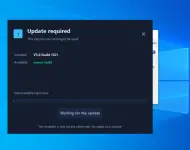
Version Warning: Do NOT update to or download the latest version if prompted. Stick specifically to the exact loader version provided in the link.
Extract the downloaded zip/archive file directly into that same excluded folder.
Step 4: Run the Application
Right-click the loader executable (.exe) file inside your excluded folder.
Select Run as administrator.
Proceed with the loader menu as instructed.
Hybrid1987
Eternal Poster
Thanks idol keep sharing
spd chipset kasi yans. lods.. not supported sa safe format.. burado talaga lahat yan..Okay ba to boss pang bypass ng password ng realme c15? Android 10 yun e, limot kasi password. Thanks
Ayun lang, thank you sa response bossing. Salamat parin sa toolspd chipset kasi yans. lods.. not supported sa safe format.. burado talaga lahat yan..

Spd ba boss is yung UNISOC? Tiningnan ko kasi GSMarena, Mediatek G35 man sya?spd chipset kasi yans. lods.. not supported sa safe format.. burado talaga lahat yan..
my bad lods.. akala ko realme c51.. realme c15 pla.. try mo lang lods.. kung supported sa safe format.. pag nag success.. bali yung laman ng storage mo lang yung hindi mabubura.. yung mga app.. na nka install dati maliban sa mga default app lang ang mawawala.Spd ba boss is yung UNISOC? Tiningnan ko kasi GSMarena, Mediatek G35 man sya?
Nice, thanks boss sa help.my bad lods.. akala ko realme c51.. realme c15 pla.. try mo lang lods.. kung supported sa safe format.. pag nag success.. bali yung laman ng storage mo lang yung hindi mabubura.. yung mga app.. na nka install dati maliban sa mga default app lang ang mawawala.


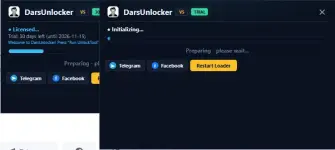
Paki basa lang lods Yung na dedetect ng loader then hanapin mo sa task manager at end task mo na lang
iamjherzel
Elite
Similar threads
-
🛠️ Tools UnlockTool Free New Version Loader by DarsUnlocker Sept. 28, 2026 (Tested In Offline Mode)
- Started by Psylent
- Replies: 255
-
🤖 Android (Latest) DarsUnlocker Bypass Loader + UNLOCKTOOL Complete
- Started by PHC-scarlet
- Replies: 9
-
[Latest v5.0 Updated]DarsUnlocker + UNLOCKTOOL v2026.09.23.0 Bypass Login
- Started by vivek1
- Replies: 19
About this Thread
-
77Replies
-
3KViews
-
48Participants
Last reply from:
Barney96
Barney96
New Topics
-
KMSAuto Acïvâør for all versions of Windows and Office
- Started by km2000
- Replies: 1
- ⚙️ PC Apps, Themes, Tools
-
Cut Videos Without Losing Quality or Re-encoding
- Started by Lerps
- Replies: 1
- ⚙️ PC Apps, Themes, Tools
-
Internet Download Manager (IDM) 6.43 Build 16
- Started by km2000
- Replies: 0
- ⚙️ PC Apps, Themes, Tools
-
-
Remo Recover Windows 6.1.0.12 Crack
- Started by Carlos2026
- Replies: 0
- ⚙️ PC Apps, Themes, Tools
-
Wondershare UniConverter 18.0.1.66 Crack Full 2026
- Started by Carlos2026
- Replies: 0
- ⚙️ PC Apps, Themes, Tools
-
Steinberg Cubase Pro 15.0.40 (x64 Multilingual
- Started by crakyman
- Replies: 0
- ⚙️ PC Apps, Themes, Tools
-
Activate OFFICE and WINDOWS
- Started by ChuckY DolL
- Replies: 4
- ⚙️ PC Apps, Themes, Tools
-
Combo Generator Pro
- Started by Noztrebor
- Replies: 3
- ⚙️ PC Apps, Themes, Tools
Trending Topics
Online now
- Members online
- 1,027
- Guests online
- 6,320
- Total visitors
- 7,347