 PH
PHNow that you have successfully identified the unauthorized devices using WiFiman, you have two ways to kick them off your network.
The easiest and most secure way is to change your WiFi password. This instantly disconnects everyone, meaning only people you give the new password to can reconnect. However, if you don't want the hassle of reconnecting all your own smart TVs, phones, and laptops, you can block the specific freeloaders using MAC Filtering.
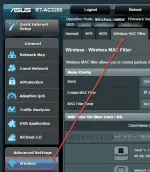
Here is how to block those specific devices through your router's settings. (Router Model may vary.)
1. Copy the MAC Address:
Open the WiFiman app from your previous scan. Tap on the unauthorized device you want to block and copy its MAC Address (it will look like a mix of letters and numbers, such as A1:B2:C3 4:E5:F6).
2. Log into Your Router's Admin Panel:
Open a web browser on your phone or computer. Type your router’s IP address into the address bar (usually 192.168.1.1 or 192.168.0.1) and press Enter. You will need to log in with the admin username and password.
3. Locate MAC Filtering Settings:
Once logged in, look for a section named Advanced Settings, Security, Wireless, or Access Control. Inside one of these menus, you will find a setting called MAC Filtering or Device Block/Blacklist.
4. Set the Filter Rule:Deny or Blacklist.
Turn on the MAC Filtering feature. Make sure the rule is set to Deny or Blacklist (this means "block the devices on this list"). Warning: Do not set it to "Allow" or "Whitelist" unless you plan to manually add every single device you own!
5.Add the Freeloader's MAC Address:
Click "Add Device" or "Add Rule." Paste the MAC Address you copied from WiFiman into the field. Save your changes and apply the settings. The router will usually reboot, and that device will be permanently banned from connecting.
PS: Many modern smartphones use "Randomized MAC Addresses" for privacy. If the person blocking you notices they are kicked off, they might just disconnect and reconnect to generate a new MAC address. If they keep coming back, changing your WiFi password is your best permanent fix!
Need help finding your router's login details?
The easiest and most secure way is to change your WiFi password. This instantly disconnects everyone, meaning only people you give the new password to can reconnect. However, if you don't want the hassle of reconnecting all your own smart TVs, phones, and laptops, you can block the specific freeloaders using MAC Filtering.
Here is how to block those specific devices through your router's settings. (Router Model may vary.)
1. Copy the MAC Address:
Open the WiFiman app from your previous scan. Tap on the unauthorized device you want to block and copy its MAC Address (it will look like a mix of letters and numbers, such as A1:B2:C3
4:E5:F6).2. Log into Your Router's Admin Panel:
Open a web browser on your phone or computer. Type your router’s IP address into the address bar (usually 192.168.1.1 or 192.168.0.1) and press Enter. You will need to log in with the admin username and password.
3. Locate MAC Filtering Settings:
Once logged in, look for a section named Advanced Settings, Security, Wireless, or Access Control. Inside one of these menus, you will find a setting called MAC Filtering or Device Block/Blacklist.
4. Set the Filter Rule:Deny or Blacklist.
Turn on the MAC Filtering feature. Make sure the rule is set to Deny or Blacklist (this means "block the devices on this list"). Warning: Do not set it to "Allow" or "Whitelist" unless you plan to manually add every single device you own!
5.Add the Freeloader's MAC Address:
Click "Add Device" or "Add Rule." Paste the MAC Address you copied from WiFiman into the field. Save your changes and apply the settings. The router will usually reboot, and that device will be permanently banned from connecting.
PS: Many modern smartphones use "Randomized MAC Addresses" for privacy. If the person blocking you notices they are kicked off, they might just disconnect and reconnect to generate a new MAC address. If they keep coming back, changing your WiFi password is your best permanent fix!
Need help finding your router's login details?