PH
PHYou do not have permission to view the full content of this post.
Log in or register now.
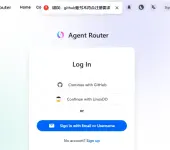
After signing in to AgentRouter, navigate to:
Console → API Token → Create Token
Copy the generated token and store it securely. Do not share it with anyone.
Open PowerShell and run the following command:
irm You do not have permission to view the full content of this post. Log in or register now. | iex<br>
After the installation is complete, verify that Claude Code was installed successfully by running:
claude --version
If a version number is displayed, the installation was successful.
In PowerShell, run the following commands:
New-Item -ItemType Directory -Force "$env:USERPROFILE\.claude"<br>notepad "$env:USERPROFILE\.claude\settings.json"<br>
When Notepad opens, paste the following configuration into the settings.json file:
{<br> "env": {<br> "ANTHROPIC_AUTH_TOKEN": "PASTE_YOUR_TOKEN_HERE",<br> "ANTHROPIC_BASE_URL": "You do not have permission to view the full content of this post. Log in or register now.",<br> "ANTHROPIC_MODEL": "claude-opus-5"<br> }<br>}<br>
Replace:
PASTE_YOUR_TOKEN_HERE
with the API token you copied from AgentRouter.
Save the file, then close Notepad.
Open PowerShell or Command Prompt, then navigate to your project folder.
Example for PowerShell:
cd "E:\YourProject"<br>claude
Example for Command Prompt:
cd /d E:\YourProject<br>claude
Replace E:\YourProject with the actual path of your project folder.
Do not run:
/login
Your AgentRouter token already handles authentication and connection.
Good for you claude code mga bossing, Sign up with Github mas prefer
"CREDITS SA PROMPT"
After signing in to AgentRouter, navigate to:
Console → API Token → Create Token
Copy the generated token and store it securely. Do not share it with anyone.
Open PowerShell and run the following command:
irm You do not have permission to view the full content of this post. Log in or register now. | iex<br>
After the installation is complete, verify that Claude Code was installed successfully by running:
claude --version
If a version number is displayed, the installation was successful.
In PowerShell, run the following commands:
New-Item -ItemType Directory -Force "$env:USERPROFILE\.claude"<br>notepad "$env:USERPROFILE\.claude\settings.json"<br>
When Notepad opens, paste the following configuration into the settings.json file:
{<br> "env": {<br> "ANTHROPIC_AUTH_TOKEN": "PASTE_YOUR_TOKEN_HERE",<br> "ANTHROPIC_BASE_URL": "You do not have permission to view the full content of this post. Log in or register now.",<br> "ANTHROPIC_MODEL": "claude-opus-5"<br> }<br>}<br>
Replace:
PASTE_YOUR_TOKEN_HERE
with the API token you copied from AgentRouter.
Save the file, then close Notepad.
Open PowerShell or Command Prompt, then navigate to your project folder.
Example for PowerShell:
cd "E:\YourProject"<br>claude
Example for Command Prompt:
cd /d E:\YourProject<br>claude
Replace E:\YourProject with the actual path of your project folder.
Do not run:
/login
Your AgentRouter token already handles authentication and connection.
Good for you claude code mga bossing, Sign up with Github mas prefer
"CREDITS SA PROMPT"