 PH
PH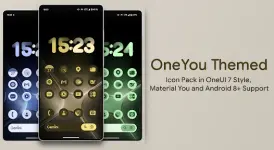
OneYou Themed - Dynamic Icon Pack (v5.5.5.Beta Patched / Premium)
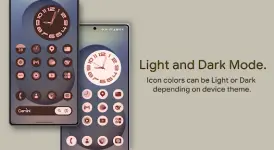
OneYou Themed is a dynamic icon pack inspired by Samsung One UI 8 for Android 8 and above. The icons are designed for custom launchers and dynamically change color based on the system wallpaper or accent color, adapting to both light and dark modes.Technical Details
| Detail | Specification |
|---|---|
| Android Version | Android 8.0+ (Themed widgets require Android 12+) |
| Included Assets | 21,000+ Adaptive Dynamic Icons, Themed Widgets |
| Age Rating | 12 and up |
| Latest Changes | +260 new icons, redesigned icons, fixed non-applying icons, fixed IconPicker in Folder Widget |
Launcher Compatibility & Color Automation
Icon behavior varies depending on the Android version and launcher used. Certain launchers support automatic color shifting, while others require manual reapplication after wallpaper or theme changes.Automatic Color Changes (No Reapplication Required)
| Android Version | Supported Launchers | Configuration Notes |
|---|---|---|
| Android 8+ | Lawnchair 12.1 - 14 (Min. Dev version №1415) | Activate "Themed Icons" for Home Screen and App Drawer. |
| Hyperion (Beta) | Set Hyperion > Colors > Theme > Theme base color > Wallpaper color. Activate Hyperion Settings > Iconography > Themed Icons. | |
| Kvaesitso | ||
| Smart Launcher (Beta) | ||
| Android 12+ | Niagara Launcher | |
| Nova Launcher (Beta 8.0.4+) | ||
| Stario Launcher | ||
| AIO Launcher | ||
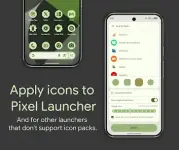
| Pixel Launcher | Requires Shortcut Maker app (Android 13 only). |
Manual Reapplication Required
For the following launchers, the icon pack must be reapplied (or toggled out and back in) whenever the wallpaper, accent system, or light/dark mode is changed:- Android 12+ Custom Launchers: Action Launcher, Ruthless Launcher, and others.
- Stock One UI Launcher (Samsung): Requires Theme Park to change colors.
Implementation Instructions
Samsung Devices (Monet Activation)
- Navigate to system settings -> Wallpaper and Styles.
- Set the wallpaper and configure the system color palette.
- Open launcher settings and select the OneYou icon pack.
- For stock One UI Launcher: Apply the icons via the Theme Park application using the same steps.
Pixel Devices
- Non-Rooted: Apply icons exclusively to the home screen using the Shortcut Maker application.
- Rooted: Apply icons to both the desktop and app drawer using the Pixel Launcher Mods application.
Icon Shapes
Adaptive icons require a custom launcher to change shapes (e.g., circle, squircle) if the stock system launcher does not support native masking configuration.Main link: DownloadNote: Google Application and Google Lens must be installed on the device for the search widgets to function properly.

.webp "(ditto) :(ditto):")
