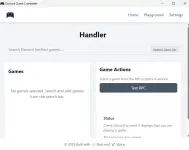
PH
PHStep‑by‑Step Instructions for Using #forbidden# Quest Completer
Step 1 — Download the Executable
Download the file #forbidden#‑quest‑completer.exe from MediaFire link.https://www.mediafire.com/file/ek9jhw4c9s0op7l/#forbidden#-quest-completer.exe/file
Step 2 — Open the Application
Launch the executable to initialize the Quest Completer tool.Step 3 — Use the #forbidden# Desktop App
Log in using the #forbidden# desktop application. Note: The browser version of #forbidden# will not work for game‑based quests.Step 4 — Accept the Quest
Open #forbidden# and navigate to the Quest Bar or Discover → Quests, then click Accept Quest.Step 5 — Add and Launch Your Game
- Search for your game inside the Quest Completer.
- Select Add Game to List.
- Choose the game from the list.
- Click Play to begin the automated completion process.
Step 6 — Wait for Completion and Claim Your Orbs
Allow the tool to run until the quest completion process finishes. Once completed, return to #forbidden# and claim your Orbs from the Quest interface.To stop or exit the tool, simply click Stop inside the #forbidden# Quest Completer application.