 PH
PHdiba may pawns na?View attachment 4140306ano kaya pwede idagdag dito bossing?
-
Welcome to PHCorner Forums! Sign up for free to unlock full access and exclusive privileges, including:
- Asking questions about computer and mobile issues
- Discovering internet tips for your mobile network and computer
You are using an out of date browser. It may not display this or other websites correctly.
You should upgrade or use an alternative browser.
You should upgrade or use an alternative browser.
👨🏫 Tutorial OFFICIAL THREAD UPDATE TUTORIAL: PAANO I-SETUP ANG PASSIVE INCOME SA WINDOWS (No Reformat)
- Thread starter SancTum26
- Start date
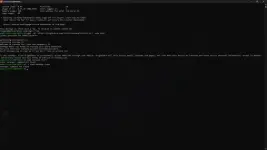
meron pero same issue kahit ano gawin ko eh {"happened_at":"2026-04-17T13:35:35Z","name":"not_running","parameters":{"error":"ip_used","message":"getting free port failed (ip has alive peer)"}}diba may pawns na?
bossing ayoko sana maging rude, pero libre naman magbasa ng comments.View attachment 4140929eto pa bossing earn app
Simple: Download the earnapp.exe installer.
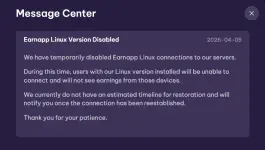
ah yun pala talaga yun kala ko meron pang way para mag earn dyan ehbossing ayoko sana maging rude, pero libre naman magbasa ng comments.
Simple: Download the earnapp.exe installer.
View attachment 4141057
misbehavior
Eternal Poster
Good morning lods. Sorry beginner, personal or pwede dummy email lng ilagay or iregister ko lods ? Salamat TS. 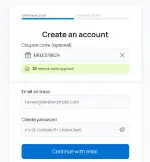
depende sayo bossing basta may access ka sa credentials moGood morning lods. Sorry beginner, personal or pwede dummy email lng ilagay or iregister ko lods ? Salamat TS. View attachment 4141295
tinigil muna nila ang linux version ng earnapp.ah yun pala talaga yun kala ko meron pang way para mag earn dyan eh
sige lang bossing sayang din ang extra kita habang ginagamit ang PC/Laptop mo.Masubukan nga din ito. Salamat TS
misbehavior
Eternal Poster
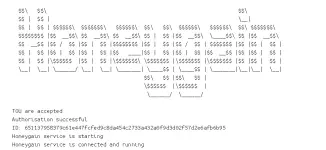
thank you bossing, okay na po ito TS? Salamat

Goods na yan bossing.
pano po malaman if running and earning yung earn_fm, eto po kasi nakalagay sakin
connected to target server, requestId: xxxxxxxx-xxxx-xxxx-xxxx-xxxxxxxxxxxx
Closed the socket and channel, requestId: xxxxxxxx-xxxx-xxxx-xxxx-xxxxxxxxxxxx
Target server closed the socket connection, xxxxxxxx-xxxx-xxxx-xxxx-xxxxxxxxxxxx
connected to target server, requestId: xxxxxxxx-xxxx-xxxx-xxxx-xxxxxxxxxxxx
Closed the socket and channel, requestId: xxxxxxxx-xxxx-xxxx-xxxx-xxxxxxxxxxxx
Target server closed the socket connection, xxxxxxxx-xxxx-xxxx-xxxx-xxxxxxxxxxxx
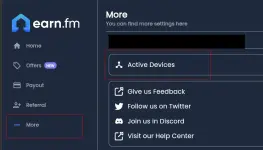
check mo sa website dashboard click more...pano po malaman if running and earning yung earn_fm, eto po kasi nakalagay sakin
connected to target server, requestId: xxxxxxxx-xxxx-xxxx-xxxx-xxxxxxxxxxxx
Closed the socket and channel, requestId: xxxxxxxx-xxxx-xxxx-xxxx-xxxxxxxxxxxx
Target server closed the socket connection, xxxxxxxx-xxxx-xxxx-xxxx-xxxxxxxxxxxx
Sa mga bagong version ng Docker Desktop (lalo na sa Windows 11), wala nang "Use WSL 2 instead of Hyper-V" na checkbox sa mismong installer. Ang dahilan ay ang WSL 2 na ang default backend ng Docker Desktop ngayon.Hello po, san po mahahanap yung "Use WSL 2 instead of Hyper-V", Im using windows 11, sa pag install kasi wala naman ganyang settings
Narito ang dapat mong gawin:
- Siguraduhing naka-install at naka-enable ang WSL 2 bago mo i-install ang Docker Desktop.
Buksan ang PowerShell as Administrator at i-run:
(Ito ay mag-i-install ng Ubuntu at magse-set ng WSL 2 bilang default.)
- I-restart ang PC pagkatapos ng WSL installation.
- I-download at i-install ang Docker Desktop gaya ng dati. Hindi mo na kailangan maghanap ng checkbox — awtomatiko na itong gagamit ng WSL 2.
- Pagkatapos ng installation, buksan ang Docker Desktop, pumunta sa Settings > General, at tingnan kung may nakasulat na "Use WSL 2 based engine" — dapat ito ay naka-check. Kung wala, i-check mo ito nang manu-mano.
- Pumunta rin sa Settings > Resources > WSL Integration para i-enable ang integration sa iyong Ubuntu distribution.
After macheck ang "Use WSL 2 based engine" ano next step? Medyo nangangapa pa akoSa mga bagong version ng Docker Desktop (lalo na sa Windows 11), wala nang "Use WSL 2 instead of Hyper-V" na checkbox sa mismong installer. Ang dahilan ay ang WSL 2 na ang default backend ng Docker Desktop ngayon.
Narito ang dapat mong gawin:
wsl --install
- Siguraduhing naka-install at naka-enable ang WSL 2 bago mo i-install ang Docker Desktop.
Buksan ang PowerShell as Administrator at i-run:
(Ito ay mag-i-install ng Ubuntu at magse-set ng WSL 2 bilang default.)
- I-restart ang PC pagkatapos ng WSL installation.
- I-download at i-install ang Docker Desktop gaya ng dati. Hindi mo na kailangan maghanap ng checkbox — awtomatiko na itong gagamit ng WSL 2.
- Pagkatapos ng installation, buksan ang Docker Desktop, pumunta sa Settings > General, at tingnan kung may nakasulat na "Use WSL 2 based engine" — dapat ito ay naka-check. Kung wala, i-check mo ito nang manu-mano.
- Pumunta rin sa Settings > Resources > WSL Integration para i-enable ang integration sa iyong Ubuntu distribution.

DEPLOY PORTAINER CONTROL CENTER.After macheck ang "Use WSL 2 based engine" ano next step? Medyo nangangapa pa ako
bossing may step by step tayo sa website at readme text file.
About this Thread
-
735Replies
-
33KViews
-
129Participants
Last reply from:
SancTum26
SancTum26
New Topics
-
FRESH PA // 200 MIN. DEPO/WDRAW
- Started by nemonics6
- Replies: 0
- 💰 Crypto, Earn, & Referrals
-
NEW CARZiQo website
- Started by eye4aneye
- Replies: 1
- 💰 Crypto, Earn, & Referrals
-
NEW EARNING APP-PAMALIT KAY CARZIQO
- Started by eye4aneye
- Replies: 1
- 💰 Crypto, Earn, & Referrals
-
Walk to earn free lang to mga bossing
- Started by Qwery1
- Replies: 1
- 💰 Crypto, Earn, & Referrals
-
FRESH PA 200 MINIMUM DEPO/WDRAW - WAG MO SAYANGIN TO
- Started by nemonics6
- Replies: 0
- 💰 Crypto, Earn, & Referrals
-
FRESH NEW LAUNCH OCT 17
- Started by InvestTo
- Replies: 2
- 💰 Crypto, Earn, & Referrals
-
ETO LEGIT AND STILL PAYING
- Started by PHC- Mr Bean
- Replies: 2
- 💰 Crypto, Earn, & Referrals
-
Update sa Recording Video Game (Shofo.ai)
- Started by Deng-
- Replies: 1
- 💰 Crypto, Earn, & Referrals
-
FRESH PA 200 MINIMUM DEPO/WDRAW
- Started by nemonics6
- Replies: 1
- 💰 Crypto, Earn, & Referrals
Trending Topics
Online now
- Members online
- 1,037
- Guests online
- 8,636
- Total visitors
- 9,673