 PH
PHTHIS Tutorial is only for Solving Samsung J7 Prime Bootloop and stuck on logo and updating firmware at the same time.
(if you just want to resolve the issue of bootloop and stuck on logo but you dont want to update your firmware, use only one compatible firmware and skip the updating part)
i upgraded my faulty (Bootloop) phone from android version 6.0 (marshmallow) to Android 7.0 (Nougat)
First you need this Tools
MTP USB Drivers
ODIN Patched version 3.14 or ODIN v3.07 (these Version don't show error while flashing EXCEPT you tried to install the wrong/corrupted firmware)
Peazip Extractor
now
Download Compatible Firmware for your phone
e.g. for my issue is i have Firmware for SM-G610Y
I downloaded two Firmware
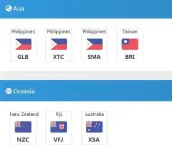
1. is for PH version Firmware (XTC-G610YZTU2ARJ3 = means for all ph network)(6.0.1)
2. the Australia version Firmware (XSA-G610YZTU2BRK1)(7.0)
i choose the most latest android build which is the image below.

i put all designated files to its designated locations "GreenBox."
warning do not use HOME_SCS(wipingdata)
then start installing Firmware.
if the problem bootloop and stuck on logo still persist the next step is Deleting the cache.img
cache.img is inside CSC_OLC which i am using(Orange line)
rename the file and remove the "md5" to make it extractable, then use peazip the extract files to the designated folder
remove/delete the cache.img from the extracted folder , then use peazip to revert it to archive file.
in peazip go to tab "Browser" select "go to archiving layout", now drag the extracted folder, select "GZip" Type and check the "TAR Before" and leave the rest as it should be.
click OK. result(blueline),
Now repeat the process (GreenBox.)
BL_G610Y - BL
AP_G610Y -AP
CP_G610Y -CP
but this time for CSC use the archive file you just have created.(blueline)
then press start.
image

now lets go to the next step which is
extract the Firmware from XSA(G610YZTU2BRK1) (nougat 7.0)
Open ODIN
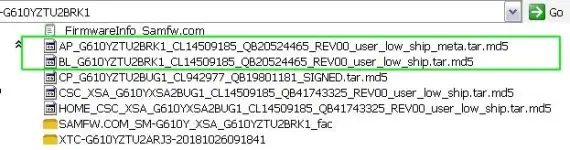
Select only the "AP_G610YZTU2BRK1" and "BL_G610YZTU2BRK1" of the firmware, DO NOT USE Australia "CP" and "CSC"
Reminder
"CP" and "CSC" are for the Network and Network Operator, while
"BL" and "AP" are for main system.
leave the "CP" and "CSC" blank or uncheck the check box for exclusion.
these particular image is the Updating Part
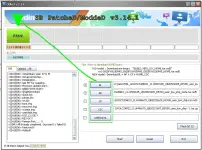
Then Press start and wait then
(if you just want to resolve the issue of bootloop and stuck on logo but you dont want to update your firmware, use only one compatible firmware and skip the updating part)
i upgraded my faulty (Bootloop) phone from android version 6.0 (marshmallow) to Android 7.0 (Nougat)
First you need this Tools
MTP USB Drivers
ODIN Patched version 3.14 or ODIN v3.07 (these Version don't show error while flashing EXCEPT you tried to install the wrong/corrupted firmware)
Peazip Extractor
now
Download Compatible Firmware for your phone
e.g. for my issue is i have Firmware for SM-G610Y
I downloaded two Firmware
1. is for PH version Firmware (XTC-G610YZTU2ARJ3 = means for all ph network)(6.0.1)
2. the Australia version Firmware (XSA-G610YZTU2BRK1)(7.0)
i choose the most latest android build which is the image below.
- now the firmware is ready, next step
- install peazip
- extract the firmwares using peazip
- Open ODIN , Select Designated Files for Designated location. e.g. (BL_File - BL ODIN)
INSTALLING MAIN Firmware
since i am also updating my firmware, i did first install the main specific firmware for my phone which is the (G610YZTU2ARJ3) android 6.0.(image below)i put all designated files to its designated locations "GreenBox."
warning do not use HOME_SCS(wipingdata)
then start installing Firmware.
if the problem bootloop and stuck on logo still persist the next step is Deleting the cache.img
cache.img is inside CSC_OLC which i am using(Orange line)
rename the file and remove the "md5" to make it extractable, then use peazip the extract files to the designated folder
remove/delete the cache.img from the extracted folder , then use peazip to revert it to archive file.
in peazip go to tab "Browser" select "go to archiving layout", now drag the extracted folder, select "GZip" Type and check the "TAR Before" and leave the rest as it should be.
click OK. result(blueline),
Now repeat the process (GreenBox.)
BL_G610Y - BL
AP_G610Y -AP
CP_G610Y -CP
but this time for CSC use the archive file you just have created.(blueline)
then press start.
image
CONGRATULATIONS!!
if you can't go through the gmail login, that's another problem.!now lets go to the next step which is
UPDATING the FIRMWARE
extract the Firmware from XSA(G610YZTU2BRK1) (nougat 7.0)
Open ODIN
Select only the "AP_G610YZTU2BRK1" and "BL_G610YZTU2BRK1" of the firmware, DO NOT USE Australia "CP" and "CSC"
Reminder
"CP" and "CSC" are for the Network and Network Operator, while
"BL" and "AP" are for main system.
leave the "CP" and "CSC" blank or uncheck the check box for exclusion.
these particular image is the Updating Part
Then Press start and wait then
