 PH
PHHere’s a step-by-step tutorial on how to enroll your PC in the Windows 10 “Extended Security Updates” (ESU) program, so you can get one extra year of critical security patches (through October 13, 2026).
Before proceeding, make sure:
Before proceeding, make sure:
- Your PC is running Windows 10 version 22H2 (and has all the latest updates installed). You do not have permission to view the full content of this post. Log in or register now.
- The “Enroll in ESU” option is available. Microsoft is rolling it out gradually, so if you don’t yet see the option, it may take a few days. You do not have permission to view the full content of this post. Log in or register now.
- You are signed in with a Microsoft account (not just a local account) — enrolment won’t work otherwise.
- You’re comfortable with one of the available enrolment methods (details below).
Here’s how to enroll your Windows 10 PC in ESU:
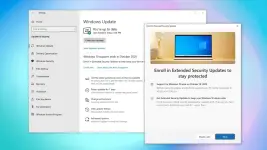
- Open Settings → Update & Security → Windows Update.
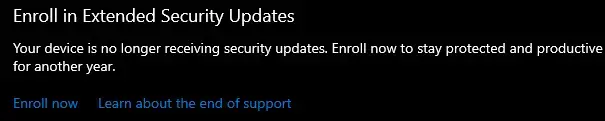
- Look for an option or link labelled something like “Enroll now in Extended Security Updates” or similar.
- Click the enroll link. A wizard will guide you through choosing how to handle the enrolment. You’ll typically see option (for consumers):
- Free enrollment by syncing your Windows 10 settings (via OneDrive/Windows Backup) to your Microsoft account. You do not have permission to view the full content of this post. Log in or register now.
- Select your preferred option and complete the prompts in the wizard (sign in to your Microsoft account if required, confirm your choice).
- After completion, your device should indicate “Your PC is enrolled to receive Extended Security Updates.”
- Restart your PC (recommended) and check again in Windows Update. Future “Security only / Important” category updates will continue to arrive monthly through the ESU coverage period (until approximately October 13, 2026) for your Windows 10 version.


 Cool
Cool thanks a lot