 PH
PH-
Welcome to PHCorner Forums! Sign up for free to unlock full access and exclusive privileges, including:
- Asking questions about computer and mobile issues
- Discovering internet tips for your mobile network and computer
You are using an out of date browser. It may not display this or other websites correctly.
You should upgrade or use an alternative browser.
You should upgrade or use an alternative browser.
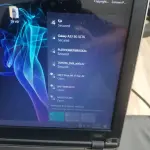
❓ Help Laptop Can't detect wifi of rain 101 5G modem
- Thread starter creamo09
- Start date
- Status
- Not open for further replies.
Lenovo brand poImported ba Laptop mo ts? (like from Japan, etc.)
Ayaw din boss.. Di talaga sya nakikita sa listna try mo na i add manually yung wifi network ni globe??
Nokubi Nana
Elite
Try mo lang siguro kalikutin sa wifi portal, change channels, rename wifi ssid, try mo din i merge yung 2.4 and 5ghz signal.
ayaw pa din po hehe.. di ko na alam ano pa gagawin hahaTry mo lang siguro kalikutin sa wifi portal, change channels, rename wifi ssid, try mo din i merge yung 2.4 and 5ghz signal.
ICE Coffee
⭐⭐☕⭐⭐
i mean dun sa hidden network, add mo sya dun, input mo SSID tapos yung password
ayaw boss hnd yata sakin yung naka hidden, cant connect to this network sinasabii mean dun sa hidden network, add mo sya dun, input mo SSID tapos yung password
ICE Coffee
⭐⭐☕⭐⭐
reset mo na lang wifi mo then reconfigure hahahaayaw boss hnd yata sakin yung naka hidden, cant connect to this network sinasabi
Naka auto po yung channel nung modem eekung 2.4ghz lang ang wifi ng laptop ay malamang naka channel 12, 13 at 14 yun modem
 Step-by-step Fix:

Many laptops (especially older or budget ones) only support 2.4 GHz Wi-Fi, not 5 GHz.
If your Rain 101 modem is broadcasting 5 GHz only, your laptop simply won’t see it.
Fix:
- Log in to your Rain 101 5G modem settings (usually 192.168.1.1 or 192.168.0.1).
- Look for Wireless Settings / SSID Settings.
- Make sure:
- Dual-band mode is enabled → both 2.4 GHz and 5 GHz are active.
- Or, create a separate 2.4 GHz SSID (e.g., Rain_2.4G).
- Then refresh Wi-Fi list on your laptop — dapat lumabas na.

- Press Windows + R → type ncpa.cpl → press Enter.
- Right-click your Wi-Fi adapter → Properties → Configure → Advanced tab.
- Look for:
- “Wireless Mode”, “Band”, or “Preferred Band”.
- Set it to Auto or 802.11 a/b/g/n/ac (or ax).
If your adapter is very old (supports only 2.4 GHz), you can’t connect to 5 GHz no matter what.
 To confirm, open Command Prompt and type:
<span><span>netsh wlan </span><span><span>show</span></span><span> drivers<br></span></span>
Then check the line:
Radio types supported
If it says only 802.11b/g/n → 2.4 GHz only
If it includes 802.11a/ac/ax → supports 5 GHz

- Go to Device Manager → Network adapters → [your Wi-Fi card].
- Right-click → Update driver → “Search automatically”.
- Or download the latest driver from your laptop manufacturer’s website.
Sometimes outdated drivers can cause missing SSIDs.

Some routers use channels (like 149–165) that are not allowed in certain countries, and your laptop’s Wi-Fi card may skip those channels.
Fix:
In your modem settings, change the 5 GHz channel to 36, 40, 44, or 48 (these are globally compatible).

If your laptop doesn’t support 5 GHz at all and you can’t enable 2.4 GHz on the Rain 101 modem:
- You can use a USB Wi-Fi adapter that supports dual-band (2.4 + 5 GHz).
They’re cheap and instantly solve the problem.
separate na boss yun 2.4ghz at 5ghz ng modem ko.. tsaka 2.4ghz lang supported ng laptop ko .. pero d pa dn nya madetect yung 2.4ghz na wifi ng rain 101.. pero yung modem ko na black mamba detect naman ng laptop ko..
Many laptops (especially older or budget ones) only support 2.4 GHz Wi-Fi, not 5 GHz.
If your Rain 101 modem is broadcasting 5 GHz only, your laptop simply won’t see it.
Fix:
- Log in to your Rain 101 5G modem settings (usually 192.168.1.1 or 192.168.0.1).
- Look for Wireless Settings / SSID Settings.
- Make sure:
- Dual-band mode is enabled → both 2.4 GHz and 5 GHz are active.
- Or, create a separate 2.4 GHz SSID (e.g., Rain_2.4G).
- Then refresh Wi-Fi list on your laptop — dapat lumabas na.
- Press Windows + R → type ncpa.cpl → press Enter.
- Right-click your Wi-Fi adapter → Properties → Configure → Advanced tab.
- Look for:
- “Wireless Mode”, “Band”, or “Preferred Band”.
- Set it to Auto or 802.11 a/b/g/n/ac (or ax).
If your adapter is very old (supports only 2.4 GHz), you can’t connect to 5 GHz no matter what.
<span><span>netsh wlan </span><span><span>show</span></span><span> drivers<br></span></span>
Then check the line:
If it says only 802.11b/g/n → 2.4 GHz only
If it includes 802.11a/ac/ax → supports 5 GHz
- Go to Device Manager → Network adapters → [your Wi-Fi card].
- Right-click → Update driver → “Search automatically”.
- Or download the latest driver from your laptop manufacturer’s website.
Sometimes outdated drivers can cause missing SSIDs.
Some routers use channels (like 149–165) that are not allowed in certain countries, and your laptop’s Wi-Fi card may skip those channels.
Fix:
In your modem settings, change the 5 GHz channel to 36, 40, 44, or 48 (these are globally compatible).
If your laptop doesn’t support 5 GHz at all and you can’t enable 2.4 GHz on the Rain 101 modem:
- You can use a USB Wi-Fi adapter that supports dual-band (2.4 + 5 GHz).
They’re cheap and instantly solve the problem.
- Status
- Not open for further replies.
About this Thread
-
16Replies
-
636Views
-
7Participants
Last reply from:
Shuuuuuuuun
Shuuuuuuuun
New Topics
-
Help po !!!! My account got häçked Facebook and steam
- Started by bujoy20
- Replies: 1
- ❓ Computer Discussion & Support
-
Replace laptop lcd
- Started by toki07
- Replies: 0
- ❓ Computer Discussion & Support
-
Mga bossing patulong po nahäçk account ko due to carelessness
- Started by Jeii
- Replies: 2
- ❓ Computer Discussion & Support
-
Computer parts na cheap
- Started by bjenjay1
- Replies: 1
- ❓ Computer Discussion & Support
-
PC APPS - remote or auto saved type and auto audio
- Started by babyzero
- Replies: 0
- ❓ Computer Discussion & Support
-
Data Recovery May Chance pa bato
- Started by tambay28
- Replies: 0
- ❓ Computer Discussion & Support
-
Capcut PC pasabit po
- Started by L A Z A
- Replies: 0
- ❓ Computer Discussion & Support
-
Download Youtube Video using CMD
- Started by BeerGin69
- Replies: 1
- ❓ Computer Discussion & Support
-
Taiwebs alternative websites
- Started by gigsta
- Replies: 0
- ❓ Computer Discussion & Support
-
Tropic Colour - Sino meron nito?
- Started by mikehacker182
- Replies: 0
- ❓ Computer Discussion & Support
Trending Topics
Online now
- Members online
- 1,253
- Guests online
- 3,832
- Total visitors
- 5,085