❓ Help Pahelp BSOD/Drivers Related Error

Status
Not open for further replies.

freedsz

Elite
Laptop: Asus Tuf a15
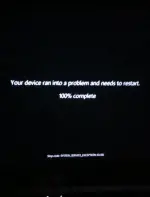
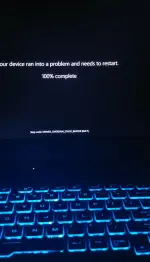
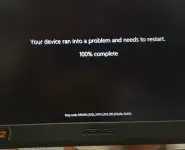
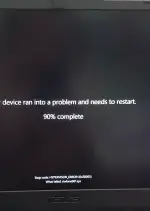
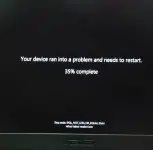
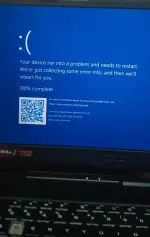
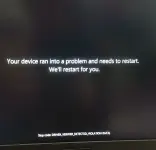
Pahelp naman mga lods lagi nlng meron lumalabas na error sa laptop ko parang bsod sya tas iba iba ung stop code pero pag naka saksak yung charger wla naman ganyang error lumalabas, una triny ko mag reinstall ng windows 11 os tas inupdate ung tamang drivers galing sa site ng asus pero nalabas padin yang ganyang error pag di nka charge, triny ko din yung sfc/dism/chkdsk tas ung dalwang ram stick ng laptop triny ko ding isa muna nka salpak pero nalabas padin ung error, baka alam nyo po anong problema dito if software/hardware side ang issue nya, thanks po.
1759076742001.webp
1759076771143.webp
1759076791684.webp
1759076812249.webp
1759076834518.webp
1759076854521.webp
1759076874498.webp
 
Di pa lods try ko din
Kung di mo naman ginagalaw settings ng mga bios baka me hardware issue na laptop mo boss.

Or maybe, nag bios update ka tapos na-restart or na-shutdown mo ang pc. Bihira kasi sa asus tuf laptop ang mag kaissue ng kung ano2. If ever man na soft-brick ang bios ng laptop mo - update mo nalang uli sa new bios baka sakali maayos.
 
Kung di mo naman ginagalaw settings ng mga bios baka me hardware issue na laptop mo boss.

Or maybe, nag bios update ka tapos na-restart or na-shutdown mo ang pc. Bihira kasi sa asus tuf laptop ang mag kaissue ng kung ano2. If ever man na soft-brick ang bios ng laptop mo - update mo nalang uli sa new bios baka sakali maayos.
Wla naman ako lods ginalaw sa bios baka hardware issue na ata try ko nlng din idala sa malapit na service center ng asus
 
try mo linisin components lods, try mo yung ram i re-seat mo, tapos mag clean format ka, gamit ka muna strelec tapos format mo yung HDD mo tapos tsaka mo install ng fresh OS.
 
Sagot ni pareng google


To resolve the "IRQL_NOT_LESS_OR_EQUAL" BSOD error with " ntoskrnl.exe" in Windows 11, you should primarily update or roll back faulty device drivers (especially graphics), check for Windows updates, and run system file integrity checks using sfc /scannow and DISM. Other important steps include testing your RAM, performing a clean boot to isolate conflicting apps, and potentially updating your BIOS.

1. Update or Roll Back Drivers
  • Update Drivers:
    Outdated or incompatible drivers are a common cause. Update drivers for your graphics card, chipset, and other devices from the manufacturer's website.

  • Roll Back Drivers:
    If the issue started after a driver update, roll back the driver in Device Manager.
2. Check for Windows Updates
  • Install any pending Windows updates through the Settings app.

  • Consider uninstalling a recently installed Windows update if the BSOD began right after one.
3. Run System File Checks

  • Open Command Prompt as an administrator.
  • Run the following commands:
    1. DISM.exe /Online /Cleanup-image /Restorehealth
    2. sfc /scannow
  • Restart your computer after the scans are complete.
4. Test Your RAM
  • A faulty RAM module can cause this error.

  • Run a memory diagnostic tool, like You do not have permission to view the full content of this post. Log in or register now., to check for RAM issues.
5. Perform a Clean Boot

  • This helps identify conflicting third-party software.
  • Hide all Microsoft services, then disable all remaining services and startup programs.
  • Restart your computer to see if the error persists.
6. Check Hardware and Overclocking

  • Ensure your hardware is compatible.
  • Turn off any CPU or memory overclocking settings in your BIOS/UEFI.
  • Check your system BIOS for available updates on your computer manufacturer's website.
 
Sagot ni pareng google


To resolve the "IRQL_NOT_LESS_OR_EQUAL" BSOD error with " ntoskrnl.exe" in Windows 11, you should primarily update or roll back faulty device drivers (especially graphics), check for Windows updates, and run system file integrity checks using sfc /scannow and DISM. Other important steps include testing your RAM, performing a clean boot to isolate conflicting apps, and potentially updating your BIOS.

1. Update or Roll Back Drivers
  • Update Drivers:
    Outdated or incompatible drivers are a common cause. Update drivers for your graphics card, chipset, and other devices from the manufacturer's website.

  • Roll Back Drivers:
    If the issue started after a driver update, roll back the driver in Device Manager.
2. Check for Windows Updates
  • Install any pending Windows updates through the Settings app.

  • Consider uninstalling a recently installed Windows update if the BSOD began right after one.
3. Run System File Checks

  • Open Command Prompt as an administrator.
  • Run the following commands:
    1. DISM.exe /Online /Cleanup-image /Restorehealth
    2. sfc /scannow
  • Restart your computer after the scans are complete.
4. Test Your RAM
  • A faulty RAM module can cause this error.

  • Run a memory diagnostic tool, like You do not have permission to view the full content of this post. Log in or register now., to check for RAM issues.
5. Perform a Clean Boot

  • This helps identify conflicting third-party software.
  • Hide all Microsoft services, then disable all remaining services and startup programs.
  • Restart your computer to see if the error persists.
6. Check Hardware and Overclocking

  • Ensure your hardware is compatible.
  • Turn off any CPU or memory overclocking settings in your BIOS/UEFI.
  • Check your system BIOS for available updates on your computer manufacturer's website.
No.6 nlng diko natetest
 
Status
Not open for further replies.

About this Thread

  • 21
    Replies
  • 785
    Views
  • 7
    Participants
Last reply from:
freedsz

Trending Topics

Online now

Members online
1,010
Guests online
1,928
Total visitors
2,938

Forum statistics

Threads
2,269,873
Posts
28,931,826
Members
1,241,629
Latest member
gapppppphaga
Back
Top