 PH
PHJay01272001
Elite
(Don't s†éál this tutorial, I've made so much work to do this)
(Mining efficiency will update after many hours of running it)
(Preview net don't have rewards but testnet is soon, better setup it up before testnet)
Short Description:
ARO Network is building a decentralized, intelligent edge cloud for real-time content delivery and future AI workloads.
Backed by a team with over $140M in annual revenue and 1.5M+ edge nodes deployed, this isn't a pitch, it's a proven foundation now open to the people.
How to setup ARO Network Client:
Prerequisites:
1. Enable Hyper V for your Windows Machine
- Go to Search and search "Turn WIndows Features on and off"
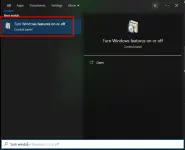
2. Find Hyper-V and check it
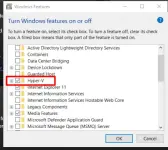
3. Press Ok, wait to load. Reboot if needed.
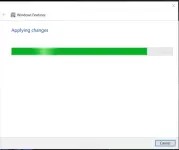
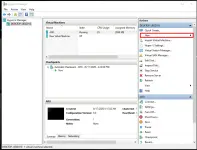
4. After reboot, search "Hyper-V Manager"
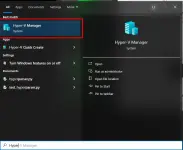
5. Click NEW on actions
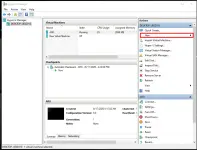
6. Choose virtual machine
7. Name your virtual machine and click next
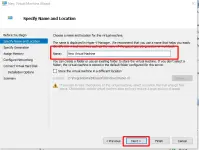
8. Select Generation 1 and click next
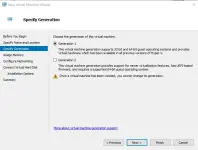
9.Assign 2048 as memory, untick the dynamic memory, click next
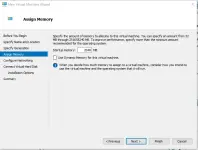
10. Choose Default Switch for networking, next.
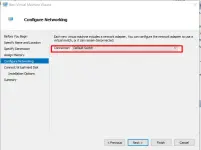
11. Change size to 20GB, NEXT
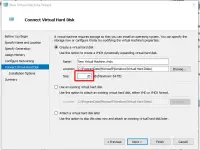
12. Download the ARO ISO
You do not have permission to view the full content of this post. Log in or register now.
13. Select Install operating system from bootale and select image file. Browse the file you just downloaded. next
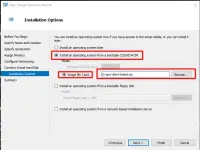
14. Click FInish
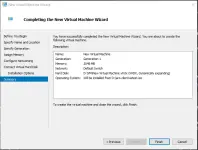
Part II:
1. Register to ARO Network:
You do not have permission to view the full content of this post. Log in or register now.
2. In the Aro Dashboard, cllick Aro Nodes
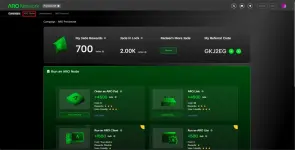
3. Click Add new node
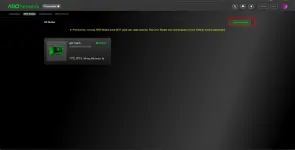
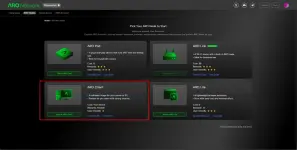
4. Choose ARO Client
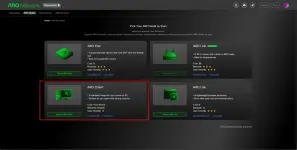
5. Continue
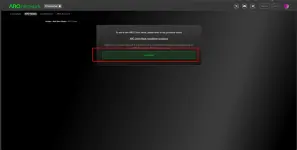
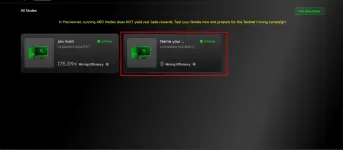
6. Your srcreen should be ike this

Part III
1. Balik sa Hyper V Manager
2. Select your vm and click start
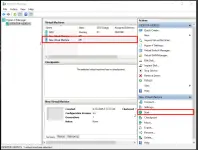
3. Double click to open the vm
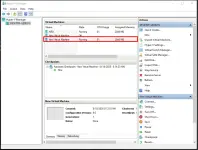
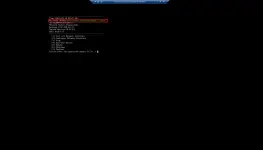
4. It should be like this. It may take long to install, just wait.
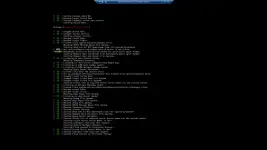
5. Choose 1 for Network config
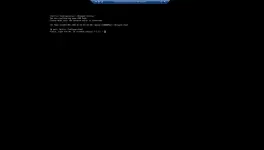
6. Choose DHCP (1)
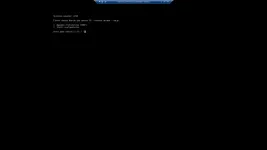
7. Press enter after ping
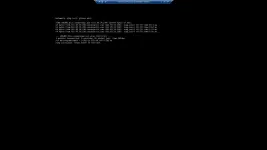
8. Agree and continue
9. Copy the SERIAL AND INPUT in the aro dashboard

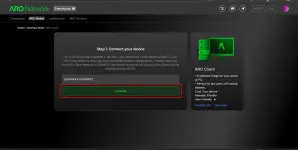
10. Press Continue
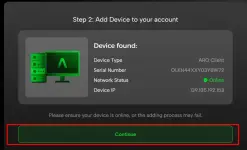
11. Name it and choose GLOBAL and add
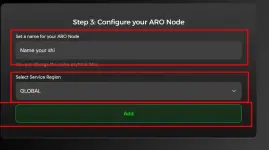
12. Press okay in dashboard and press enter in vm
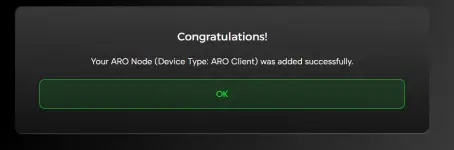
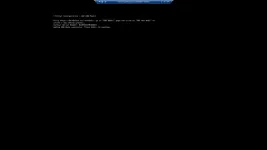
13. DONE
Part IV. Change cores of VM
1. Select your vm and shutdown
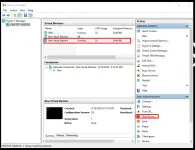
2. Click setting
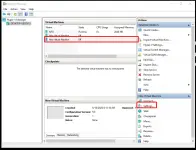
3. Go to Processor
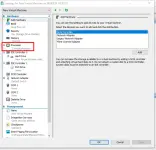
4. Change from 1 to 2 and select apply and ok
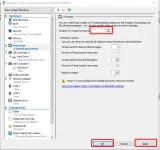
5. Start again and double click vm to connect to it
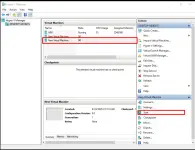
6. DONE
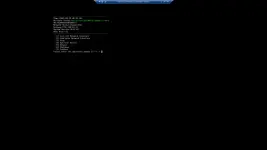
(Mining efficiency will update after many hours of running it)
(Preview net don't have rewards but testnet is soon, better setup it up before testnet)
Short Description:
ARO Network is building a decentralized, intelligent edge cloud for real-time content delivery and future AI workloads.
Backed by a team with over $140M in annual revenue and 1.5M+ edge nodes deployed, this isn't a pitch, it's a proven foundation now open to the people.
How to setup ARO Network Client:
Prerequisites:
- Windows 10/11
- 8GB or more RAM (The virtual machine needs 2gb RAM)
- Atleast 4 cores cpu (need 2 cores para sa vm)
1. Enable Hyper V for your Windows Machine
- Go to Search and search "Turn WIndows Features on and off"
2. Find Hyper-V and check it
3. Press Ok, wait to load. Reboot if needed.
4. After reboot, search "Hyper-V Manager"
5. Click NEW on actions
6. Choose virtual machine
7. Name your virtual machine and click next
8. Select Generation 1 and click next
9.Assign 2048 as memory, untick the dynamic memory, click next
10. Choose Default Switch for networking, next.
11. Change size to 20GB, NEXT
12. Download the ARO ISO
You do not have permission to view the full content of this post. Log in or register now.
13. Select Install operating system from bootale and select image file. Browse the file you just downloaded. next
14. Click FInish
Part II:
1. Register to ARO Network:
You do not have permission to view the full content of this post. Log in or register now.
2. In the Aro Dashboard, cllick Aro Nodes
3. Click Add new node
4. Choose ARO Client
5. Continue
6. Your srcreen should be ike this
Part III
1. Balik sa Hyper V Manager
2. Select your vm and click start
3. Double click to open the vm
4. It should be like this. It may take long to install, just wait.
5. Choose 1 for Network config
6. Choose DHCP (1)
7. Press enter after ping
8. Agree and continue
9. Copy the SERIAL AND INPUT in the aro dashboard
10. Press Continue
11. Name it and choose GLOBAL and add
12. Press okay in dashboard and press enter in vm
13. DONE
Part IV. Change cores of VM
1. Select your vm and shutdown
2. Click setting
3. Go to Processor
4. Change from 1 to 2 and select apply and ok
5. Start again and double click vm to connect to it
6. DONE