 PH
PHArissa ofuma
Contributor
Microsoft Windows 10 Professional Activate and Upgrade Guide
Activating Windows 10 ProfessionalYou can find everything you need to download and install Windows 10 Pro or Home using the links below:
To start a new Windows 10 installation or upgrade from Windows 7 or 8.1, visit:
You do not have permission to view the full content of this post. Log in or register now.
Important: If you enter the product key during installation, you might end up with the wrong version of Windows.
We recommend selecting "I don't have a product key" as shown in the images below.
On the next screen, you can choose the Windows version:
(After installation, activate Windows in Windows Settings -> Activation Settings).
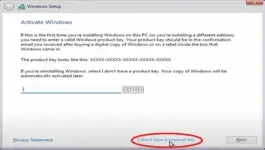
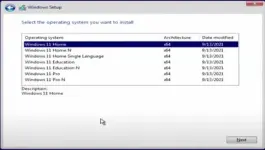
Microsoft Customer Support cannot help with product keys that were not purchased directly from them. If you have issues with activation, please visit our homepage and click the live chat button in the bottom right corner to get assistance.
UPGRADING FROM HOME TO PRO
To upgrade from Windows 10 Home to Pro, start with these steps:
- Open Windows Settings and go to Activation Settings, then click on Change product key.
If you can't upgrade with the key you purchased, try this:
1. Disconnect from the internet.
2. Open Windows Settings and go to Activation Settings, then click on Change product key.
3. Input the default key "VK7JG-NPHTM-C97JM-9MPGT-3V66T".
4. Once the upgrade is successful, reconnect to the internet and activate Windows using the key you bought from us.
If the upgrade still doesn't work:
Unfortunately, some versions of Windows 10 Home cannot upgrade to Pro with the product key.
To obtain Windows 10 Pro, you will need to reinstall Windows by following this guide:
You do not have permission to view the full content of this post. Log in or register now.
During the installation, when prompted for a product key, select "I don’t have a product key" and choose Windows 10 Pro in the next step.
After installation, activate Windows in the Activation Settings under Windows Settings.