 PH
PHSTICKnoLOGIC
Forum Guru
Browser Guide
Contributing to a GitHub project for the first time might seem a little intimidating, but don't worry—it's simpler than you think! Whether you're fixing a typo or adding a cool new feature, every contribution matters and helps make projects better. In this quick and friendly guide, I'll walk you through the steps to make your first contribution using a browser. Let's jump in and get you started on your GitHub journey!Requirement/s:
- Device (mobile phone, laptop or PC)
- Github Account
- Brain.exe
for more information, visit the following:
You do not have permission to view the full content of this post. Log in or register now.
You do not have permission to view the full content of this post. Log in or register now.
-------------------
Fork The First-Accord repository
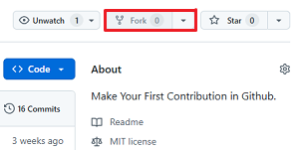
You do not have permission to view the full content of this post. Log in or register now. the First Accord repository by clicking the fork button at the top of You do not have permission to view the full content of this post. Log in or register now.. This will create a copy of this repository in your account.
Create a Branch
Copy the following link and surf it in your Browser:
Code:
https://GitHub.com/github-username/First-Accord/branchesWhere github-username is your GitHub Username.
For Example: (my Github Username is STICKnoLOGIC)
Code:
https://GitHub.com/STICKnoLOGIC/First-Accord/branches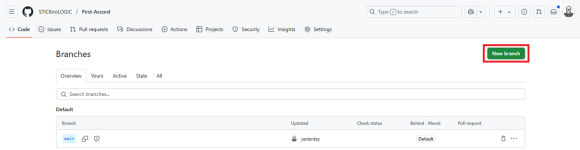
Then click the New branch button at the top-right
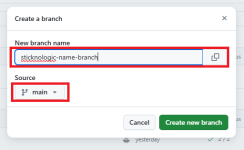
and type in the name of your new branch, for example sticknologic-name-branch, make sure you select main as the source.
Click the Create new Branch and a branch will be created.
Make necessary changes and commit those changes
Go to the contributors Folder/Directory and copy the content of TEMPLATES.json (the template consists of essential/required parameters in JSON structure. To know more, You do not have permission to view the full content of this post. Log in or register now.).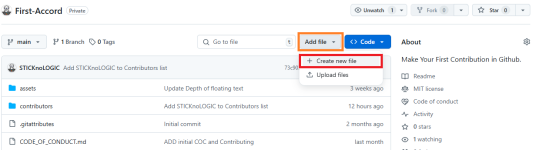
Navigate back to the repository's main page. Click on the Add file button, then select Create new file.
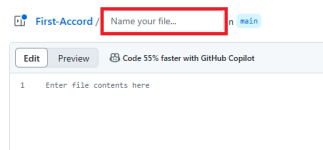
Enter contributors/your-username.json in the field, replacing your-username with your actual GitHub username (for my case, sticknologic).
Note
Don't worry, once you type or enter / in that field, it will automatically create a new subfolder or use an existing one.
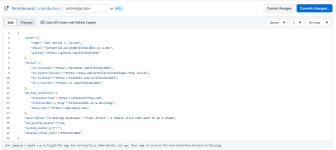
In the text area, paste the content copied from TEMPLATE.json and edit it as needed. You do not have permission to view the full content of this post. Log in or register now. to learn more about the accepted values and keys in your JSON file.
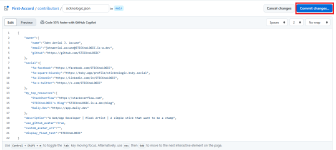
After editing the JSON, commit your changes by clicking the Commit changes... button located at the top right.
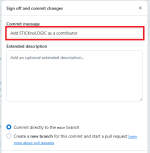
Enter Add your username as a contributor as your commit message, replacing "your username" with your GitHub username. Then confirm to save or change the file.
Submit your changes for review
If you go to your repository on Github, you'll see Compare & pull request button. click on that button.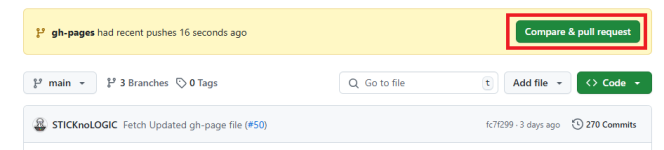
Now submit the pull request.
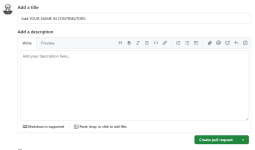
I'll be merging all of your modifications into the project's main branch shortly. Once the changes have been merged, you will receive an email notification.
Where to go from here?
Congratulations! You have successfully completed the standard workflow: fork -> edit -> pull request using your Browser that you will frequently encounter as a contributor.Let's help you get started with contributing to other projects. I recommend beginning with You do not have permission to view the full content of this post. Log in or register now.. This project was heavily inspired by it, just so you know!


