 PH
PHIssue:
Missing attack and jump buttons after using a bluetooth controller.
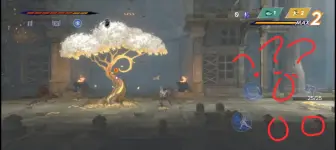
Solution#1:
1. Create a new game, play until you reach a Wak-Wak tree then save.
2. Exit the game then open Ex File Manager.
3. Go to Android/data/com.ubisoft.princeofpersia.thelostcrown.mobile.action.adventure.platform/files/Saves
4. Select and open the folder of your Save slot with missing buttons (example: SaveSlot3).
5. Select and open the LATEST folder inside SaveSlot3. Copy the following files:
-PopSaveGameSlot3Index0.AlkSave
-ProgressionSlot3Index0.AlkContent
6. Paste the files inside the folder where you created your new game (example: SaveSlot1>Save_133902870915190330). If there are multiple folders copy each file in each folders.
7. Delete the files:
PopSaveGameSlot1Index0.AlkSave
and ProgressionSlot1Index0.AlkContent
8. Rename the copied files afterwards, just change the number 3 to 1. Follow the Save slot number.
Example:
PopSaveGameSlot3Index0.AlkSave to PopSaveGameSlot1Index0.AlkSave
ProgressionSlot3Index0.AlkContent to ProgressionSlot1Index0.AlkContent
9. Close Ex File Manager then open the game.
10. Play SaveSlot1, pause the game then customize controls. This will make the buttons appear.
Solution#2:
You do not have permission to view the full content of this post. Log in or register now.
- No need to create a new game. Full tutorial inside the zip file.
Result:
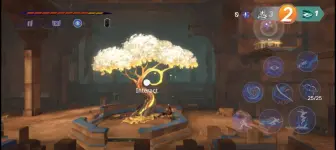
Solution#3:
Update to the latest You do not have permission to view the full content of this post. Log in or register now..
Missing attack and jump buttons after using a bluetooth controller.
Solution#1:
1. Create a new game, play until you reach a Wak-Wak tree then save.
2. Exit the game then open Ex File Manager.
3. Go to Android/data/com.ubisoft.princeofpersia.thelostcrown.mobile.action.adventure.platform/files/Saves
4. Select and open the folder of your Save slot with missing buttons (example: SaveSlot3).
5. Select and open the LATEST folder inside SaveSlot3. Copy the following files:
-PopSaveGameSlot3Index0.AlkSave
-ProgressionSlot3Index0.AlkContent
6. Paste the files inside the folder where you created your new game (example: SaveSlot1>Save_133902870915190330). If there are multiple folders copy each file in each folders.
7. Delete the files:
PopSaveGameSlot1Index0.AlkSave
and ProgressionSlot1Index0.AlkContent
8. Rename the copied files afterwards, just change the number 3 to 1. Follow the Save slot number.
Example:
PopSaveGameSlot3Index0.AlkSave to PopSaveGameSlot1Index0.AlkSave
ProgressionSlot3Index0.AlkContent to ProgressionSlot1Index0.AlkContent
9. Close Ex File Manager then open the game.
10. Play SaveSlot1, pause the game then customize controls. This will make the buttons appear.
Solution#2:
You do not have permission to view the full content of this post. Log in or register now.
- No need to create a new game. Full tutorial inside the zip file.
Result:
Solution#3:
Update to the latest You do not have permission to view the full content of this post. Log in or register now..