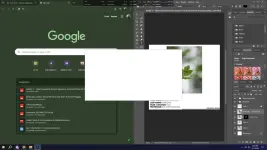
Hello! It sounds like you are experiencing an issue with white squares appearing in your Photoshop document every second. This could be due to a variety of reasons, such as a glitch in the software, a problem with your graphics card, or an issue with the file itself.
Here are a few troubleshooting steps you can try to resolve this issue:
1. Update Photoshop: Make sure you are using the latest version of Photoshop. Sometimes, updating the software can fix bugs and glitches.
2. Check your graphics card: Ensure that your graphics card drivers are up to date. Outdated drivers can cause display issues in Photoshop.
3. Reset Photoshop preferences: Sometimes, resetting the Photoshop preferences can help resolve display issues. You can do this by pressing and holding Alt+Control+Shift (Windows) or Option+Command+Shift (Mac) as you start Photoshop. A dialog box will appear asking if you want to delete the Adobe Photoshop Settings file. Click "Yes" to reset preferences.
4. Check the file: If the issue is happening with a specific file, try opening a different file to see if the problem persists. If the issue is only with one file, the file itself may be corrupted.
5. Restart your computer: Sometimes, simply restarting your computer can resolve temporary glitches or issues with Photoshop.
If none of these solutions work, you may want to reach out to Adobe Support for further assistance. They may be able to provide additional troubleshooting steps specific to your setup.
I hope this helps you resolve the issue with the white squares in Photoshop! Let me know if you have any other questions.
 PH
PH