 PH
PH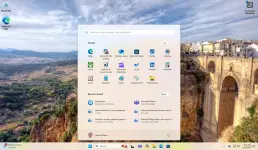

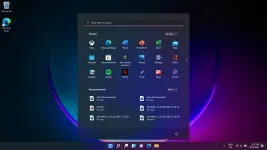
Windows 11 Summary
Windows 11 is a multi-purpose operating system that includes nearly every essential capability required by those who work in a variety of tasks. It is a strong and complete package that offers an extensive variety of useful options and utilities that assist you use your machine’s assets effectively. It incorporates enhanced.NET Framework 3.5 and 4.8, which can significantly increase OS support and enable users to utilize applications developed by third parties seamlessly. This productive program offers an optimal workflow and working environment among a variety of gadgets, including computers, portable devices and cellphones. Aside from that, it employs a highly effective firewall that can detect any inside and outside risks.
You do not have permission to view the full content of this post. Log in or register now.
Windows 11 Technical Setup Details
- Software Full Name: Windows 11
- Setup File Name: Windows_11_22H2_16in1_en-USx64.iso
- Full Setup Size: 5.3 GB
- Setup Type: Offline Installer / Full Standalone Setup
- Compatibility Architecture: 64 Bit (x64)
- Latest Version Release Added On: 18th Apr 2023
System Requirements For Windows 11
Before you start Windows 11 April 2023 free download, make sure your PC meets minimum system requirements.- Memory (RAM): 4 GB of RAM required
- Hard Disk Space: 64 GB of free space required
- Processor: Intel Dual Core or higher processor
How to Install :
Here's a more detailed guide:1. Mount the ISO File:
- Open File Explorer: Press Win + E to open File Explorer.
- Locate the ISO: Navigate to the folder where you saved the Windows 11 ISO file.
- Right-click the ISO: Right-click on the ISO file.
- Select "Mount": Choose the "Mount" option from the context menu. This will create a virtual drive that you can access.
- Open the Virtual Drive: Double-click on the virtual drive that appeared after mounting the ISO.
- Run Setup: Double-click on the setup.exe file to start the Windows 11 installation process.
- Follow the On-Screen Instructions: Follow the prompts and instructions provided by the Windows 11 setup wizard to complete the installation.
- Open the Virtual Drive: Double-click on the virtual drive that appeared after mounting the ISO.
- Burn to USB: If you need to install Windows 11 on a different computer or perform a clean installation, you can create a bootable USB drive from the ISO file using tools like Rufus or Windows Media Creation Tool.
- Boot from USB: Reboot the target computer and enter the BIOS/UEFI settings to select the USB drive as the boot device.
- Follow the Installation: The installation process will then begin from the USB drive.
Features of Windows 11
Below are some noticeable features which you’ll experience after Windows 11 April 2023 free download.- Offers outstanding acceleration, ease, excellent efficiency, and an exceptional experience to users.
- Includes cutting-edge tools and functionalities that make it simple, enjoyable, and quick to complete tasks.
- Provides a tracking system regarding viruses, reducing disruptions and assisting you in remaining efficient.
- Immediate accessibility to a variety of online material such as the climate, updates, and real-time sports scores.
- Offers a number of choices for customizing your computer’s subject matter, colors, typography, and other features.
- Enhanced .NET Framework 3.5 and 4.8, which enable users to utilize applications developed by third parties seamlessly.
- Employs a highly effective firewall that can detect any inside and outside risks.
