 PH
PH- When OptionButton1 is clicked:
- GroupBox1's option buttons (OptionButton1 to OptionButton5) are unlocked (clickable).
- GroupBox2's option buttons (OptionButton6 to OptionButton10) are locked (unclickable).
- When OptionButton2 is clicked:
- Both GroupBox1 and GroupBox2's option buttons are unlocked (clickable). how to do po in Excel sana mapansin agad if ever kung may format po kayo baka pwede makahingi salamat po

- Both GroupBox1 and GroupBox2's option buttons are unlocked (clickable). how to do po in Excel sana mapansin agad if ever kung may format po kayo baka pwede makahingi salamat po
-
Welcome to PHCorner Forums! Sign up for free to unlock full access and exclusive privileges, including:
- Asking questions about computer and mobile issues
- Discovering internet tips for your mobile network and computer
You are using an out of date browser. It may not display this or other websites correctly.
You should upgrade or use an alternative browser.
You should upgrade or use an alternative browser.
❓ Help Yung IT o marunong po sana sa Excel Salamat po need lang
- Status
- Not open for further replies.
Solution
try mo po to
To achieve the functionality you described in Excel using VBA (Visual Basic for Applications), you'll need to create a UserForm with the option buttons organized into two group boxes. Here's how you can do this step by step:
### Step 1: Create a UserForm
1. Open Excel and press
2. In the VBA editor, right-click on any of the items for your workbook in the "Project Explorer" on the left side and select
3. Use the Toolbox (if it doesn't appear, select
### Step 2: Name Your Controls
### Step 3: Add VBA Code
1. Right-click on the UserForm in the Project Explorer and select
2. In the code window that appears, enter the following code:
### Step 4: Test the UserForm
1. Close the VBA editor and return to Excel.
2. Open the UserForm you created by pressing
### Behavior Explanation
You can further customize the behavior of
To achieve the functionality you described in Excel using VBA (Visual Basic for Applications), you'll need to create a UserForm with the option buttons organized into two group boxes. Here's how you can do this step by step:
### Step 1: Create a UserForm
1. Open Excel and press
ALT + F11 to open the VBA editor.2. In the VBA editor, right-click on any of the items for your workbook in the "Project Explorer" on the left side and select
Insert > UserForm.3. Use the Toolbox (if it doesn't appear, select
View > Toolbox) to add two Group Boxes and five Option Buttons in each group.### Step 2: Name Your Controls
- GroupBox1:
GroupBox1 - OptionButtons in GroupBox1:
OptionButton1,OptionButton2,OptionButton3,OptionButton4,OptionButton5 - GroupBox2:
GroupBox2 - OptionButtons in GroupBox2:
OptionButton6,OptionButton7,OptionButton8,OptionButton9,OptionButton10
### Step 3: Add VBA Code
1. Right-click on the UserForm in the Project Explorer and select
View Code.2. In the code window that appears, enter the following code:
Code:
Private Sub OptionButton1_Click()
    ' Unlock GroupBox1 option buttons
    OptionButton1.Enabled = True
    OptionButton2.Enabled = True
    OptionButton3.Enabled = True
    OptionButton4.Enabled = True
    OptionButton5.Enabled = True

    ' Lock GroupBox2 option buttons
    OptionButton6.Enabled = False
    OptionButton7.Enabled = False
    OptionButton8.Enabled = False
    OptionButton9.Enabled = False
    OptionButton10.Enabled = False
End Sub

Private Sub OptionButton2_Click()
    ' Unlock both GroupBox1 and GroupBox2 option buttons
    OptionButton1.Enabled = True
    OptionButton2.Enabled = True
    OptionButton3.Enabled = True
    OptionButton4.Enabled = True
    OptionButton5.Enabled = True

    OptionButton6.Enabled = True
    OptionButton7.Enabled = True
    OptionButton8.Enabled = True
    OptionButton9.Enabled = True
    OptionButton10.Enabled = True
End Sub

Private Sub OptionButton3_Click()
    ' (Optional: You can add code here if you want any specific behavior)
End Sub

Private Sub OptionButton4_Click()
    ' (Optional: You can add code here if you want any specific behavior)
End Sub

Private Sub OptionButton5_Click()
    ' (Optional: You can add code here if you want any specific behavior)
End Sub

Private Sub OptionButton6_Click()
    ' (Optional: You can add code here if you want any specific behavior)
End Sub

Private Sub OptionButton7_Click()
    ' (Optional: You can add code here if you want any specific behavior)
End Sub

Private Sub OptionButton8_Click()
    ' (Optional: You can add code here if you want any specific behavior)
End Sub

Private Sub OptionButton9_Click()
    ' (Optional: You can add code here if you want any specific behavior)
End Sub

Private Sub OptionButton10_Click()
    ' (Optional: You can add code here if you want any specific behavior)
End Sub
### Step 4: Test the UserForm
1. Close the VBA editor and return to Excel.
2. Open the UserForm you created by pressing
F5 in the VBA editor while the UserForm is selected or by adding a button on the worksheet that executes UserForm1.Show (assuming your form is named UserForm1).### Behavior Explanation
- Clicking
OptionButton1will unlockOptionButton1toOptionButton5inGroupBox1and lock all buttons inGroupBox2. - Clicking
OptionButton2will unlock all buttons in bothGroupBox1andGroupBox2.
You can further customize the behavior of
OptionButton3, OptionButton4, and so on by adding specific actions in their respective Click event handlers.kuya wala po ba keo na naka excel na medyo nalilito na po kase kami e for 2days na namin ginagawatry mo po to
To achieve the functionality you described in Excel using VBA (Visual Basic for Applications), you'll need to create a UserForm with the option buttons organized into two group boxes. Here's how you can do this step by step:
### Step 1: Create a UserForm
1. Open Excel and pressALT + F11to open the VBA editor.
2. In the VBA editor, right-click on any of the items for your workbook in the "Project Explorer" on the left side and selectInsert > UserForm.
3. Use the Toolbox (if it doesn't appear, selectView > Toolbox) to add two Group Boxes and five Option Buttons in each group.
### Step 2: Name Your Controls
- GroupBox1:
GroupBox1- OptionButtons in GroupBox1:
OptionButton1,OptionButton2,OptionButton3,OptionButton4,OptionButton5- GroupBox2:
GroupBox2- OptionButtons in GroupBox2:
OptionButton6,OptionButton7,OptionButton8,OptionButton9,OptionButton10
### Step 3: Add VBA Code
1. Right-click on the UserForm in the Project Explorer and selectView Code.
2. In the code window that appears, enter the following code:
Code:Private Sub OptionButton1_Click() ' Unlock GroupBox1 option buttons OptionButton1.Enabled = True OptionButton2.Enabled = True OptionButton3.Enabled = True OptionButton4.Enabled = True OptionButton5.Enabled = True ' Lock GroupBox2 option buttons OptionButton6.Enabled = False OptionButton7.Enabled = False OptionButton8.Enabled = False OptionButton9.Enabled = False OptionButton10.Enabled = False End Sub Private Sub OptionButton2_Click() ' Unlock both GroupBox1 and GroupBox2 option buttons OptionButton1.Enabled = True OptionButton2.Enabled = True OptionButton3.Enabled = True OptionButton4.Enabled = True OptionButton5.Enabled = True OptionButton6.Enabled = True OptionButton7.Enabled = True OptionButton8.Enabled = True OptionButton9.Enabled = True OptionButton10.Enabled = True End Sub Private Sub OptionButton3_Click() ' (Optional: You can add code here if you want any specific behavior) End Sub Private Sub OptionButton4_Click() ' (Optional: You can add code here if you want any specific behavior) End Sub Private Sub OptionButton5_Click() ' (Optional: You can add code here if you want any specific behavior) End Sub Private Sub OptionButton6_Click() ' (Optional: You can add code here if you want any specific behavior) End Sub Private Sub OptionButton7_Click() ' (Optional: You can add code here if you want any specific behavior) End Sub Private Sub OptionButton8_Click() ' (Optional: You can add code here if you want any specific behavior) End Sub Private Sub OptionButton9_Click() ' (Optional: You can add code here if you want any specific behavior) End Sub Private Sub OptionButton10_Click() ' (Optional: You can add code here if you want any specific behavior) End Sub
### Step 4: Test the UserForm
1. Close the VBA editor and return to Excel.
2. Open the UserForm you created by pressingF5in the VBA editor while the UserForm is selected or by adding a button on the worksheet that executesUserForm1.Show(assuming your form is named UserForm1).
### Behavior Explanation
- Clicking
OptionButton1will unlockOptionButton1toOptionButton5inGroupBox1and lock all buttons inGroupBox2.- Clicking
OptionButton2will unlock all buttons in bothGroupBox1andGroupBox2.
You can further customize the behavior ofOptionButton3,OptionButton4, and so on by adding specific actions in their respectiveClickevent handlers.
teka lang ah di kase ako masyado magaling sa excelkuya wala po ba keo na naka excel na medyo nalilito na po kase kami e for 2days na namin ginagawa
dev-ace erp baka may idea ka dito? ikaw lang malakas neto eh
sana po mahelp huhuteka lang ah di kase ako masyado magaling sa excel
dev-ace erp baka may idea ka dito? ikaw lang malakas neto eh
PHC - GhosT
Newbie
Step 1: I-enable ang Developer Tab sa Excel
- Open Excel.
- Pumunta sa File > Options > Customize Ribbon.
- Sa Right Pane, i-check ang Developer box.
- I-click ang OK. Lalabas ang Developer tab sa Ribbon ng Excel.
Step 2: I-setup ang GroupBoxes at Option Buttons
- Sa Developer Tab, hanapin ang Insert button, at piliin ang mga Form Controls:
- Piliin ang Group Box (Frame)na icon at gumawa ng dalawang Group Boxes sa sheet.
- Group Box 1: Puwede mong i-label ito bilang "GroupBox1" at sa loob nito, i-create ang 5 Option Buttons (OptionButton1 to OptionButton5).
- Group Box 2: I-label ito bilang "GroupBox2" at sa loob nito, i-create rin ang 5 Option Buttons (OptionButton6 to OptionButton10).
- Piliin ang Group Box (Frame)na icon at gumawa ng dalawang Group Boxes sa sheet.
- Ayusin ang layout para malinaw ang pagkakakategorya ng mga Group Box at Option Buttons.
Step 3: Buksan ang VBA Editor
- Pindutin ang Alt + F11 para mabuksan ang VBA Editor.
- I-right-click ang iyong workbook mula sa Project Explorer (karaniwang makikita sa kaliwang bahagi ng VBA window).
- Piliin ang Insert > Module.
Step 4: Ipasok ang VBA Code
- Kopyahin ang code sa ibaba at i-paste ito sa module na nilikha mo:
Code:Private Sub OptionButton1_Click() ' Unlock GroupBox1 Option Buttons ToggleOptionButtons GroupBox:=1, LockState:=False ' Lock GroupBox2 Option Buttons ToggleOptionButtons GroupBox:=2, LockState:=True End Sub Private Sub OptionButton2_Click() ' Unlock both GroupBox1 and GroupBox2 Option Buttons ToggleOptionButtons GroupBox:=1, LockState:=False ToggleOptionButtons GroupBox:=2, LockState:=False End Sub Private Sub ToggleOptionButtons(GroupBox As Integer, LockState As Boolean) Dim OptionBtn As Object Dim StartIndex As Integer, EndIndex As Integer ' Set the range of Option Button names for each group box If GroupBox = 1 Then StartIndex = 1 EndIndex = 5 ElseIf GroupBox = 2 Then StartIndex = 6 EndIndex = 10 End If ' Loop through the option buttons in the specified group box For Each OptionBtn In ActiveSheet.OLEObjects If OptionBtn.progID = "Forms.OptionButton.1" Then If CInt(Mid(OptionBtn.Name, 12)) >= StartIndex And CInt(Mid(OptionBtn.Name, 12)) <= EndIndex Then OptionBtn.Enabled = Not LockState End If End If Next OptionBtn End Sub
Step 5: Bumalik sa Excel at I-Assign ang Macro- Bumalik sa Excel (Alt + Q).
- I-right-click ang OptionButton1, at piliin ang Assign Macro.
- Piliin ang OptionButton1_Click, tapos i-click ang OK.
- I-right-click ang OptionButton2, at piliin ulit ang Assign Macro.
- Piliin ang OptionButton2_Click, tapos i-click ang OK.
Step 6: Subukan ang Output - I-test ang OptionButton1:
- Kapag pinindot mo ang OptionButton1, dapat ma-unlock ang mga buttons sa GroupBox1 at ma-lock ang mga buttons sa GroupBox2.
- I-test ang OptionButton2:
- Kapag pinindot mo ang OptionButton2, dapat ma-unlock ang parehong GroupBox1 at GroupBox2 buttons.
Additional Notes
- Kapag pinindot mo ang OptionButton2, dapat ma-unlock ang parehong GroupBox1 at GroupBox2 buttons.
- Siguraduhin na ang mga pangalan ng iyong Option Buttons sa Excel ay eksaktong tumutugma sa mga pangalan sa code (hal., OptionButton1 to OptionButton10).
- I-enable ang Macro Settings:
- Pumunta sa File > Options > Trust Center > Trust Center Settings > Macro Settings, at piliin ang "Enable all macros".
- Sa bawat pagbabago ng code, siguraduhing isave ang iyong file bilang isang Macro-Enabled Workbook (.xlsm).
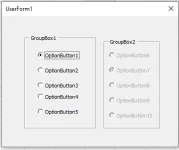
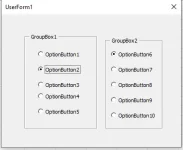
di po ako IT. pero napagtripan lng po itong code. hehe
Private Sub OptionButton1_Click()
' Unlock GroupBox1's OptionButtons
OptionButton1.Enabled = True
OptionButton2.Enabled = True
OptionButton3.Enabled = True
OptionButton4.Enabled = True
OptionButton5.Enabled = True
' Lock GroupBox2's OptionButtons
OptionButton6.Enabled = False
OptionButton7.Enabled = False
OptionButton8.Enabled = False
OptionButton9.Enabled = False
OptionButton10.Enabled = False
End Sub
Private Sub OptionButton2_Click()
' Unlock all OptionButtons
OptionButton1.Enabled = True
OptionButton2.Enabled = True
OptionButton3.Enabled = True
OptionButton4.Enabled = True
OptionButton5.Enabled = True
OptionButton6.Enabled = True
OptionButton7.Enabled = True
OptionButton8.Enabled = True
OptionButton9.Enabled = True
OptionButton10.Enabled = True
End Sub
Private Sub UserForm_Initialize()
' Lock GroupBox2's OptionButtons initially
OptionButton6.Enabled = False
OptionButton7.Enabled = False
OptionButton8.Enabled = False
OptionButton9.Enabled = False
OptionButton10.Enabled = False
End Sub
Beatriz beiView attachment 3396319
View attachment 3396322
di po ako IT. pero napagtripan lng po itong code. hehe
Private Sub OptionButton1_Click()
' Unlock GroupBox1's OptionButtons
OptionButton1.Enabled = True
OptionButton2.Enabled = True
OptionButton3.Enabled = True
OptionButton4.Enabled = True
OptionButton5.Enabled = True
' Lock GroupBox2's OptionButtons
OptionButton6.Enabled = False
OptionButton7.Enabled = False
OptionButton8.Enabled = False
OptionButton9.Enabled = False
OptionButton10.Enabled = False
End Sub
Private Sub OptionButton2_Click()
' Unlock all OptionButtons
OptionButton1.Enabled = True
OptionButton2.Enabled = True
OptionButton3.Enabled = True
OptionButton4.Enabled = True
OptionButton5.Enabled = True
OptionButton6.Enabled = True
OptionButton7.Enabled = True
OptionButton8.Enabled = True
OptionButton9.Enabled = True
OptionButton10.Enabled = True
End Sub
Private Sub UserForm_Initialize()
' Lock GroupBox2's OptionButtons initially
OptionButton6.Enabled = False
OptionButton7.Enabled = False
OptionButton8.Enabled = False
OptionButton9.Enabled = False
OptionButton10.Enabled = False
End Sub
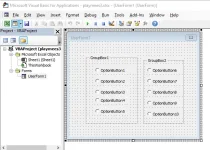
kaya nga eh haha nasa cp lang ako kaya di ko magawaView attachment 3396331
ganito po setup sa visual basic.
PS. galing AI lng din po yung code haha.. grabe yung AI now..
View attachment 3396331
ganito po setup sa visual basic.
PS. galing AI lng din po yung code haha.. grabe yung AI now..
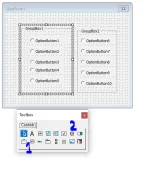
View attachment 3396349
From toolbox;
1 = frame = GroupBox
2 = button = OptionButton
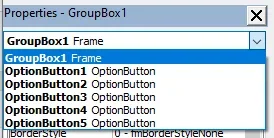
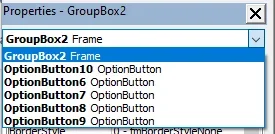
make sure nlng dn po na tama name as indicated sa code.
Beatriz bei eto na sagot mo ohhView attachment 3396384
View attachment 3396386
make sure nlng dn po na tama name as indicated sa code.
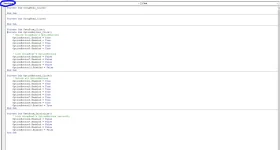
weyt kuyaa medyo naguguluhan lang hehe
wait kuyaa di po ako makasabaayy huhuView attachment 3396462
yung code po pala ay sa UserForm ipapaste, double click lng po. see SS.
share ko nlng po excel file.
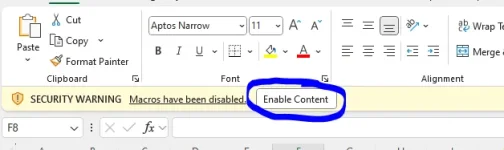
click mo nlng po ito para maenabe macros.
You do not have permission to view the full content of this post. Log in or register now.
share ko nlng po excel file.
[Hidden content]
click mo nlng po ito para maenabe macros.
sige kuya wait ko poshare ko nlng po excel file.
[Hidden content]
View attachment 3396551
click mo nlng po ito para maenabe macros.
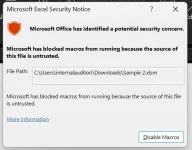
kuya ganto na po syasige kuya wait ko po
sige kuya wait ko po
kuya ganto na po sya
bakit iba po file name?

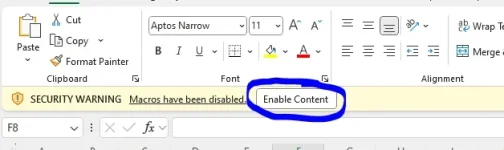
ignore warning. enable mo lng po to para marun.
pede nio rin po idisable macro. kaso niyo marurun o matetest yung codes.
blank sya sirbakit iba po file name?
View attachment 3396568
View attachment 3396569
ignore warning. enable mo lng po to para marun.
pede nio rin po idisable macro. kaso niyo marurun o matetest yung codes.
blank sya sir
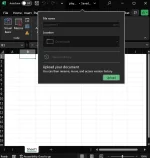
blank sya sir
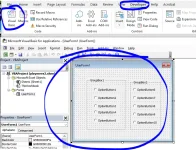
nasa developer tab - visual basic po ang codes. at program.
imean wala po ng nalabas na output kahit irunView attachment 3396594
nasa developer tab - visual basic po ang codes. at program.
- Status
- Not open for further replies.
About this Thread
-
27Replies
-
940Views
-
4Participants
Last reply from:
Jorgyy
Jorgyy
New Topics
-
Looking for Google Cloud Console
- Started by S A K A T A
- Replies: 0
- 💻 Coding & Programming
-
SIM CARD CHECKER
- Started by HiroshiKim
- Replies: 7
- 💻 Coding & Programming
-
How to Redeem Your 1 Billion Tokens in Muse AI
- Started by Keinz
- Replies: 1
- 💻 Coding & Programming
-
CODING AI Is FREE on Cline Desktop ( LIMITED TIME )
- Started by Keinz
- Replies: 0
- 💻 Coding & Programming
-
Scan and fix compromised wordpress website
- Started by caredebs
- Replies: 0
- 💻 Coding & Programming
-
Zefame Free Service Automated
- Started by mtplay
- Replies: 2
- 💻 Coding & Programming
-
Newbie Coding/Programming Question.
- Started by zhaenarez25
- Replies: 10
- 💻 Coding & Programming
-
Cαиνα TEAMS LINK
- Started by Keinz
- Replies: 2
- 💻 Coding & Programming
Trending Topics
Online now
- Members online
- 1,386
- Guests online
- 2,685
- Total visitors
- 4,071