 PH
PHAiseesoft Phone Mirror the perfect Windows software for mirroring your iOS or Android device to your computer with ease. This user-friendly tool lets you cast your phone screen to your PC without any quality loss, ensuring a clear and stable display. Whether you have the latest iOS 16 or Android 12, Aiseesoft Phone Mirror supports multiple devices simultaneously, making it ideal for multitasking. With its simple setup and reliable performance, it’s the best choice for anyone looking to view their mobile content on a larger screen.
Features of Aiseesoft Phone Mirror :
- Mirror all content displayed on phone screen to PC in real time.
- Flexible ways to mirror your iOS/Android phone to your computer like using Wi-Fi or connecting with a USB cable.
- Mirror different mobile devices to PC Stable and Secure.
- Allows connecting multiple mobile devices with the latest operating systems like iOS 16, Android 12, etc.
Flexible Ways to Mirror iOS/Android Phones to Computers :
Aiseesoft Phone Mirror offers different methods of connecting for you to select. It supports building the connection between mobile devices and laptops with Wi-Fi. If you are an iOS user, you have to ensure that your device and the computer are connected to the same WLAN and open the Screen Mirroring to connect. If you are an Android user, you can mirror your phone with Wi-Fi by scanning the QR code or inputting the PIN code. But, when you have to mirror your phone without Wi-Fi, you also can cast your Android phone screen to a PC with a USB.Mirror Various Mobile Devices to PC Steadily and Safely :
Aiseesoft Phone Mirror provides a stable and safe environment for users during screen casting. Thus, you can mirror your phone screen smoothly and don’t have to worry about revealing your privacy. What’s more, it is compatible with most iOS devices (iPhone 15 Pro Max/15 Pro/15 Plus/15, iPhone 14 Pro Max/14 Pro/14 Plus/14, iPhone 13 Pro Max/13 Pro/13/13 mini, iPhone SE 3, iPhone 12 Pro Max/12 Pro/12/12 mini, and all models of ‘iPad Pro’, ‘iPad Air’, ‘iPad mini’, ‘iPad’, etc.) and Android devices (“Samsung”, “Sony”, “HTC”, “LG”, “Motorola”, “HUAWEI”, “Xiaomi”, “OPPO”, “Vivo”, “Google Phone”, and more).Control the Phone Screen from PC :
Have you ever tried to control your android phone screen from PC? For many game lovers or game anchors, a small cell phone screen will lead to a less than open view of the game. Then you can use the computer control function to play hand games and show your gaming skills easily on PC. Of course, if you want to demonstrate some complex phone functions to others, then the effect of the large computer screen demonstration will be better. In addition, control of your phone screen on PC can also help you copy your phone content directly to computer to transfer data quickly.How to Use Phone Mirror :
Step 1 :
Click iOS Mirror/Android Mirror to enter the connection interface.Step 2 :
Tap on the Screen Mirroring and select Aiseesoft Phone Mirror on your iPhone to connect. Or download and install FoneLab Mirror on your Android phone, then connect the Android phone and computer with Wi-Fi or USB cable.Step 3 :
After connection successfully, you can cast your phone screen to the computer.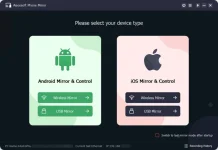
You do not have permission to view the full content of this post. Log in or register now.
Pw: nopassword
 Nice share