❓ Help How Safe Is It To Delete A File From C:\Recovery Folder?

Status
Not open for further replies.

Soul Calibre

༒тнє тєямιηαтσя༒
Contributor
Is it safe to delete a file from C:\Recovery folder? To be specific, I am talking about the "USMT.ppkg" file inside the C:\Recovery\Customizations folder. That file includes a plugin named "aetihlp.dll". I did my research and I found nothing about this plugin.

Remember what I posted few months ago? I stated that someone may have gained access to my PC. I am positive that someone bugged my laptop that's why from then on I always make sure to turn off WiFi connection and lock my computer whenever I am not using it. Well, it has been few months since then. The good thing about Kaspersky, they always issue database updates, after which the computer will do a full scan. And what I saw on the report is kinda alarming.
KAV-Scan-Report.png

As you can see, one of the plugins inside the USMT file is flagged. Again, I did my research and I found nothing but a bunch of shits. I found an article, more like a question, on MS Help forum if it's safe to delete the USMT file but there's no answer. I even sent an email to Microsoft but no one responded to my email. It took me some time take an action.. but anyways, I deleted the file a while ago.
KAV-Deletion-Report.png

This screenshot shows the file path.

So, back to my question: Is it safe to delete a file from C:\Recovery\Customizations folder, specifically the "USMT.ppkg" file?
 
It's great that you are taking proactive steps to secure your computer, such as turning off the WiFi connection and locking your laptop when not in use. However, when it comes to deleting files from the C:\Recovery folder, it's important to exercise caution.

The "USMT.ppkg" file you mentioned is related to the User State Migration Tool (USMT), which is a Microsoft utility used for transferring user data and settings during OS migration. The "aetihlp.dll" plugin flagged by Kaspersky in your scan report is a component of this file.

Deleting files from the C:\Recovery folder can potentially cause issues with system recovery and restoration processes. These files are often essential for system recovery in case of problems or restoring your computer to factory settings.

In general, it is not recommended to delete files from the C:\Recovery folder unless you are absolutely certain that they are unnecessary and won't impact the system's ability to recover from potential issues. Since the USMT file is a system-related file, deleting it could potentially cause problems with future system recoveries.

If you are concerned about the flagged plugin, it might be a good idea to run a more detailed scan with reputable security software or seek assistance from a professional to further investigate the issue. Additionally, reaching out to Microsoft support for guidance on the specific file and plugin could provide more clarity on whether it is safe to delete or not.

In the future, before deleting any system files, it's always a good idea to double-check with experts or the manufacturer to avoid any unintended consequences that could affect the stability and functionality of your system.
 
It's great that you are taking proactive steps to secure your computer, such as turning off the WiFi connection and locking your laptop when not in use. However, when it comes to deleting files from the C:\Recovery folder, it's important to exercise caution.

The "USMT.ppkg" file you mentioned is related to the User State Migration Tool (USMT), which is a Microsoft utility used for transferring user data and settings during OS migration. The "aetihlp.dll" plugin flagged by Kaspersky in your scan report is a component of this file.

Deleting files from the C:\Recovery folder can potentially cause issues with system recovery and restoration processes. These files are often essential for system recovery in case of problems or restoring your computer to factory settings.

In general, it is not recommended to delete files from the C:\Recovery folder unless you are absolutely certain that they are unnecessary and won't impact the system's ability to recover from potential issues. Since the USMT file is a system-related file, deleting it could potentially cause problems with future system recoveries.

If you are concerned about the flagged plugin, it might be a good idea to run a more detailed scan with reputable security software or seek assistance from a professional to further investigate the issue. Additionally, reaching out to Microsoft support for guidance on the specific file and plugin could provide more clarity on whether it is safe to delete or not.

In the future, before deleting any system files, it's always a good idea to double-check with experts or the manufacturer to avoid any unintended consequences that could affect the stability and functionality of your system.
Can I create another USMT.ppkg based on the current state of my system?
 
Can I create another USMT.ppkg based on the current state of my system?
Creating a new USMT.ppkg file based on the current state of your system is possible, but it involves using the User State Migration Tool (USMT) to capture and store the necessary user data and settings. The USMT is a command-line utility provided by Microsoft for transferring user accounts, files, and settings during the migration of operating systems.

To create a new USMT.ppkg file based on your current system state, you would typically follow these steps:

1. Install the Windows Assessment and Deployment Kit (Windows ADK): The USMT tool is included in the Windows ADK package. You would need to download and install the Windows ADK on your system.

2. Run the USMT ScanState tool: The ScanState tool is used to gather user accounts, files, and settings from the current system. You would run this tool to create a store of the user data and settings you want to migrate.

3. Customize the migration: You can specify which user accounts and settings you want to migrate using the appropriate command-line parameters with the ScanState tool.

4. Create the USMT.ppkg file: Once you have gathered the necessary user data and settings, you can create a new USMT.ppkg file that encapsulates this information for migration.

5. Store the USMT.ppkg file securely: It's important to keep the newly created USMT.ppkg file in a safe location, as it may be needed for system migration or recovery in the future.

It's recommended to refer to Microsoft's official documentation and guides on using the USMT tool for more detailed instructions on capturing and storing user data and settings for migration. Additionally, if you're not familiar with using command-line tools like USMT, you may want to consider seeking assistance from a professional or IT expert to ensure the process is carried out correctly and securely.
 
Creating a new USMT.ppkg file based on the current state of your system is possible, but it involves using the User State Migration Tool (USMT) to capture and store the necessary user data and settings. The USMT is a command-line utility provided by Microsoft for transferring user accounts, files, and settings during the migration of operating systems.

To create a new USMT.ppkg file based on your current system state, you would typically follow these steps:

1. Install the Windows Assessment and Deployment Kit (Windows ADK): The USMT tool is included in the Windows ADK package. You would need to download and install the Windows ADK on your system.

2. Run the USMT ScanState tool: The ScanState tool is used to gather user accounts, files, and settings from the current system. You would run this tool to create a store of the user data and settings you want to migrate.

3. Customize the migration: You can specify which user accounts and settings you want to migrate using the appropriate command-line parameters with the ScanState tool.

4. Create the USMT.ppkg file: Once you have gathered the necessary user data and settings, you can create a new USMT.ppkg file that encapsulates this information for migration.

5. Store the USMT.ppkg file securely: It's important to keep the newly created USMT.ppkg file in a safe location, as it may be needed for system migration or recovery in the future.

It's recommended to refer to Microsoft's official documentation and guides on using the USMT tool for more detailed instructions on capturing and storing user data and settings for migration. Additionally, if you're not familiar with using command-line tools like USMT, you may want to consider seeking assistance from a professional or IT expert to ensure the process is carried out correctly and securely.
Can I store the new USMT.ppkg file on the same folder where the deleted file was located?
 
Can I store the new USMT.ppkg file on the same folder where the deleted file was located?
Storing the new USMT.ppkg file in the same folder where the deleted file was located, specifically in the C:\Recovery\Customizations folder, may not be the best practice. The C:\Recovery folder typically contains critical system recovery files and configurations essential for restoring your system to its original state in case of issues.

Placing a new USMT.ppkg file in the same folder where system recovery files are stored could potentially lead to confusion during the recovery process. It's important to keep system recovery files separate and organized to ensure smooth and effective system recovery operations.

It's recommended to store the new USMT.ppkg file in a secure location outside of the C:\Recovery folder. You could create a dedicated folder for storing backup and migration files on your system or use an external storage device such as a USB drive or an external hard drive.

By keeping the USMT.ppkg file separate from system recovery files, you can easily access and utilize it for migration purposes without the risk of interfering with critical system recovery processes. Additionally, maintaining a backup of important files and configurations in multiple locations can help safeguard your data and settings in case of unexpected events.

Remember to regularly update and backup important files and configurations to ensure the security and integrity of your system and data. If you need further assistance or guidance on file storage and organization, feel free to ask for more help.
 
Ang isa pang need mong ma-trace jan papsy is yung source application na nag create niyang folder.

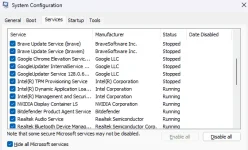
Pwede mo rin i-check yung startup services then uncheck mo yung mga unwanted applications. Kung di mo pa nagawa.

Run > msconfig > (General) Selective Startup > (Services) Check mo yung Hide all microsoft services.

1720397126560.webp
 
Ang isa pang need mong ma-trace jan papsy is yung source application na nag create niyang folder.

Pwede mo rin i-check yung startup services then uncheck mo yung mga unwanted applications. Kung di mo pa nagawa.

Run > msconfig > (General) Selective Startup > (Services) Check mo yung Hide all microsoft services.

View attachment 3003300
Na-check ko na ito dati.. malinis naman. Walang alien sa services and apps.
 
It is probably a "false positive" 🙃
Also, i dont trust Kaspersky because it is a russian company.

If i were to pick my AV, i'll prolly go with MB (𝐌𝐚𝐥𝐰𝐚𝐫𝐞𝐛𝐲𝐭𝐞𝐬)
 
It is probably a "false positive" 🙃
Also, i dont trust Kaspersky because it is a russian company.

If i were to pick my AV, i'll prolly go with MB (𝐌𝐚𝐥𝐰𝐚𝐫𝐞𝐛𝐲𝐭𝐞𝐬)
For some, Kaspersky is not trusted.. but for me it is. Maragal ko nang gamit yan sa phone ko.
 
Status
Not open for further replies.

About this Thread

  • 25
    Replies
  • 3K
    Views
  • 7
    Participants
Last reply from:
Soul Calibre

Trending Topics

Online now

Members online
1,114
Guests online
1,152
Total visitors
2,266

Forum statistics

Threads
2,271,324
Posts
28,934,816
Members
1,238,569
Latest member
Jeffx3D
Back
Top