 PH
PHEver since ᑕᕼᗩTGᑭT launched for public use, its applications have ranged from debugging code to cheating on essays to translating quotes from your favorite show into Shakespearean English (seriously, try it). But one of the most practical and underappreciated uses for the software is the generation of formulas for use in Excel and Google Sheets. Learn how you can use ᑕᕼᗩTGᑭT to become a veritable spreadsheet wizard.
What Exactly Is ᑕᕼᗩTGᑭT?
ᑕᕼᗩTGᑭT uses a machine learning algorithm that has been built on a vast amount of text data to generate human-like responses to natural language queries. In other words, ᑕᕼᗩTGᑭT is an artificial intelligence (AI) program that responds to your questions with easy-to-understand answers. ᑕᕼᗩTGᑭT can provide recommendations, generate text and even hold a conversation — and it's useful for applications like writing code or generating Excel formulas.How to Use ᑕᕼᗩTGᑭT to Create Formulas in Excel and Google Sheets
When using ᑕᕼᗩTGᑭT to create spreadsheets, start simple and add complexity in steps. If, at any point, you feel lost, you can always ask the AI to rephrase or break down its explanation in more detail. Start by asking ᑕᕼᗩTGᑭT to show you an example of the type of table you want to create, and proceed to flesh out your spreadsheet with formulas from there.Step 1. Ask ᑕᕼᗩTGᑭT to Show You a Template
Let's say you want to create a budget, but you don't even know where to start. ᑕᕼᗩTGᑭT can help you by mocking up an example of the type of spreadsheet you want to create. For instance, you can ask ᑕᕼᗩTGᑭT to generate a sample household budget, like so: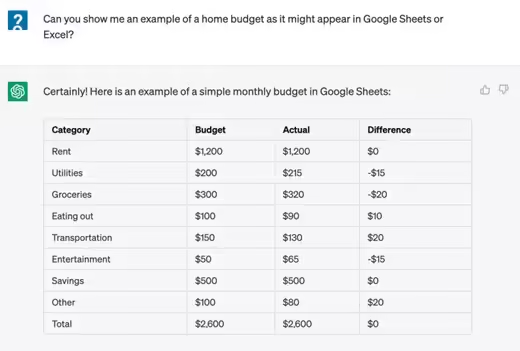
Use this template to create a basic budget in your own spreadsheet. Clear the contents of the "Total" row and "Difference" column — you'll use formulas to calculate those values automatically.
Step 2. Ask ᑕᕼᗩTGᑭT to Generate Formulas
At this point, the table created by ᑕᕼᗩTGᑭT doesn't contain any working formulas. In order to make it usable, you'll need to add the formula for calculating the values in the "Difference" column in your own spreadsheet. If you have your "Budget" in column B and your "Actual" in column C, you can askChatGPT to generate the formula for finding the difference between the two: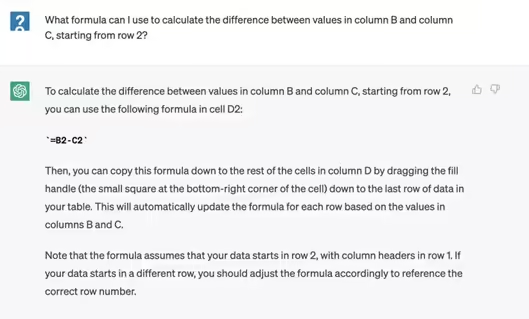
Additionally, you'll need the formula for calculating the sum of each column. ᑕᕼᗩTGᑭT can generate this for you:
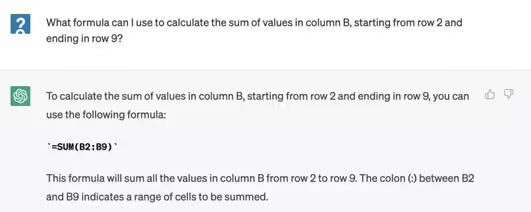
Copy and paste this formula into column B row 10, below your budget for each category. This will calculate the sum of the entire column. Use a version of this same formula to calculate the sum of the values in columns C and D. Once you've done this, you'll have a rudimentary working budget.
Step 3. Ask ᑕᕼᗩTGᑭT to Explain How to Use Functions
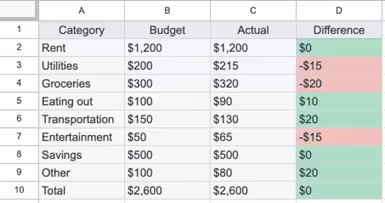
Why stop at formulas? ᑕᕼᗩTGᑭT can help you add additional functionality to your spreadsheet. Let's say you want to highlight categories where your actual spending was over budget in red and categories where you met your budget (or were under budget) in green. You can ask ᑕᕼᗩTGᑭT to show you how to do that by asking a question like this: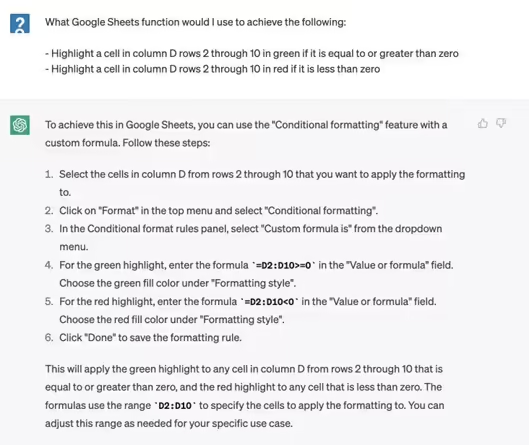
After all this, your resulting table in Google Sheets should look like so:
As you progress, you can ask ᑕᕼᗩTGᑭT for increasingly sophisticated formulas to use within your sheet. Even if you don't know precisely what to ask for, the AI can guide you toward the formula you need if you ask enough clarifying questions.
Step 4. Ask Which Additional Features You Should Include
Lastly, you can even ask ᑕᕼᗩTGᑭT to recommend additional features for your budget: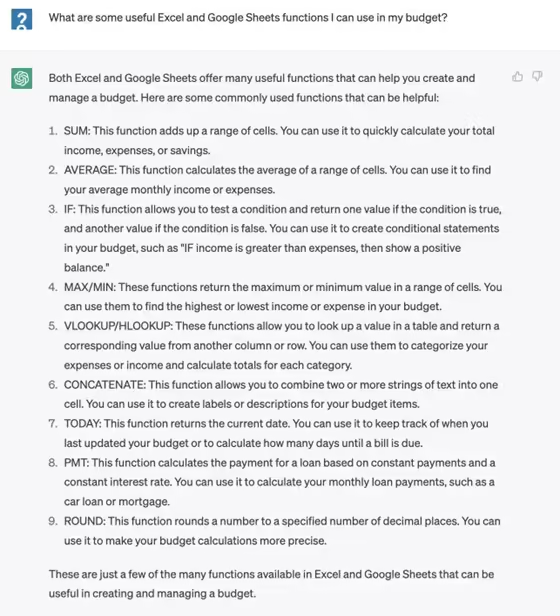
If you want to know more about a specific formula and how to use it in your spreadsheet, simply ask ᑕᕼᗩTGᑭT to elaborate. You can use the basic steps outlined here to create excel formulas for a wide range of spreadsheets — everything from workout plans to depreciation schedules.
Tips for Using ᑕᕼᗩTGᑭT to Create Spreadsheets
Through the process of trial and error, you'll find that using ᑕᕼᗩTGᑭT to guide your creation of spreadsheets is intuitive and easy. If you're new to the software, keep the following best practices in mind:- Be precise. The more specific you can be in your query, the more likely it will be that ᑕᕼᗩTGᑭT provides you with an accurate answer. When asking ᑕᕼᗩTGᑭT to generate formulas, mention the exact cells you want it to incorporate into the formula. For example, you might ask the chatbot to "Create an Excel formula to average the values in cells B2 through B9."
- Rephrase or edit your question. ᑕᕼᗩTGᑭT may misunderstand your question or provide an inaccurate result. If a formula generated by ᑕᕼᗩTGᑭT isn't working as intended, go back to the chatbot and ask it to create the formula again — but this time, try rephrasing your question. You can also edit a question you've already submitted by clicking the "edit" icon at the top right of your query in the ᑕᕼᗩTGᑭT interface.
- Ask for an explanation. Another useful feature of ᑕᕼᗩTGᑭT is its ability to explain how a given Excel or Google Sheets formula works. If you've copied a spreadsheet from somewhere online and you want to understand how certain values are generated, you can ask ᑕᕼᗩTGᑭT to explain it for you. Copy the formula from the cell and paste it into ᑕᕼᗩTGᑭT, asking the AI to walk you through how the formula works.
- Troubleshoot formulas that don't work. If you've written a formula on your own, and it doesn't seem to be working, you can copy and paste the formula into ᑕᕼᗩTGᑭT and ask the chatbot to explain what's wrong with it.
Simply follow and react so you can get notify when i posted something useful.
