 PH
PHThis tutoral use setup with B628-350.
This worked setup on PCs.
APN Option:
1. Open browser.
2. Visit router's ip address (default 192.168.8.1)
3. Login with password
4. Visit to "Network Settings" :
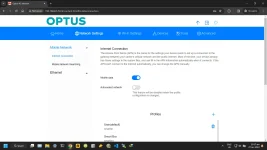
5. Create APN.
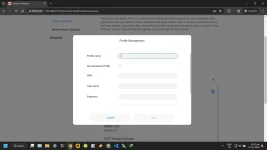
6. Open Developer Options which is pressed by F12.
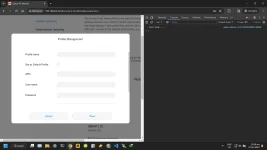
7. Go to "Console" and "Apply" this CODE.
You configure dns and apply it.
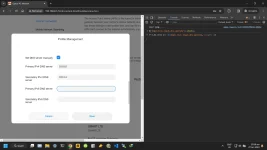
DHCP Option:
1. Open browser.
2. Visit router's ip address (default 192.168.8.1)
3. Login with password
4. Navigate Advance Settings > Router > DHCP
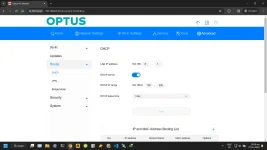
5. Open Developer Option(which can pressed by F12).
and paste this code:
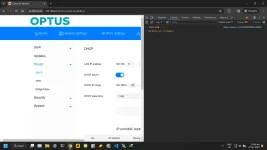
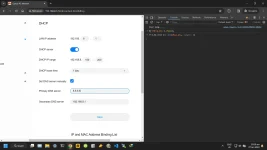
6. Now you can add the DNS on DHCP Option, however in this setup cannot save in some firmware.
This worked setup on PCs.
APN Option:
1. Open browser.
2. Visit router's ip address (default 192.168.8.1)
3. Login with password
4. Visit to "Network Settings" :
5. Create APN.
6. Open Developer Options which is pressed by F12.
7. Go to "Console" and "Apply" this CODE.
$('#apn_list_input_dns_operate').show();You configure dns and apply it.
DHCP Option:
1. Open browser.
2. Visit router's ip address (default 192.168.8.1)
3. Login with password
4. Navigate Advance Settings > Router > DHCP
5. Open Developer Option(which can pressed by F12).
and paste this code:
$('#dhcp_dns').show();6. Now you can add the DNS on DHCP Option, however in this setup cannot save in some firmware.