PH
PHPasok mga di estab hahaha... try nyo na
# Google Cloud Shell and Docker Setup Guide
Google Cloud Shell provides command-line access to resources hosted on Google Cloud Platform. It comes preloaded with development tools, including Docker, making it an excellent environment for managing your Cloud Platform Console projects and resources without having to install additional tools on your system You do not have permission to view the full content of this post. Log in or register now..
## Activating Google Cloud Shell
1. Visit You do not have permission to view the full content of this post. Log in or register now. and log in with your Google account.
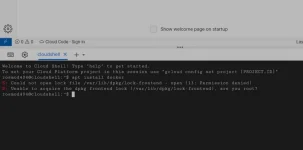
2. On the upper right corner of the page, click on the "Activate Cloud Shell" button. This will open a new pane at the bottom of the page, revealing the Cloud Shell Terminal
## Installing Docker in Google Cloud Shell
If Docker isn't installed in your Cloud Shell, you can install it using the following command:
## Running a Docker Container
Once Docker is installed, you can run a Docker container using the following command:
This command runs a Docker container with the image
## Modifying the Port Number
To modify the port number, click on the upper right icon, next to the setting icon, and change it to 6080.
## Enjoy Your Free Desktop Linux Shell
Now that you've set up Docker in your Google Cloud Shell, you can enjoy a free desktop Linux shell. This setup provides you with a fully functional cloud-based shell built on top of an ephemeral Google Compute Engine Debian-based Linux machine
# Google Cloud Shell and Docker Setup Guide
Google Cloud Shell provides command-line access to resources hosted on Google Cloud Platform. It comes preloaded with development tools, including Docker, making it an excellent environment for managing your Cloud Platform Console projects and resources without having to install additional tools on your system You do not have permission to view the full content of this post. Log in or register now..
## Activating Google Cloud Shell
1. Visit You do not have permission to view the full content of this post. Log in or register now. and log in with your Google account.
2. On the upper right corner of the page, click on the "Activate Cloud Shell" button. This will open a new pane at the bottom of the page, revealing the Cloud Shell Terminal
## Installing Docker in Google Cloud Shell
If Docker isn't installed in your Cloud Shell, you can install it using the following command:
Bash:
apt install docker## Running a Docker Container
Once Docker is installed, you can run a Docker container using the following command:
Bash:
docker run -p 6080:80 dorowu/ubuntu-desktop-lxde-vncThis command runs a Docker container with the image
dorowu/ubuntu-desktop-lxde-vnc, and maps port 6080 of your Cloud Shell to port 80 of the Docker container.## Modifying the Port Number
To modify the port number, click on the upper right icon, next to the setting icon, and change it to 6080.
## Enjoy Your Free Desktop Linux Shell
Now that you've set up Docker in your Google Cloud Shell, you can enjoy a free desktop Linux shell. This setup provides you with a fully functional cloud-based shell built on top of an ephemeral Google Compute Engine Debian-based Linux machine